
How to Change the Desktop Control Panel Icon in Vista
 Information
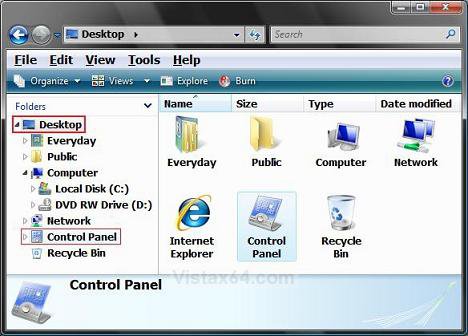
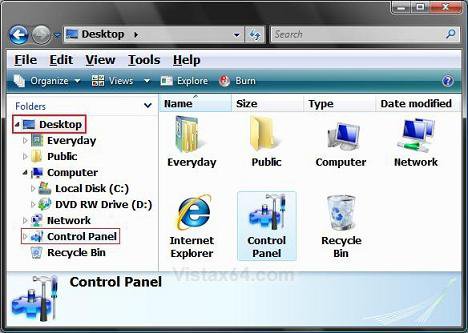
This will show you how to change the Control Panel icon on the Desktop and in the Windows Explorer Navigation Pane Folder section to any icon you want for all user accounts.
 Tip
TipFor how to have the Control Panel icon on the Desktop, see: How to Restore and Change a Desktop Icon in Vista
 Warning
The icons you decide to use must be a 256x256 bit .ico (icon) file, not .png, to be used in Vista without viewing problems. A png file must be converted to a 256x256 ico file before it can be used. To convert a PNG to ICO you must use a program such as this free 30 day trial program called Axialis IconWorkshop: Axialis IconWorkshop Download Page. Here's a good location for some icons: deviantArt: Dock Icons
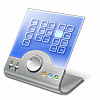
EXAMPLE: Before and After Control Panel Icon Change
Here's How:
1. Open the Start Menu.
2. In the white line (Start Search) area, type regedit and press Enter.
3. Click on Continue in the UAC prompt.
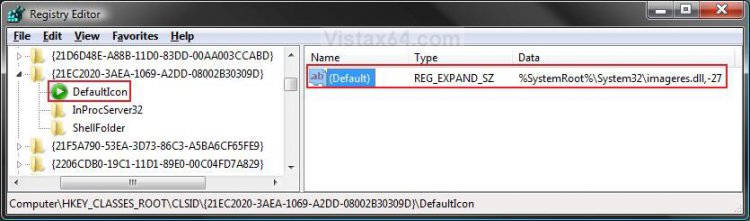
4. In regedit, go to: (See screenshot below step 5)
NOTE: CLSID is there. You just need to scroll past all the file extensions first.
Code:
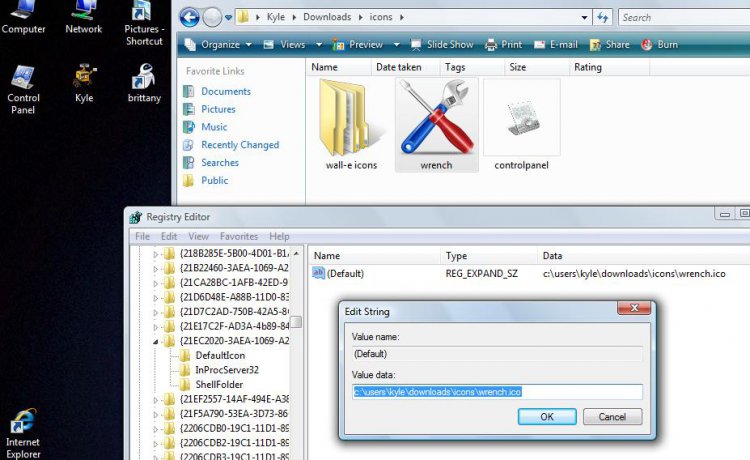
HKEY_CLASSES_ROOT\CLSID\{21EC2020-3AEA-1069-A2DD-08002B30309D}\DefaultIcon
5. In the right pane, right click on (Default) and click on Modify.
6. To Restore the Default Control Panel Icon -
A) Type %SystemRoot%\System32\imageres.dll,-27 and click on OK. (See screenshot below)
B) Go to step 8.
7. To Change the Control Panel Icon -
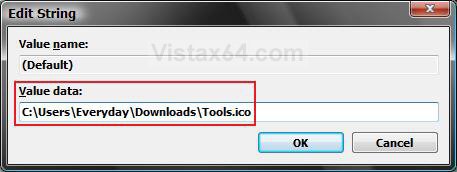
A) Type in the full path of where the icon is saved at and click on OK.
(EX: C:\Users\Everyday\Downloads\Tools.ico)
NOTE: The icon will need to remain in it's location for as long as you are using it. You can use any icon (.ico file) you want, or one that came with Vista. (EX: A .dll file path) See the How to Use a DLL OR EXE Icon Library File tip section below.
8. Close Regedit.
NOTE: The change will be immediate. You may need to press F5 to refresh the window to see the new icon though.
TipHow to Use a DLL OR EXE Icon Library File
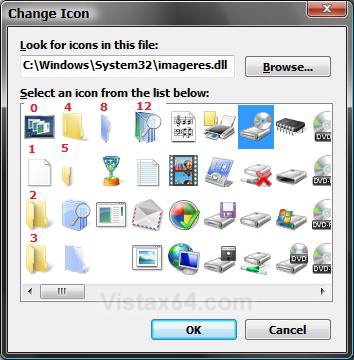
NOTE: Example: For a .dll library full path, you would type in something similar to this: C:\Windows\System32\imageres.dll,24
1. imageres.dll is just one the many icon library files that come with Vista. This one contains most of the different icons used by
Vista.
2. The ,24 is the icon's index number location inside the imageres.dll icon library.
NOTE: See the highlighted icon in the screenshot below.
3. You can determine this by counting the icons in the library. The top left icon is 0, and it counts vertically down until you run out
if icons. It then starts in the next column/row and repeats vertically down.
NOTE: See the added red numbers in the screenshot below to help understand this.
4. When you count to the highlighted icon, you get 24. Thus, the imageres.dll,24
NOTE: (Icon Library File),(Icon Index Number)
To see how to open a box like this to just see what the icon index number is, See: How to Change a Shortcut Folder or File Icon in Vista and How to Change a Folder Icon in Vista
NOTE: Example: For a .dll library full path, you would type in something similar to this: C:\Windows\System32\imageres.dll,24
1. imageres.dll is just one the many icon library files that come with Vista. This one contains most of the different icons used by
Vista.
2. The ,24 is the icon's index number location inside the imageres.dll icon library.
NOTE: See the highlighted icon in the screenshot below.
3. You can determine this by counting the icons in the library. The top left icon is 0, and it counts vertically down until you run out
if icons. It then starts in the next column/row and repeats vertically down.
NOTE: See the added red numbers in the screenshot below to help understand this.
4. When you count to the highlighted icon, you get 24. Thus, the imageres.dll,24
NOTE: (Icon Library File),(Icon Index Number)
To see how to open a box like this to just see what the icon index number is, See: How to Change a Shortcut Folder or File Icon in Vista and How to Change a Folder Icon in Vista
That's it,
Shawn
Related Tutorials
- How to Change a Folder Icon in Vista
- How to Change a Shortcut Folder or File Icon in Vista
- How to Change the Open Folder Icon in Vista
- How to Change a Folder Preview Picture in Vista
- How to Change a Icon in the Control Panel in Vista
- How to Restore and Change a Desktop Icon in Vista
- How to Change a Drive Icon in Vista
- How to Rebuild the Icon Cache in Vista
- How to Hide a Control Panel Icon in Vista
- How to Only Show Specified Control Panel Icons in Vista
- How to Enable or Disable the Control Panel in Vista
- How to Create a Power Options Shortcut in Vista
- How to Add or Remove Local Group Policy Editor from the Vista Control Panel
- How to Add or Remove Registry Editor from the Vista Control Panel
- How to Add User Accounts Netplwiz to the Control Panel in Vista
- How to Force Control Panel Home or Classic View in Vista
- How to Change a File Extension Type Icon in Vista
Attachments
Last edited by a moderator:




 )
)