How to Enable or Disable Folder Options in Vista or Windows 7
 Information
This will show you how to Remove (Disable) or Show (Enable) the Folder Options item from all Windows Explorer menus and from the Control Panel for all or specific users on the computer.
You must be logged in as an administrator to be able to do this tutorial.
You must be logged in as an administrator to be able to do this tutorial.
 Warning
If you did not disable Folder Options, then be sure to check to see if it may have been disabled by a virus or some other malware. Do a thorough scan with your antivirus and anti-spyware programs to be safe.
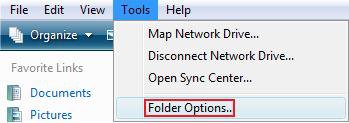
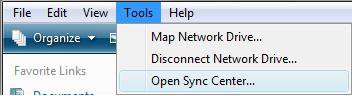
EXAMPLE: Before (Enabled) and After (Disabled)
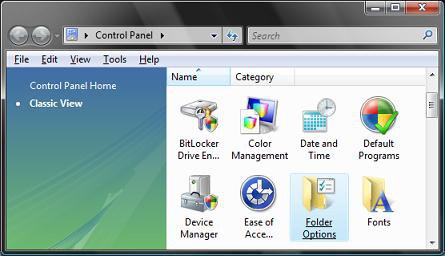
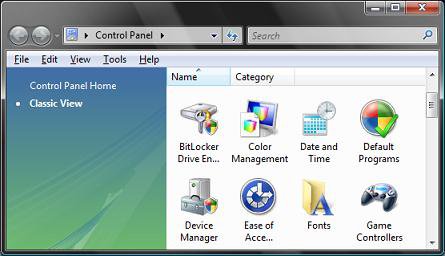
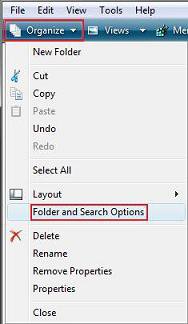
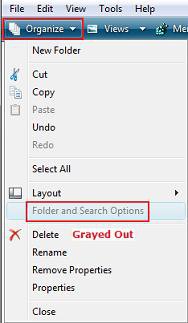
 METHOD ONE
1. Open the all users, specific users or groups, or all users except administrators Local Group Policy Editor for how you want this policy applied.
2. In the left pane, click on User Configuration, Administrative Templates, Windows Components, and Windows Explorer (See screenshot below)
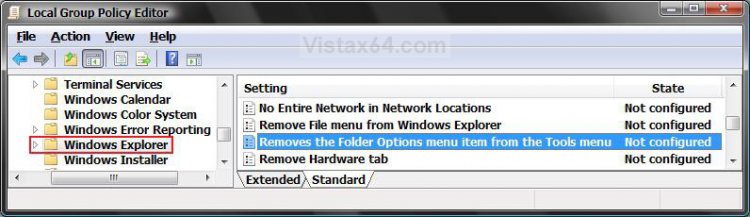
3. In the right pane, right click on Removes the Folder Options menu from the Tools Menu, and click on Properties. (See screenshot above)
4. To Enable Folder Options
A) Select (dot) Disabled or Not Configured and click on OK. (See screenshot below step 5A)
NOTE: This is the default setting.
B) Go to step 6.
5. To Disable Folder Options
A) Select (dot) Enabled and click on OK.
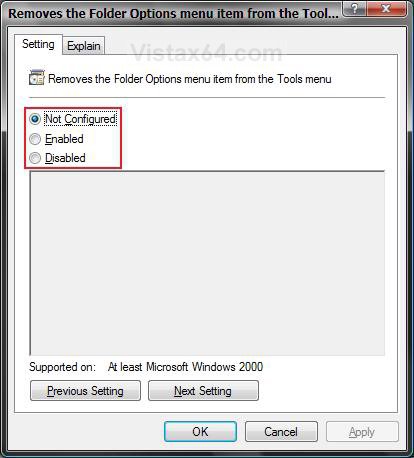
6. Close the Local Group Policy Editor window. Your done.
METHOD TWO 1. To Enable Folder Options
NOTE: This is the default setting.
A) Click on the Download button below to download the file below.
Enable_Folder_Options.reg

B) Go to step 3.
2. To Disable Folder Options
A) Click on the Download button below to download the file below.
Disable_Folder_Options.reg
3. Click on Save, and save the .reg file to the Desktop.
4. Right click on the downloaded .reg file and click on Merge.
5. Click on Run, Continue (UAC-Vista) or Yes (UAC-Windows 7), Yes, and then OK when prompted.
6. Log off and log on or restart the computer to apply the changes.
7. When done, you can delete the downloaded .reg file if you like.
METHOD THREE 1. Open the Start Menu, then type regedit in the search box and press Enter.
2. If prompted by UAC, then click on the Continue (Vista) or Yes (Windows 7).
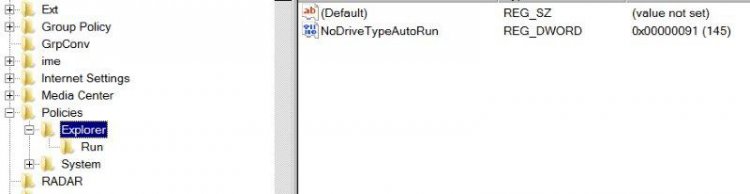
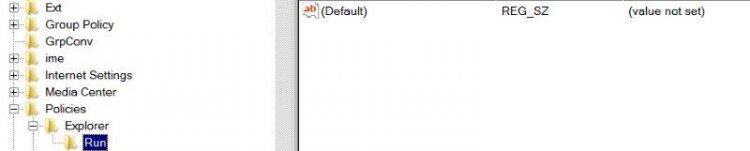
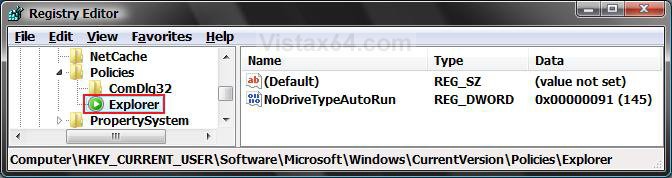
3. In regedit, go to: (See screenshot below)
NOTE: If Explorer is not there, then right click on Policies in the left pane and click on New and Key. Type Explorer and press Enter.
HKEY_CURRENT_USER\Software\Microsoft\Windows\CurrentVersion\Policies\Explorer
4. To Disable Folder Options
A) In the right pane, right click on a empty area and click on New and DWORD (32-bit) Value. (See screenshot below)
B) Type NoFolderOptions and press Enter.
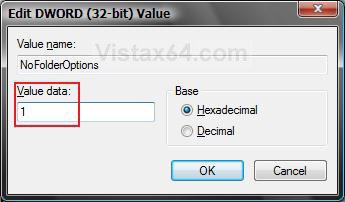
C) Right click on NoFolderOptions and click on Modify.
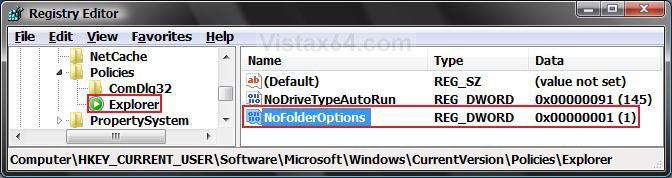
D) Type 1 and click on OK. (See screenshot below)
E) Go to step 6.
5. To Enable Folder Options
A) In the right pane, right click on NoFolderOptions and click on Delete. (See screenshot below step 4C)
B) Click on Yes to confirm delete.
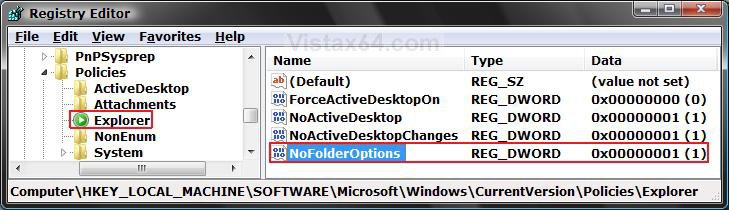
C) In regedit, go to: (See screenshot below)
HKEY_LOCAL_MACHINE\SOFTWARE\Microsoft\Windows\CurrentVersion\Policies\Explorer
D) In the right pane, repeat steps 5A and 5B if NoFolderOptions is there to.
6. Close regedit.
7. Log off and log on or restart the computer to apply the changes.
That's it's,Shawn
Attachments

Last edited: