
Cannot Rename or Move a File or Folder in Vista Fix
 Information
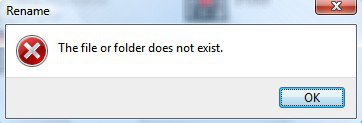
If you recieve the error The File or Folder does not exist when you cannot move or rename a file or folder, then this will show you how to fix this problem in Vista.
 Note
NoteThis problem usually occurs when this registry key or it's subkeys below gets corrupted, changed, or deleted. This is usually done by a registry cleaning program that was allowed to delete (fix) something it found wrong that should not have been.
HKEY_LOCAL_MACHINE\SOFTWARE\Microsoft\Windows\CurrentVersion\explorer\FolderDescriptions
HKEY_LOCAL_MACHINE\SOFTWARE\Microsoft\Windows\CurrentVersion\explorer\FolderDescriptions
 Tip
TipIf the steps below do not help, then take ownership of the file or folder, then try to move or rename it again. For how, see: How to Take Ownership of a Item in Vista
EXAMPLE: The File or folder does not exist. Error Message
 STEP ONE
  Note
NoteThis will only apply to the Vista Business, Ultimate, and Enterprise editions. If you do not have one of these editions, then skip this section and go to STEP TWO below.
1. Open the Control Panel (Classic View).
2. Click on the Offline Files icon.
3. Click on the Disable Offline Files button. (See screenshot below step 5)
NOTE: If it says Enable Offline Files instead, then click on it and click Apply and then click Disable Offline Files.
4. Click on Continue in the UAC prompt.
5. Click on OK.
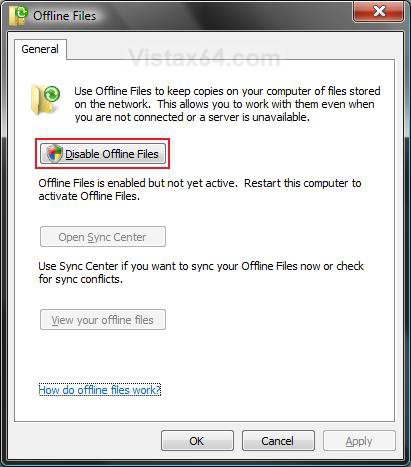
6. Click on Yes to restart the computer. (See sceenshot below)
WARNING: To prevent any loss of data, be sure to save and close all open programs before clicking Yes.

STEP TWO Note- This will restore the default entries and settings for the registry key at the top of the tutorial. Be sure to download the 32 bit or 64 bit version for your version of Vista. To see what bit version you have of Vista, open the Control Panel (Classic View) and click the System icon, or right click Computer in the Start Menu and click Properties. You will see the bit version under the System type section.
- If this involves a New folder, then you should also do this tutorial. See: How to Fix New Folder in Vista
1. For the 32 bit version of Vista -
A) Click on the download button below to download the reg file below.
Fix_Rename_32_Bit_ Vista.reg

B) Go to step 3.
2. For the 64 bit version of Vista -
A) Click on the download button below to download the reg file below.
Fix_Rename_64_Bit_Vista.reg
3. Save the .reg file to the Desktop.
4. Right click on the downloaded .reg file and click on Merge.
5. Click on the Run button in the Security Warning pop-up.
6. Click on Continue (UAC-Vista) or Yes (UAC-Windows 7), Yes, and then OK when prompted.
7. Restart the computer to apply the restoration.
8. When done, you can delete the .reg file (on Desktop).
That's it,Shawn
Related Tutorials
- How to Fix New Folder in Vista
- How to Pin a Folder to the Start Menu in Vista
- How to Repair and Verify the Integrity of Vista System Files with System File Checker
- How to Restore Previous Versions of a File and Folder in Vista
- How to Open and Change Folder Options in Vista
- How To Perform a Repair Installation For Vista
- How to Do a System Restore in Vista
- How to Take Ownership of a Item in Vista
- How to Set and Unset the Read-only File and Folder Attribute in Vista
- How to Fix Game Shortcut Links in Vista Games Explorer
Attachments

Last edited:


 .
.
