
How to Add or Remove "Registry Editor" to the Control Panel in Windows
 Information
This will show you how to add Registry Editor (regedit) to the Control Panel Vista, Windows 7, and Windows 8.
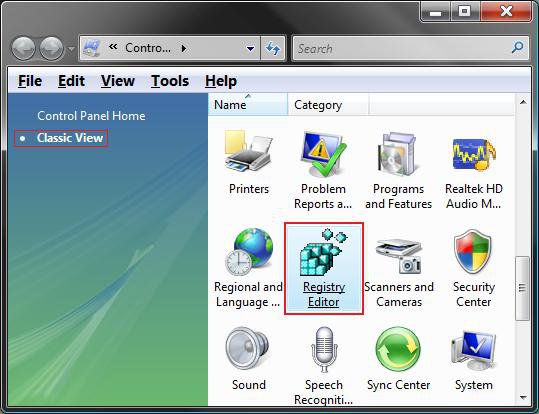
EXAMPLE: Registry Editor Added to the Classic View Control Panel
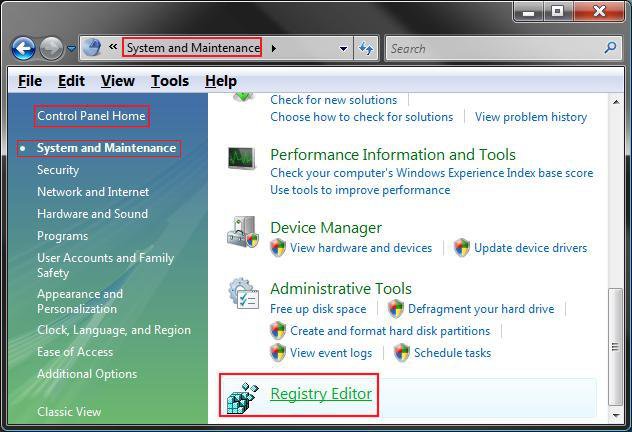
EXAMPLE: Registry Editor Added to the Control Panel HomeNOTE: You will need to click on the System and Maintenance link first.
Here's How:
1. To "Add Registry Editor" to Control Panel
A) Click/tap on the download button below to download the file below.
Add_Regedit_ControlPanel.reg

B) Go to step 3.
2. To Remove "Registry Editor" from Control Panel
NOTE: This is the default setting.
A) Click/tap on the download button below to download the file below.
Remove_Regedit_ControlPanel.reg
3. Save the .reg file to the Desktop.
4. Double click/tap on the downloaded .reg file to Merge it.
5. Click/tap on Run, Yes, Yes (UAC-Windowws 7/8) or Continue (UAC-Vista), and OK when prompted.
6. When finished, you can delete the .reg file if you like.
That's it,Shawn
Related Tutorials
- How to Change a Icon in the Control Panel in Vista
- How to Change the Desktop Control Panel Icon in Vista
- How to Only Show Specified Control Panel Icons in Vista
- How to Hide or Show Icons in the Control Panel in Vista, Windows 7, and Windows 8
- How to Enable or Disable the Control Panel in Vista
- How to Fix a Slow Scan in a Registry Cleaner Program in 64 bit Vista
- How to Enable or Disable Regedit in Vista and Windows 7
- How to Add or Remove "Local Group Policy Editor" from the Vista Control Panel
- How to Add or Remove "All Tasks" (God Mode) from Control Panel in Windows
- How to Add or Remove "Hyper-V Manager" to Control Panel in Windows 8
- How to Add "User Accounts Netplwiz" to the Control Panel in Vista
- How to Force Control Panel Home or Classic View in Vista
- How to Use the Registry Editor in Vista and other Techniques
- How to Find Text in the Vista Registry Editor - Regedit
- How to Backup and Restore the Registry in Windows 7 and Vista
- How to Add or Remove "Services" from Control Panel in Windows
- How to Add or Remove "System Configuration" (msconfig) from Control Panel in Windows
Attachments

Last edited: