
How to Enable or Disable Windows Update Start Menu Power Button Alert in Vista
 Information
This will show you how to enable or disable Windows Update from taking over and displaying the Install Updates and Shut down alert shield icon on the Start Menu power button, then installs the available Windows Update when you click on the power button instead. This is enabled by default in Vista.
 Note
NoteIf you wanted to keep the Windows Update alert icon shield on the Start Menu power button, but with the Start Menu power button you set instead of with Shut Down, then see: How to Add or Remove Install Updates and Shut Down to the Vista Start Menu instead.
 Warning
Disabling this option will prevent all Windows Update Install Updates and Shut down alert options from working in the Start Menu shutdown areas.
EXAMPLE: Start Menu Power Button with "Install Updates and Shut Down" Alert Enabled and Disabled
NOTE: You will only see the Install Updates and Shut Down alert shield if there was an available Windows Update to install.


 OPTION ONE
1. Open the all users, specific users or groups, or all users except administrators Local Group Policy Editor for how you want this policy applied.
2. In the left pane, click on User Configuration, Administrative Templates, Windows Components, and Windows Update. (See screenshot below)
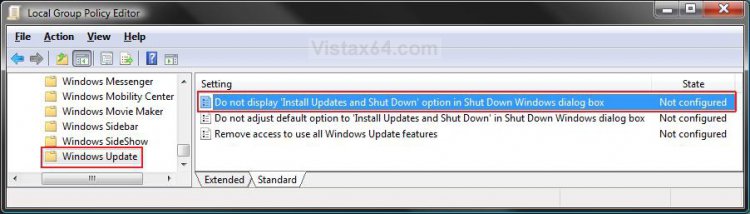
3. In the right pane, right click on Do not display 'Install Updates and Shut Down' option in Shut Down Windows dialog box and click on Properties. (See screenshot above)
4. To Enable Install Updates and Shut Down Option
A) Select (dot) Disabled or Not Configured and click on OK. (See screenshot below 5A)
B) Go to step 6.
5. To Disable Install Updates and Shut Down Option
A) Select (dot) Enabled and click on OK.
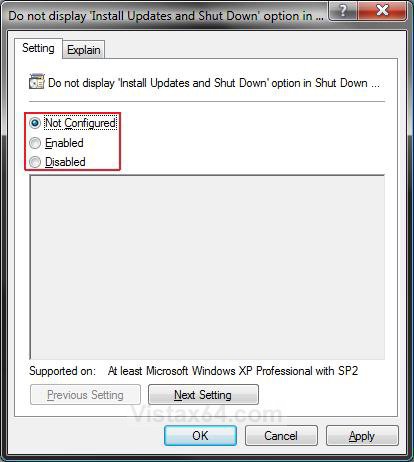
6. Close the Local Group Policy Editor window.
OPTION TWO 1. To Enable Install Updates and Shut Down Option
A) Click on the Download button below to download the file below.
Enable_WU_PowerButton_Alert.reg

B) Go to step 3.
2. To Disable Install Updates and Shut Down Option
A) Click on the Download button below to download the file below.
Disable_WU_PowerButton_Alert.reg
3. Click on Save, and save the .reg file to the Desktop.
4. Right click on the downloaded .reg file and click on Merge.
5. Click on Run, Continue (UAC), Yes, and then OK when prompted.
6. When done, you can delete the downloaded .reg file if you like.
7. Log off and log on, or restart the computer to apply.
OPTION THREE 1. Open the Start Menu.
2. In the white line (Start Search) area, type regedit and press Enter.
3. Click on the Continue button in the UAC prompt.
4. In regedit, go to: (See screenshot below)
NOTE: If you do not have WindowsUpdate in the left pane, then right click on Windows and click on New and Key. Type WindowsUpdate and press Enter.
HKEY_CURRENT_USER\Software\Policies\Microsoft\Windows\WindowsUpdate
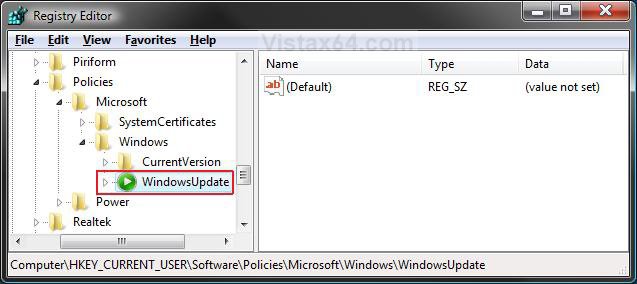
5. To Disable Install Updates and Shut Down Option
A) In the left pane, right click on WindowsUpdate and click on New and Key. Type AU and press Enter. (See screenshot below)
NOTE: If you already have AU in the left pane, then skip this step 5A and go to step 5B instead.
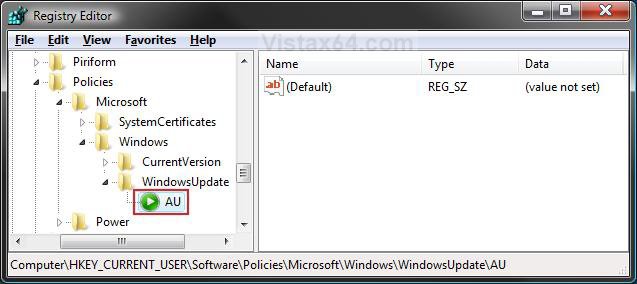
B) In the right pane of AU, right click on a empty space and click on New and DWORD (32-bit) Value. Type NoAUShutdownOption and press Enter. (See screenshot below)
C) Right click on NoAUShutdownOption and click on Modify.
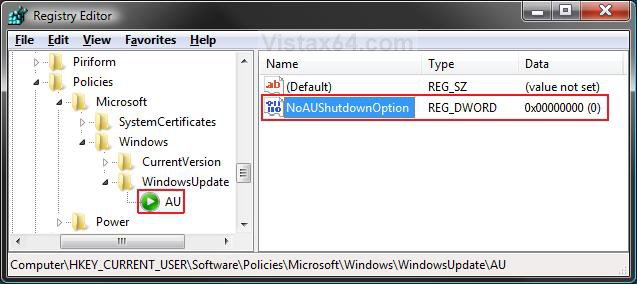
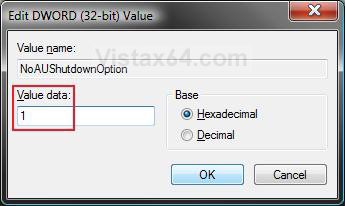
D) Type 1 and click on OK. (See screenshot below)
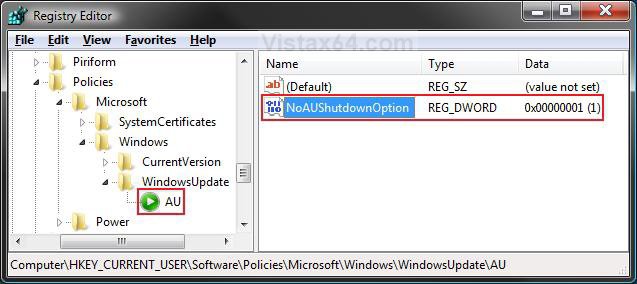
E) The registry will now look like this. (See screenshot below)
F) Go to step 7.
6. To Enable Install Updates and Shut Down Option
A) In the right pane, right click on NoAUShutdownOption and click on Delete. (See screenshot above)
B) Click on Yes to confirm deletion.
7. Close regedit.
8. Log off and log on, or restart the computer to apply.
That's it,Shawn
Related Tutorials
- How to Hide or Unhide a Windows Update in Vista
- How to Uninstall a Windows Update in Vista
- How to Turn Windows Update Automatic Updating On or Off in Vista
- How to Disable or Enable the Security Center Alert Warning Notification in Vista
- How to Change Power Button Settings for the Start Menu and Case in Vista
- How to Add or Remove Install Updates and Shut Down to the Vista Start Menu
- How to Fix the Windows Update 80246005 Error in Vista
- How to Enable or Disable Windows Updates from Automatically Restarting the Computer
- How to Reset Windows Update in Windows 7 and Vista
Attachments

Last edited:


