
How to Enable or Disable SmartScreen Filter in Internet Explorer 8
 Information
SmartScreen (Phishing) Filter is designed to warn you if the website you are visiting is impersonating another website or contains threats to you computer. This will show you how to enable to disable the SmartScreen Filter in Internet Explorer 8. For more about SmartScreen Filter, see: Internet Explorer 8: More secure, private, and reliable
 Note
NoteSmartScreen Filter helps protect you against inadvertent installation of malware—or malicious software—which can compromise your data, privacy, and identity while also damaging your computer and valuable data. Today Internet Explorer is detecting over 1 million attempts to visit known phishing sites weekly.
- Malware is software that designed to damage your computer, such as a computer virus. It may download without your knowledge or permission.
- Phishing allows criminals to obtain your personal information (like your credit card number) by pretending to be a legitimate organization, such as your bank.
 Tip
TipFor more information about Internet Explorer 8 and how to download it, see: Windows Internet Explorer 8: Home page
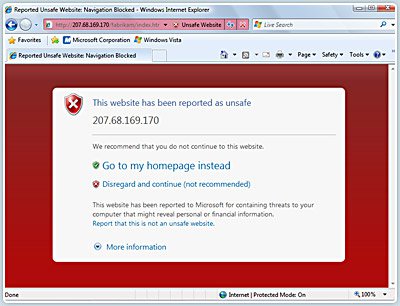
EXAMPLE: SmartScreen Filter Enabled with a Considered Unsafe Website
NOTE: If the SmartScreen Filter is enabled and you attempt to visit a website that isn't considered safe, the below screen will appear prompting you to take alternative actions. You will also be notified if you attempt to download software that is potentially unsafe.
 OPTION ONE
1. Open Internet Explorer 8.
A) Click on Tools (Menu Bar or Command Bar icon button)
B) Go to step 3.
OR
2. Open the Control Panel (Classic View).
3. Click on Internet Options.
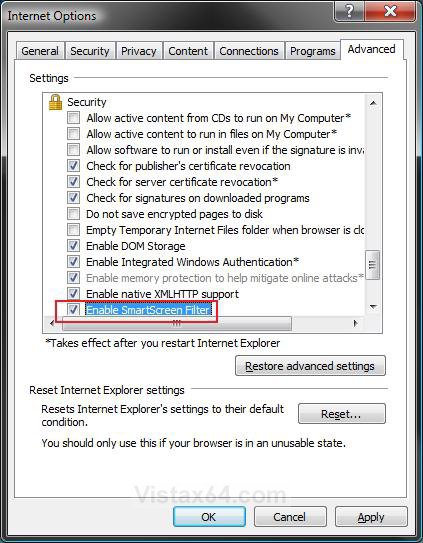
4. Click on the Advanced tab and scroll down to the Security section. (See screenshot below)
5. To Turn On the SmartScreen Filter
A) Check the Enable SmartScreen Filter box, and click on OK.. (See screenshot above)
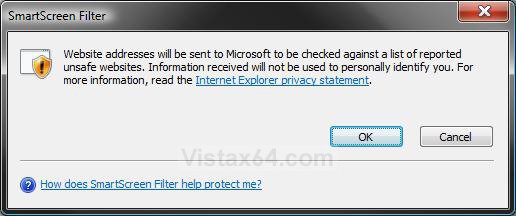
B) Click on OK to confirm. (See screenshot below)
7. To Turn Off the SmartScreen Filter
A) Uncheck the Enable SmartScreen Filter box, and click on OK. (See screenshot below step 4)
OPTION TWO 1. Open Internet Explorer 8.
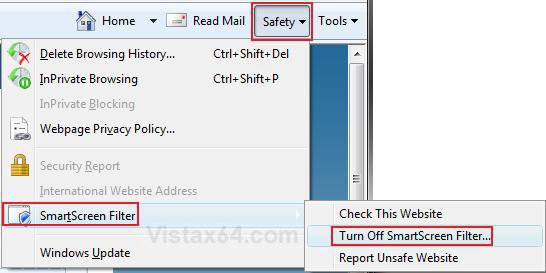
2. Click on the Safety icon button on the Command Bar. (See screenshot below)
3. To Enable SmartScreen Filter
NOTE: This is if it SmartScreen Filter is currently disabled.
A) Click on SmartScreen Filter and Turn On SmartScreen Filter. (See screenshot above)
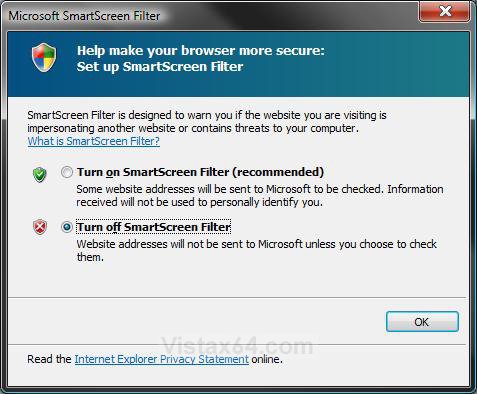
B) Dot Turn on SmartScreen Filter (recommended) and click on OK. (See screenshot below step 4)
4. To Disable SmartScreen Filter
NOTE: This is if it SmartScreen Filter is currently enabled.
A) Click on SmartScreen Filter and Turn Off SmartScreen Filter. (See screenshot below step 2)
B) Dot Turn off SmartScreen Filter and click on OK. (See screenshot below)
That's it,
Shawn
Attachments

Last edited by a moderator: