
How to Reset the Pin To Start Menu Area in Vista
 Information
This will show you how to reset the Pin to Start Menu area to remove all current pinned items and restore the default pinned items in Vista. This is helpful if you cannot "Unpin from Start Menu" a item.
EXAMPLE: Pin to Start Menu area "set by you" and "reset to default"
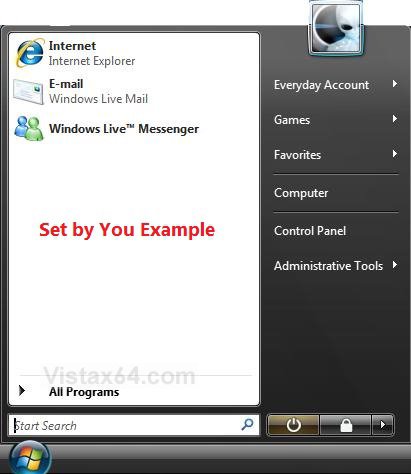
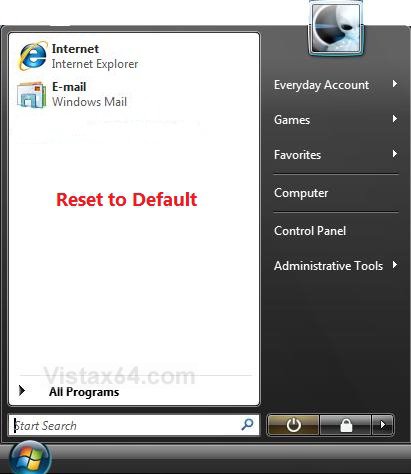
 OPTION ONE
1. Click on the Download button below to download the file below.
Reset_Pin_to_Start_Menu.zip

2. Click on Save, and save the .zip file to the desktop.
3. Open the .zip file and extract the .reg file to the desktop.
4. Right click the extracted .reg file and click on Merge.
5. Click on Run, Continue, Yes, and OK when prompted
.
6. Restart the computer.
7. When done, you can delete the downloaded .reg and .zip files if you like.
OPTION TWO 1. Open the Start Menu.
2. In the Start menu search box at the bottom, type regedit and press Enter. (See screenshot below)
3. In regedit, go to: (See screenshot below)
HKEY_CURRENT_USER\Software\Microsoft\Windows\CurrentVersion\Explorer\StartPage
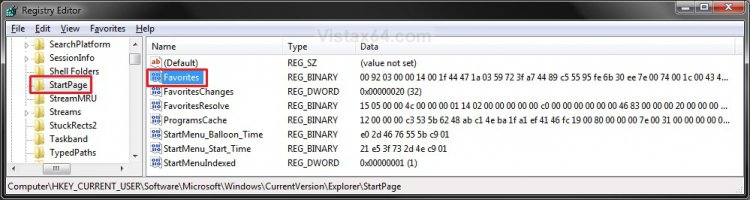
4. In the right pane, right click on Favorites and click on Delete. (See screenshot above)
NOTE: The long binary number for the Favorites Data value is the list of pinned items. Since it cannot be easily edited, deleting it will be easier to reset it.
5. Click on Yes to confirm the deletion.
6. Close regedit and restart the computer.
That's it,Shawn
Attachments
Last edited: