
How to Do a Custom Installation of Vista
 Information
This will show you how to do custom installation to have a clean install of Vista without formating the current Windows installation to have this previous Windows backed up to the Windows.old folder during the installation of Vista.
 Note
Note This will replace your currently installed Windows installation with Vista.
The C:\Windows.old folder contains all of the folders and files that were in the previous installation of Microsoft Windows.
The C:\Windows.old folder contains all of the folders and files that were in the previous installation of Microsoft Windows.
 Warning
MINIMUM SYSTEM REQUIREMENTS FOR VISTA
NOTE: For more information, see: Microsoft Windows Vista: Recommended System Requirements
Vista Home Basic
NOTE: For more information, see: Microsoft Windows Vista: Recommended System Requirements
Vista Home Basic
- Processor: 1GHz (32 or 64 bit)
- System Memory (RAM): 512MB
- Hard Drive: 20GB with 15GB available for Vista
- Video Card: 32MB Memory and DirectX 9 Support
- DVD-ROM Drive
- Processor: 1GHz (32 or 64 bit)
- System Memory (RAM): 1GB
- Hard Drive: 40GB with 15GB available for Vista
- Video Card: 128MB Memory, DirectX 9 Support with: WDDM Driver, Pixel Shader 2.0, 32bits per pixel
- DVD-ROM Drive
Here's How:
1. To Install from Within Current Windows Installation
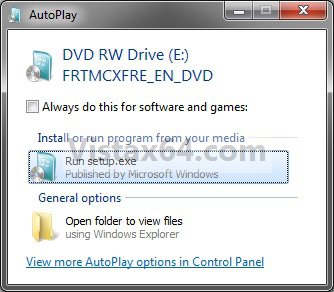
A) Place your Vista installation DVD (full version) into the DVD drive and click on the Run setup.exe option in the AutoPlay window from within Vista SP1. (See screenshot below)
NOTE: If the AutoPlay window does not open, then open the drive folder in Computer and run the setup.exe file.
B) Go to step 3 below.
2. To Install from Boot
A) Boot the computer from your Vista installation DVD (full version).
NOTE: Make sure that the CD/DVD drive is selected first in the boot order in the BIOS.
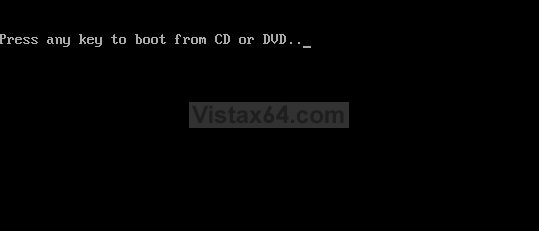
B) When prompted, press any key to boot from the installation DVD. (See screenshot below)
NOTE: You will only have about 8 seconds to press this key. If you miss it, you will have to restart the computer.
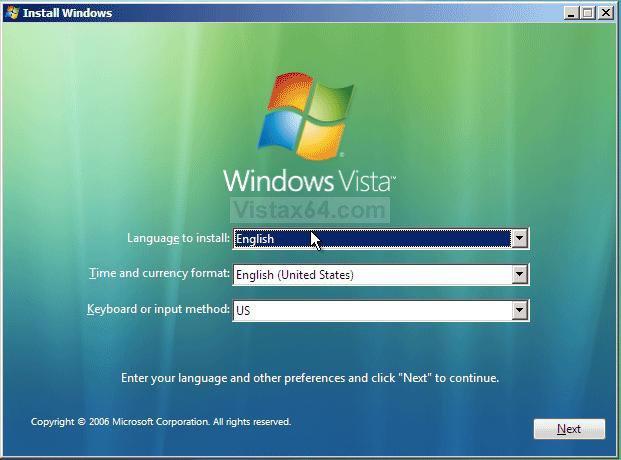
C) Select your language preferences and click on the Next button. (See screeshot below).
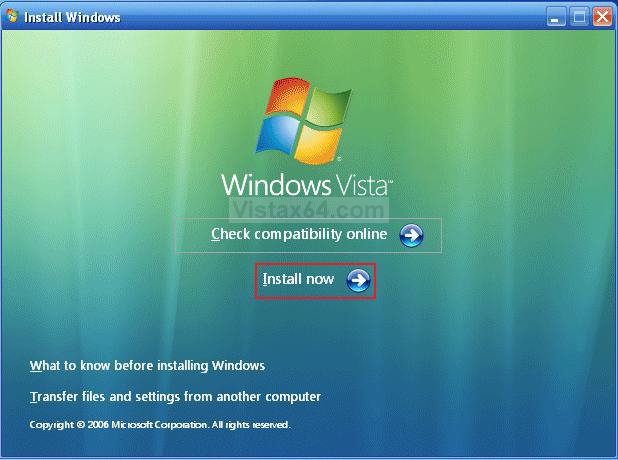
3. Click on the Install Now button to start the installation. (See screenshot below)
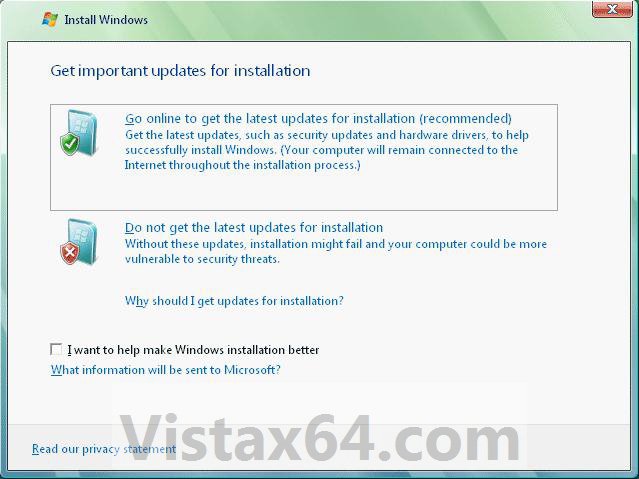
4. If you did step 1, then uncheck the I want to help make Windows installation better box (unless you want to), and click on the Go online to get the latest updates for installation option. (See screenshot below)
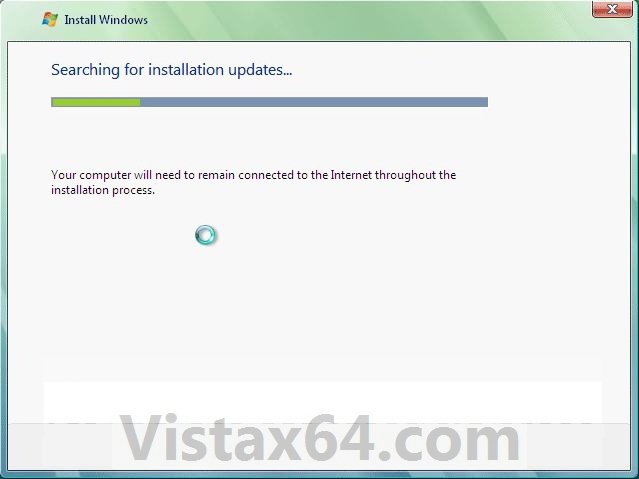
5. If you did step 1, Vista will now check online for and install any available installation updates. (See screenshot below)
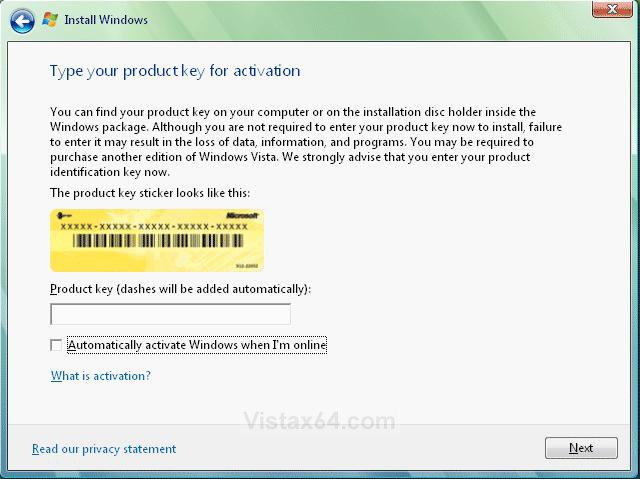
6. Type in your Vista product key number for the edition that you are installing. (See screenshot below step 7)
7. Uncheck the Automatically activate Windows when I'm online box unchecked, then click on the Next button. (See screenshot below)
NOTE: You can activate Vista later after you make sure it is running properly. (See step 23 below)
If you chose to automatically activate Vista online when you set up your computer, automatic activation begins trying to activate your copy of Windows three days after you log on for the first time.
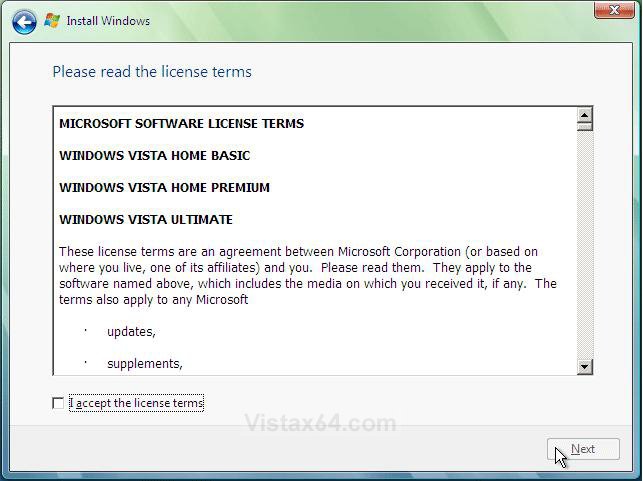
8. Check the I accept the license terms box and click on Next. (See screenshot below)
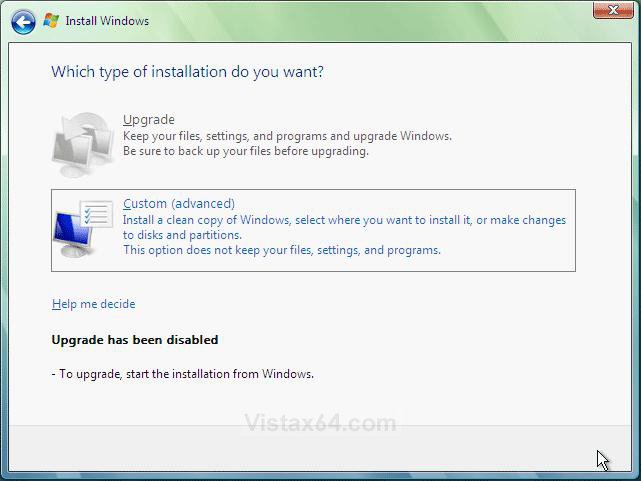
9. Click on the Custom (advanced) option. (See screenshot below)
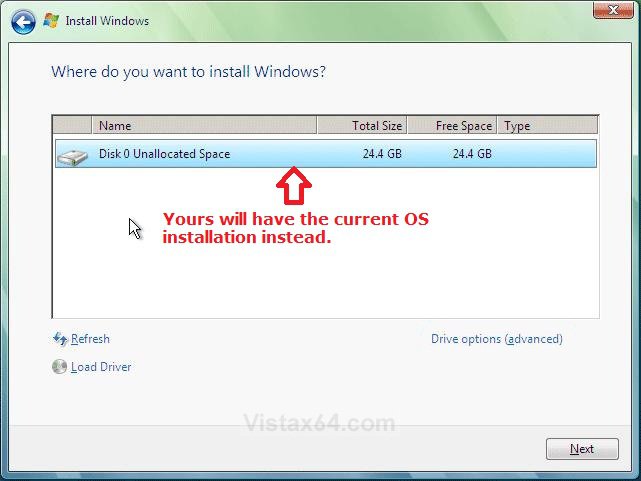
10. Select the hard drive or partition for the currently installed Windows installation that you want to install Vista on and click on the Next button. (See screenshot below)
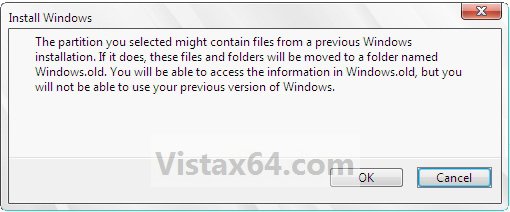
11. Click on OK. (See screenshot below)
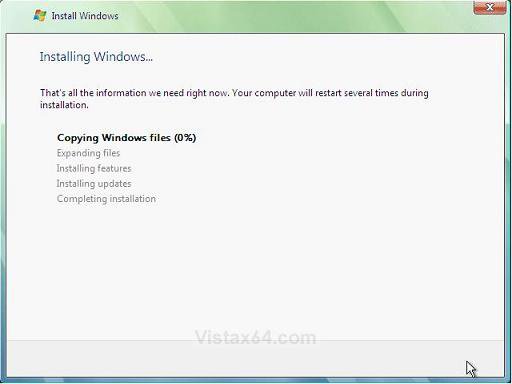
12. The installation of Vista will now begin. (See screenshot below)
NOTE: During the installation process, your screen may flash and computer will restart a few times.
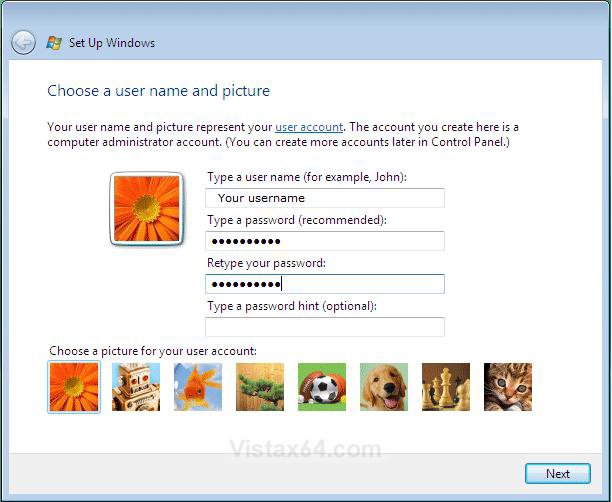
13. When it's finished, type in a user name, password, optional password hint, and select a display picture for your administrator user account, then click on Next. (See screenshot below)
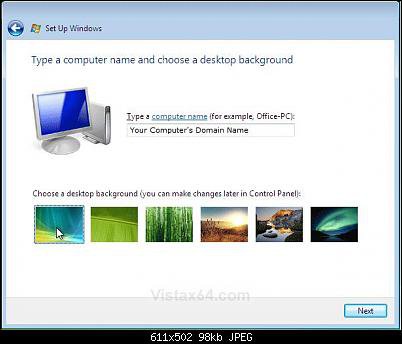
14. Type in a computer name and choose a Desktop Background, then click on Next. (See screenshot below)
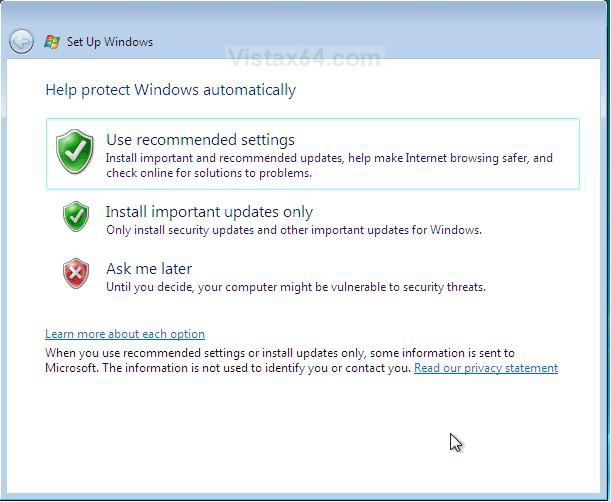
15. Click on Use recommended settings. (See screenshot below)
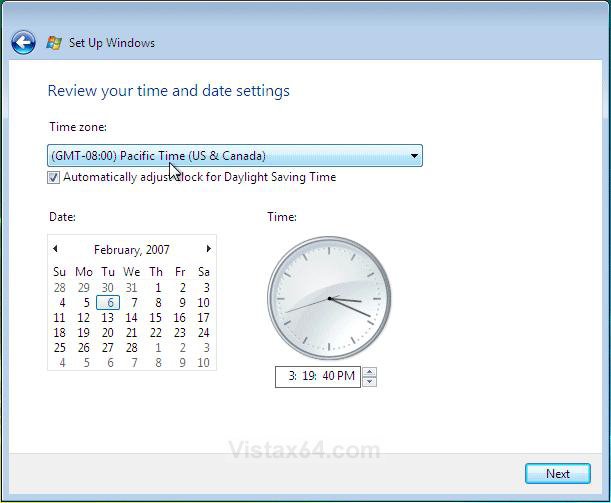
17. Click on your computer's location to select it for the network location settings. (See screenshot below)
NOTE: It is best to select Public location for the best security.
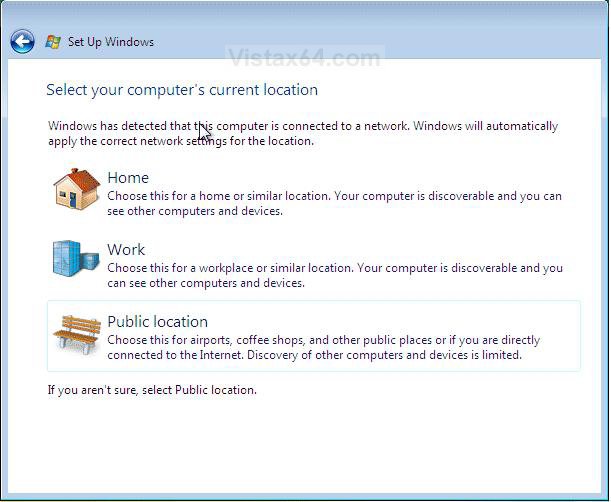
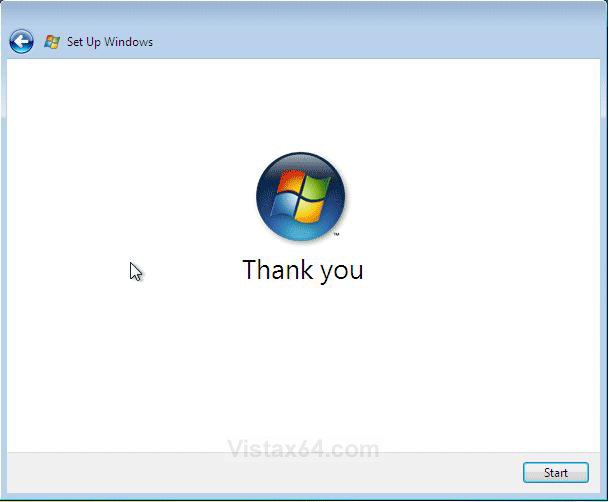
18. Click on Start to boot Vista for the first time. (See screenshot below)
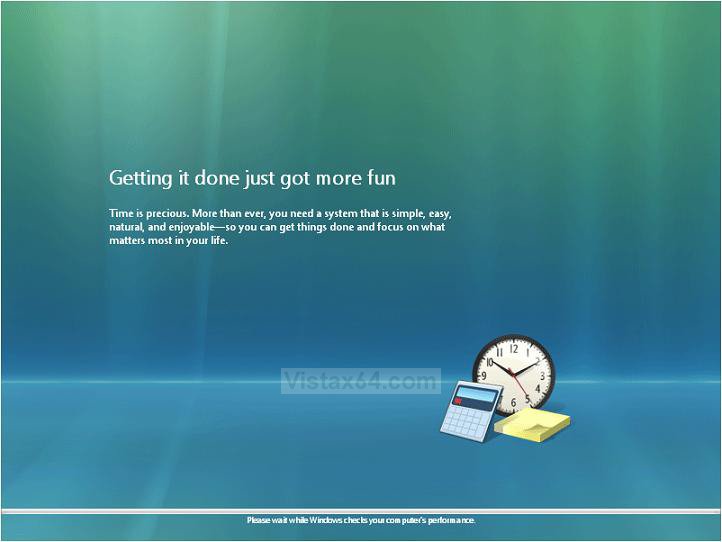
19. Before Vista boots for the first time it must perform a performance check to see what features to turn on or off. (See screenshots below)
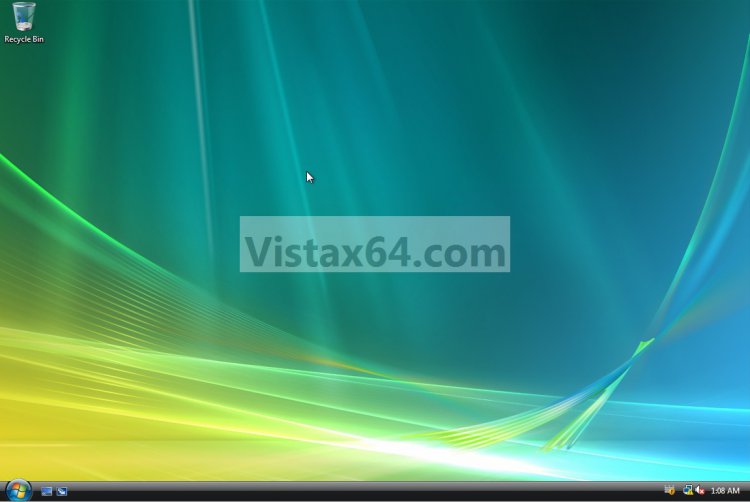
20. Install all of your device drivers, then Windows Updates.
21. Update your WEI score.
22. Copy anything from the prevous installation from the C:\Windows.old folder that you want back.
NOTE: When done, you can delete the Windows.old folder to save hard drive space.
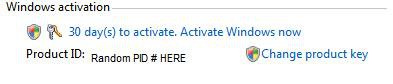
23. When it is done, all you will need to do is to activate Vista. (See screenshot below)
That's it,
Shawn
Related Tutorials
- How to Delete the Windows.old Folder in Vista
- How to Restore your Windows.old Folder into a New Installation
- How to Perform a Repair Installation for Vista
- How to Do a Clean Install with a Full Version of Vista
- How to Do a Clean Install of Vista with a Upgrade Version
- How to Create a Vista SP1 Slipstream Installation DVD
- How to Create a Bootable USB Flash Thumb Drive to Install Vista
- How to Do a Dual Boot Installation with Windows 7 and Vista
- How to Do a Dual Boot Installation with Windows Vista and XP
- How to Do a Upgrade Installation with Windows 7
- How to Create a Vista Recovery Disc
Attachments
Last edited by a moderator:


