
How to Upload and Post a Screenshot and File in Vista Forums
 Information
This tutorial will show you how to upload, attach, and post a screenshot, image, or a file in your post here at Vista Forums.
CONTENTS:
- Option One: To Insert Image into Post
- Option Two: To Attach Files to Post
 OPTION ONE
2. Drag and drop the image from your computer to where you want into your post, and go to step 8 below. (see screenshot below)

3. Place the cursor in your post where you want to insert the image at, click/tap on the Insert image (Ctrl+P) button on the toolbar of your post, and go to step 4 below. (see screenshot below)

5. Drag and drop the image from your computer into the Drop Image box, and go to step 8 below. (see screenshot below)


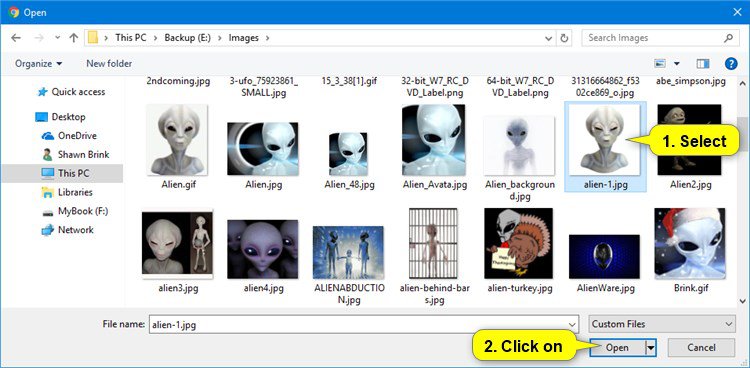
7. Browse to and select the image you want to insert, click/tap on Open, and go to step 8 below. (see screenshot below)
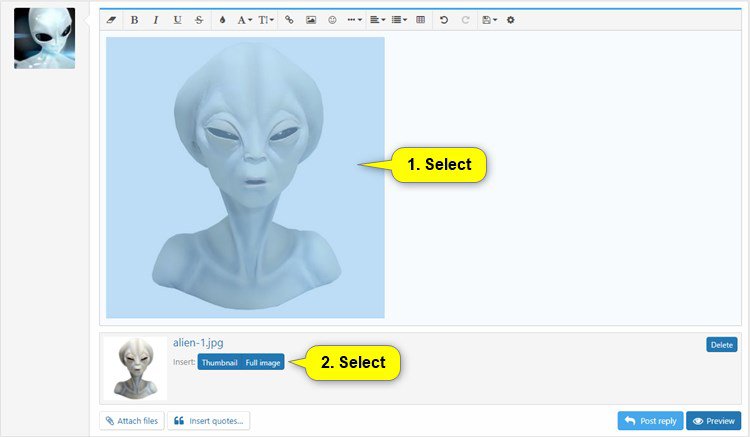
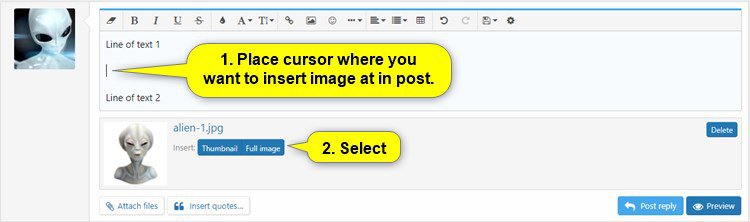
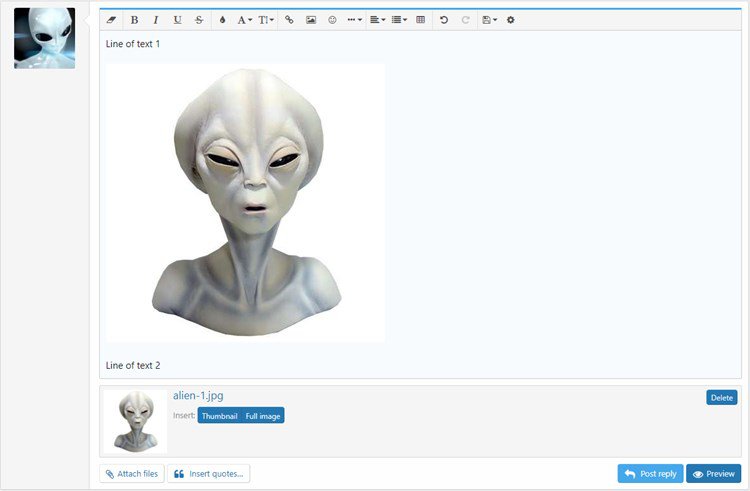
8. Select the now attached image in your post, and select if you want a Thumbnail (recommended) or Full image version of this image. (see screenshot below)
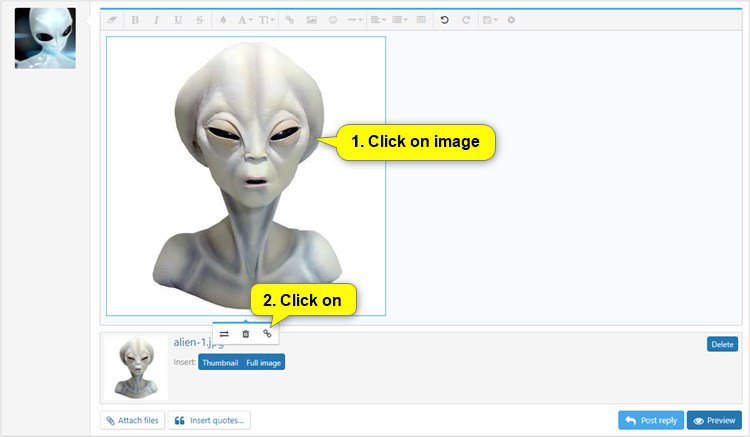
9. If you want to add a link to the image, then click/tap on the image in your post, and click/tap on the Insert link icon. (see screenshot below)
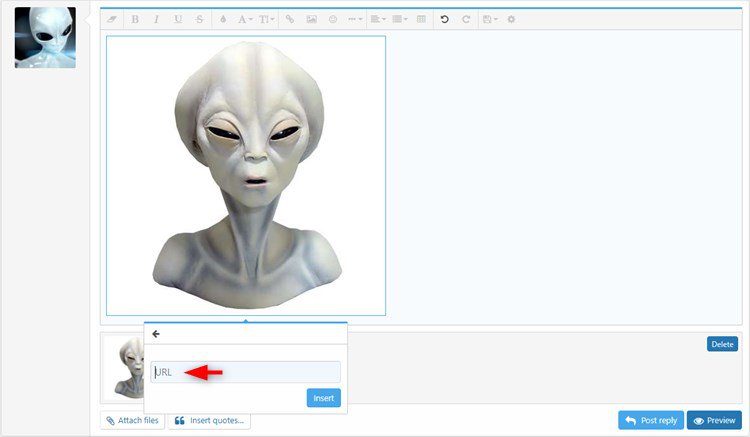
A) Type the URL address you want for the link, and click/tap on Insert. (see screenshots below)
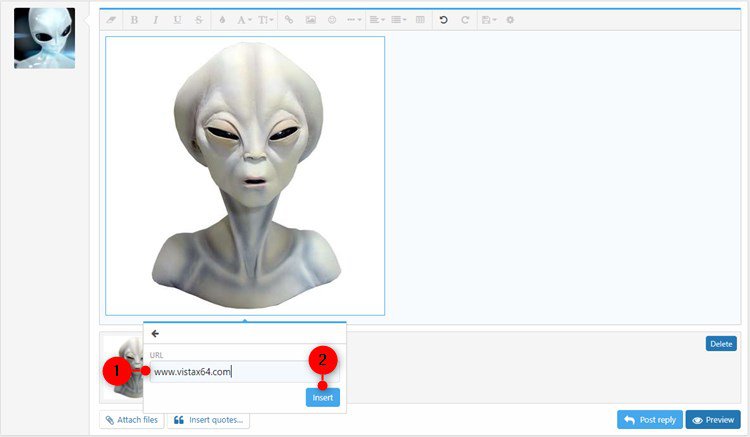
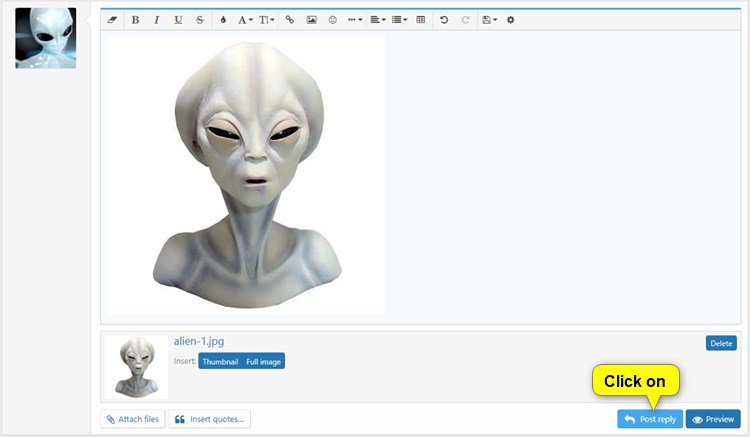
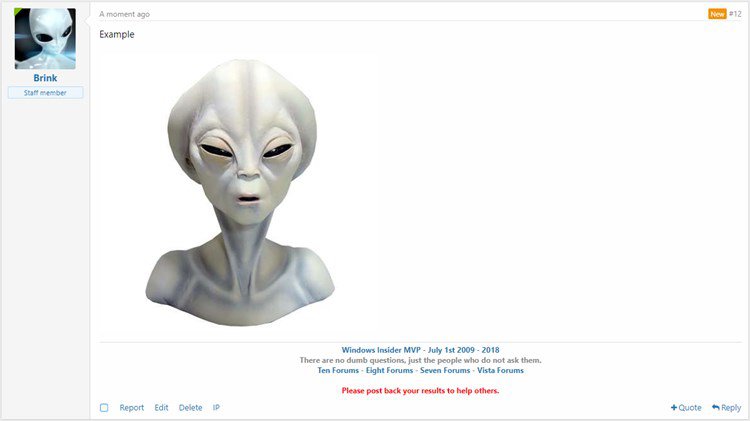
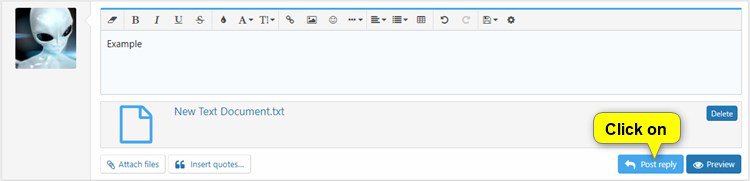
10. When you are ready to submit your post, click/tap on the Post reply button. (see screenshots below)
 OPTION TWO
 1. Click/tap on the Attach files button at the bottom left of the post box. (see screenshots below)

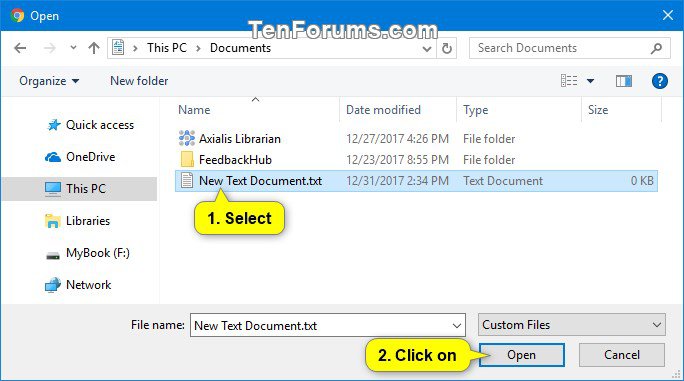
2. Browse to and select the file you want to attach, and click/tap on Open. (see screenshot below)
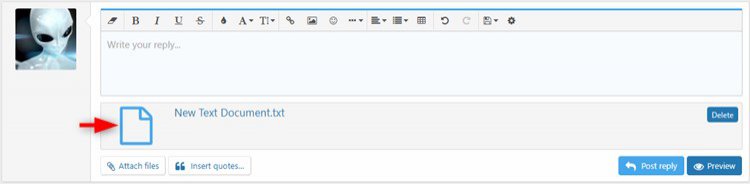
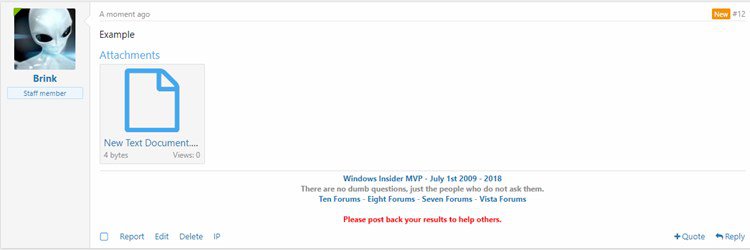
4. If you uploaded a file, you will now see it listed at the bottom. Go to step 6 below. (see screenshot below)
5. If you uploaded an image, place the cursor in your post where you want to insert the image, select if you want a Thumbnail (recommended) or Full image version of this image, and go to step 9 in Option One above. (see screenshots below)
6. When you are ready to submit your post, click/tap on the Post reply button. (see screenshots below)
That's it,
Shawn
Attachments

Last edited by a moderator:


