
How to Use and Change a Screen Saver in Vista
 Information
A screen Saver is a moving picture or pattern that appears on a computer screen when the mouse or keyboard has not been used for a specified period of time. Screen savers have the .scr file extension. This will show you how to setup, use, and change a screen saver in Vista.
 Note
NoteThe default Screen Savers in Vista are located at:
Screen Saver | Location |
Aurora.scr | C:\Windows\System32\Aurora.scr |
Bubbles.scr | C:\Windows\System32\Bubbles.scr |
logon.scr (default Windows Logo) | C:\Windows\System32\logon.scr |
Mystify.scr | C:\Windows\System32\Mystify.scr |
PhotoScreensaver.scr (Photos) | C:\Windows\System32\PhotoScreensaver.scr |
Ribbons.scr | C:\Windows\System32\Ribbons.scr |
scrnsave.scr (Blank) | C:\Windows\System32\scrnsave.scr |
ssBranded.scr (Windows Energy) | C:\Windows\System32\ssBranded.scr |
ssText3d.scr (3D Text) | C:\Windows\System32\ssText3d.scr |
 Warning
If you cannot get your screen saver to work, then:
- Check your screen saver settings.
- For the Photos pictures screensaver, remove any videos from the selected folder to keep it from freezing.
- You may have downloaded a bad screen saver. Check by trying one that came with Vista above.
- The .SCR file (screensaver) was not installed in the C:\Windows\System32 folder. They sometimes get installed into the C:\Windows\SYSWOW32 or C:\Windows\SYSWOW64 folders by mistake instead.
- A wireless mouse or keyboard can cause this problem. For more on this, see: Microsoft Help and Support: KB911895 and Microsoft Help and Support: KB913405.
 Tip
Tip For free screen savers for Vista, see: WinCustomize: Screen Savers Gallery or 3Planesoft - Premium 3D Screensavers
Here's How:
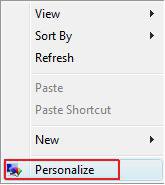
1. Right click on a empty area of the desktop and click on Personalize. (See screenshot below)
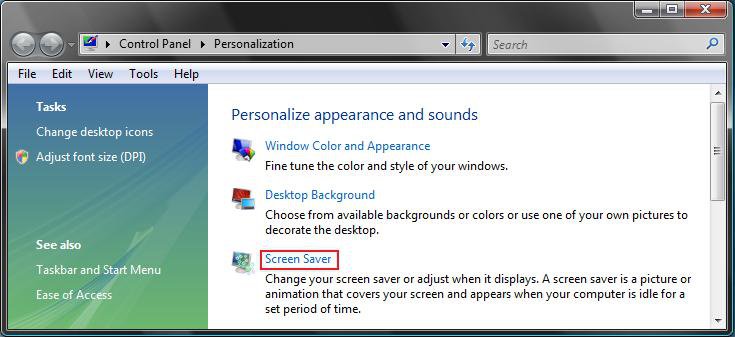
2. Click on the Screen Saver link. (See screenshot below)
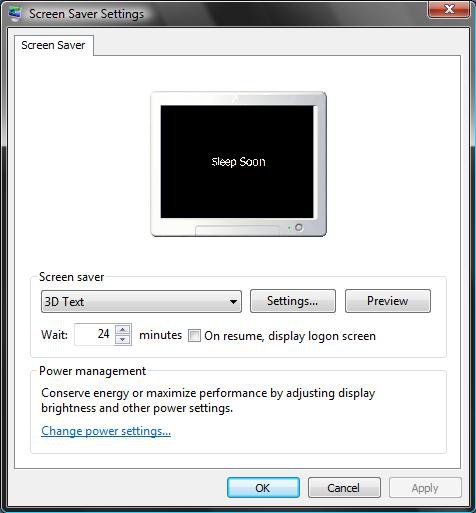
3. You will now see the screen saver settings below.
4. To Change Screen Saver
NOTE: To create your own screen saver, select Photo and click Settings button to browse to the image you want to use.
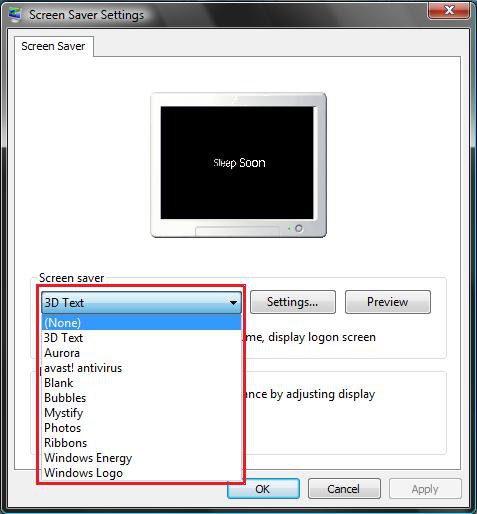
A) Click on the drop down menu and select a new screen saver from the list. (See screenshot below)
B) Click on Apply.
5. To Turn Off Screen Saver
NOTE: To turn screen save back on, just select another one.
A) Select (None) and click on OK. (See screenshot above)
6. To Change Screen Saver Settings
NOTE: Not all screen savers will have settings for them.
A) Click on the Settings button and make the adjustments to the setting to what you like. (See screenshot below step 4)
B) Click on Apply when done with the settings.
7. To Preview a Screen Saver
A) Click on the Preview button to activate the selected screen saver from step 4. (See screenshot below step 4)
NOTE: Just press a keyboard key or move the mouse to stop the screen saver preview.
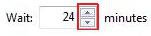
8. To Change Screen Saver Wait Time
A) Adjust the number of minutes of idle time to wait before the screen save appears. (See screenshot below and below step 3)
NOTE: You should have the wait time set at least one minute before the Power Options for the Hard Drive, Display, and Sleep shutdown. See step two here: How to Troubleshoot a Vista Sleep Mode Problem and Find a Solution
B) Click on Apply.
9. To Enable or Disable Password Logon After a Screen Saver
NOTE: When you resume from a screen saver it takes you to the Lock logon screen with just the current user displayed. The only way to see all users is to logoff first, then allow it to go into screen saver mode. For resume after sleep mode, see: How to Disable or Enable Password Protection on Wakeup in Vista
WARNING: If you logoff first, this will show you how to change the logon screen saver.
A) Check or uncheck On resume, display logon screen. (See screenshot below and below step 3)
B) Click on Apply.

10. Click on OK to apply and close screen saver settings window.
That's it,Shawn
Related Tutorials
- How to Change Screen Saver Grace Period to Bypass Password Protection in Windows
- How to Change the Logon Screen Saver Wait Time in Vista
- How to Change the Logon Screen in Vista
- How to Enable the Hidden Aurora Boot Screen in Vista
- How to Change the Default Boot Screen in Vista SP1
- How to Change the Desktop Background Wallpaper in Vista
- How to Disable or Enable Password Protection on Wakeup in Vista
- How to Install and Use DreamScene in Vista
- How to Enhance Windows Vista DreamScene with Stardock DeskScapes
- How to Troubleshoot a Vista Sleep Mode Problem and Find a Solution
- How to Add or Remove the Screen Saver Option in Vista
- How to Specify a Default Screen Saver for Users in Vista
- How to Enable or Disable the Log On Screen Saver in Vista
- How to Changed the Return to Sleep Timeout for a Unattended Wake Up in Vista
- How to Customize the Vista Aurora Screen Saver Settings
- How to Customize the Vista Bubbles Screen Saver Settings
- How to Customize the Vista Mystify Screen Saver Settings
- How to Customize the Vista Ribbons Screen Saver Settings
- How to Enable or Disable Screen Savers in Windows 7 and Vista
- How to Add "Enable/Disable Screen Saver" to Desktop Context Menu
Attachments

Last edited by a moderator:


