Windows Vista Forums
Vista Forums Home Join Vista Forums Windows 7 Forum Vista Tutorials Tags

Welcome to Windows Vista Forums. Our forum is dedicated to helping you find solutions with any problems, errors or issues you are experiencing with Windows Vista. The Vista forum also covers news and updates and has an extensive Vista tutorial section that covers a wide range of tips and tricks.

Go Back   Vista Forums > Vista Forums > Tutorials

Vista Tutorial - Backup Complete Computer

Comment
 
LinkBack Tutorial Tools Display Modes
<!-- google_ad_section_start -->Backup Complete Computer<!-- google_ad_section_end -->
Backup Complete Computer
How to Create a Complete Computer Backup and Restore Image in Vista
Published by Brink
10-16-2007

How to Create a Complete Computer Backup and Restore Image in Vista
Information
  Windows Complete PC Backup creates a backup image, which contains copies of your programs, system settings, and files. The backup image is then stored in a separate location from the original programs, settings, and files. You can use this backup image to restore the contents of your computer if your hard disk or entire computer ever stops working. This only applies to Vista Enterprise, Ultimate, and Business editions. For more information, see: Windows Help and How-to: Back up your programs, system settings, and files
NOTE
  BACKUP LOCATION:


A) If you want to delete or copy the entire WindowsImageBackup folder to save it to another location to keep a copy of it, you will need to open each subfolder in the WindowsImageBackup folder and grant access permission to them first by clicking Continue twice for eace folder. You will then be able to copy this folder like any other folder. You may want to do this because when a new Complete PC Backup is made it can overwrite the previous Complete PC Backup with the differences to create the new backup.
  • Backups are saved in a folder with this format: (backup drive letter)\WindowsImageBackup\(your computer name)\Backup (year-month-day) (time)
  • If the backup was done on Local Disk D: at 9/7/2007 1:00:50 PM (It uses 24 hour time), then the full backup file path would be:
  • D:\WindowsImageBackup\Computer\Backup 2007-09-07 130050
  • You would right click the folder Backup 2007-09-07 130050 and click Delete to delete that backup.
B) To delete all but the most recent Complete PC Backup, you can use Disk Cleanup. You will just need to select the drive that the complete PC backups are stored on and select the More Options tab.


C) To delete the Complete PC Backup completely, you just need to take ownership of the WindowsImageBackup folder and subfolders. Afterwards, you will be able to delete the folder.
WARNING
 
  • Vista cannot backup the partition or drive that you are saving the complete backup to.
  • If you dual boot with Windows XP, then everytime you start in XP the System Restore Points and all except the most recent Complete PC Backup files in Vista get deleted. For how, see: How to Stop System Restore Points from being Deleted in Vista when Dual Booting with XP
  • You cannot restore a 32 bit Vista version complete pc backup on a 64 bit Vista version, or the other way around.
RELATED LINKS:

Here's How:
1. Open Control Panel. (Classic View)

2. Click on the Backup and Restore Center icon.

3. Click on the Back up Computer button. (See screenshot below)

4. Click on Continue in the UAC prompt.
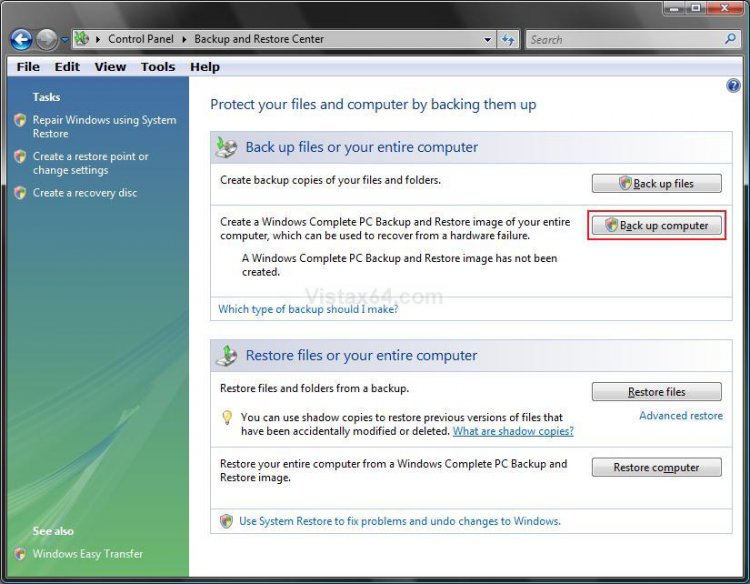
backup_computer.jpg
5. You will see this for a moment as Vista searches for backup devices. (See screenshot below)

Name:  Looking.jpg
Views: 8957
Size:  19.7 KB
6. Dot the location to save the backup image to. (See screenshot below)
WARNING: Vista cannot backup the partition or drive that you are saving the complete backup to.
A) On a Hard Disk: For saving to a different hard drive or partition.
NOTE: You cannot save the backup image on the same partition as Vista is installed on. It can only be saved on another partition, a separate hard drive, USB device (external hard drive), or on multiple DVDs. If you wish to create a new partition for backups, then see: How to Shrink and Create a Partition with Disk Management in Vista

B) On One or More DVDs: For saving to multiple DVDs that are bigger than 1 GB in size each.

C) Click on Next.
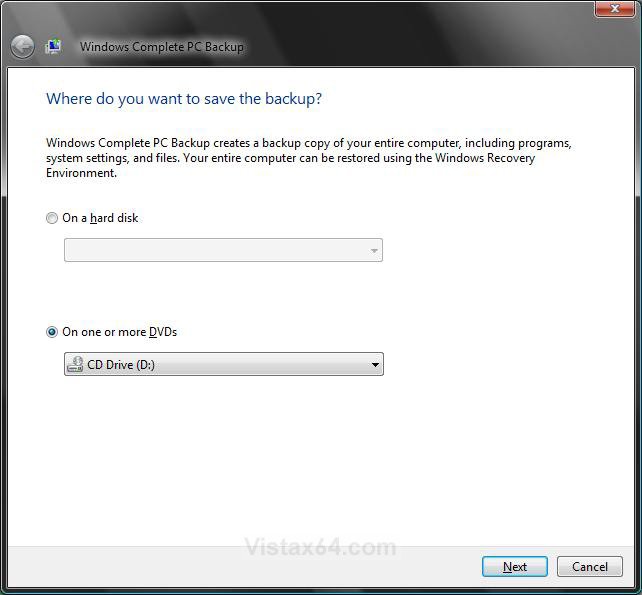
choose_location.jpg
7. Click Start backup to confirm the backup settings and start the backup process. (See screenshots below)
NOTE: This will tell you how much space will be used on the other hard drive, or how many DVDs it will take.
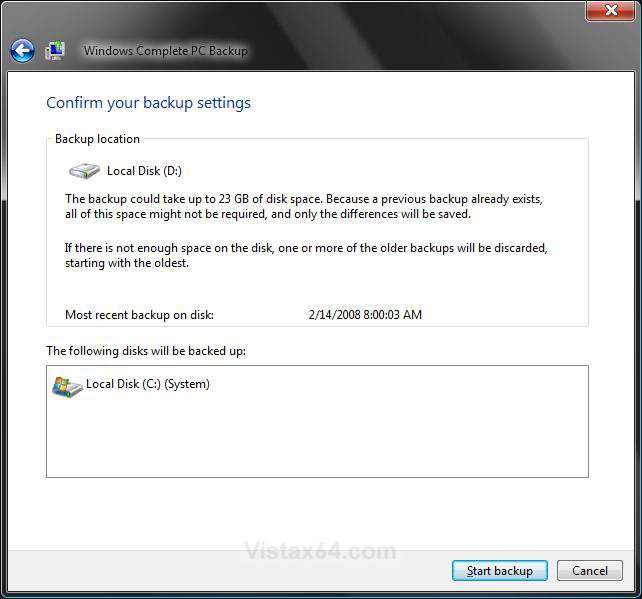
WARNING: If you have a previous complete PC backup in this location, this complete backup will only backup the differences between now and when the previous backup was made. (See the right screenshot below)
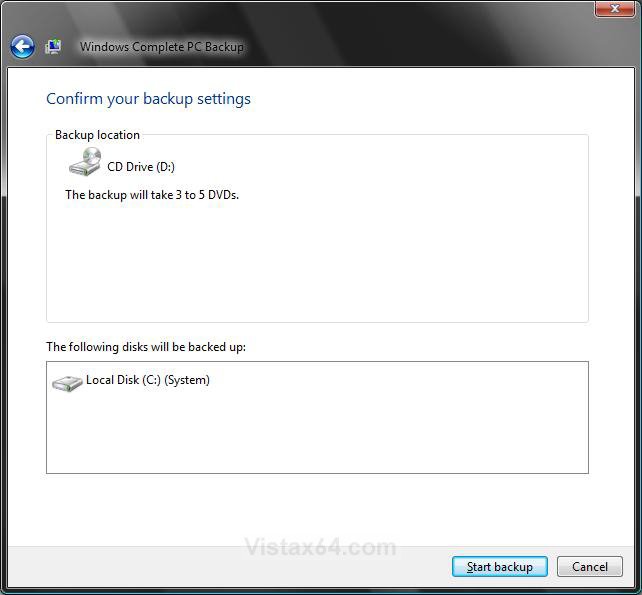
confirm_backup.jpgprevious_backup.jpg
8. You will now see this window. (See screenshot below)
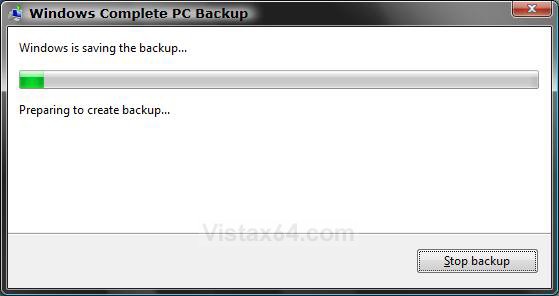
preparing.jpg
9. If you selected On One or More DVDs (step 6), then this window will pop-up asking for the first DVD. (See screenshot below)
A) Insert a blank DVD into the DVD drive and click on OK.
NOTE: It will continue to ask for DVDs until it is finished. See step 7 to see how many DVDs will be required.
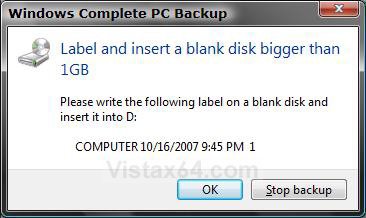
Name:  Insert_Disk.jpg
Views: 9330
Size:  46.9 KB
10. When the backup is completed it will let you know. Click on Close.

11. Close the Control Panel window.
That's it,
Shawn
Published by
Brink's Avatar
Administrator

Join Date: Apr 2007
Location: Texas, USA
Posts: 23,756
Rep Power: 150
Brink has a reputation beyond reputeBrink has a reputation beyond reputeBrink has a reputation beyond reputeBrink has a reputation beyond reputeBrink has a reputation beyond reputeBrink has a reputation beyond reputeBrink has a reputation beyond reputeBrink has a reputation beyond reputeBrink has a reputation beyond reputeBrink has a reputation beyond reputeBrink has a reputation beyond repute

Tutorial Tools
Show Printable Version Show Printable Version
Email this Page Email this Page

Applies to
Business,Enterprise,Ultimate
64 Bit & 32 Bit

Page copy protected against web site content infringement by Copyscape

Old 10-17-2007  
uvbogden
uvbogden


Join Date: Aug 2007
Windows Vista Ultimate x86 SP1
Provo, Utah, USA
 
Rep Power: 30
uvbogden is a splendid one to beholduvbogden is a splendid one to beholduvbogden is a splendid one to beholduvbogden is a splendid one to beholduvbogden is a splendid one to beholduvbogden is a splendid one to beholduvbogden is a splendid one to behold
  uvbogden is offline

Re: Backup Complete Computer

Thanks for doing this tutorial, I think it will help a lot of people.
My System SpecsSystem Spec
Old 10-17-2007  
Brink's Avatar
Brink
Administrator


Join Date: Apr 2007
Vista x64 Ultimate SP2
Texas, USA
 
Rep Power: 150
Brink has a reputation beyond reputeBrink has a reputation beyond reputeBrink has a reputation beyond reputeBrink has a reputation beyond reputeBrink has a reputation beyond reputeBrink has a reputation beyond reputeBrink has a reputation beyond reputeBrink has a reputation beyond reputeBrink has a reputation beyond reputeBrink has a reputation beyond reputeBrink has a reputation beyond repute
  Brink is offline

Re: Backup Complete Computer

You're welcome Uvbogden,

Thank you for the suggestion to create one for it,
Shawn
My System SpecsSystem Spec
Old 12-07-2007  
niGht kiD's Avatar
niGht kiD
hello KiDdy


Join Date: Dec 2007
Vista™ Business 32-bit
Malaysia
 
Rep Power: 14
niGht kiD will become famous soon enoughniGht kiD will become famous soon enough
  niGht kiD is offline

Re: Backup Complete Computer

Hi Shawn,

Windows Complete PC Backup will back up everything like those system files, updated definitions, installed software & icons setting(i've done alot of customization)... etc?
My System SpecsSystem Spec
Old 12-07-2007  
Brink's Avatar
Brink
Administrator


Join Date: Apr 2007
Vista x64 Ultimate SP2
Texas, USA
 
Rep Power: 150
Brink has a reputation beyond reputeBrink has a reputation beyond reputeBrink has a reputation beyond reputeBrink has a reputation beyond reputeBrink has a reputation beyond reputeBrink has a reputation beyond reputeBrink has a reputation beyond reputeBrink has a reputation beyond reputeBrink has a reputation beyond reputeBrink has a reputation beyond reputeBrink has a reputation beyond repute
  Brink is offline

Re: Backup Complete Computer

niGht kiD,

Yep, it will be a complete total backup.

Shawn
My System SpecsSystem Spec
Old 12-10-2007  
niGht kiD's Avatar
niGht kiD
hello KiDdy


Join Date: Dec 2007
Vista™ Business 32-bit
Malaysia
 
Rep Power: 14
niGht kiD will become famous soon enoughniGht kiD will become famous soon enough
  niGht kiD is offline

Re: Backup Complete Computer

thanks...
My System SpecsSystem Spec
Old 12-10-2007  
niGht kiD's Avatar
niGht kiD
hello KiDdy


Join Date: Dec 2007
Vista™ Business 32-bit
Malaysia
 
Rep Power: 14
niGht kiD will become famous soon enoughniGht kiD will become famous soon enough
  niGht kiD is offline

Re: Backup Complete Computer

Another question for you Shawn..

I've created a Windows Complete PC Backup on my D Drive.

But how do I erase the backup? Just delete the folder?

Thanks..
My System SpecsSystem Spec
Old 12-10-2007  
Brink's Avatar
Brink
Administrator


Join Date: Apr 2007
Vista x64 Ultimate SP2
Texas, USA
 
Rep Power: 150
Brink has a reputation beyond reputeBrink has a reputation beyond reputeBrink has a reputation beyond reputeBrink has a reputation beyond reputeBrink has a reputation beyond reputeBrink has a reputation beyond reputeBrink has a reputation beyond reputeBrink has a reputation beyond reputeBrink has a reputation beyond reputeBrink has a reputation beyond reputeBrink has a reputation beyond repute
  Brink is offline

Re: Backup Complete Computer

niGht kiD,

Yes, you can just delete the backup if you do not want it anymore.

Shawn
My System SpecsSystem Spec
Old 12-10-2007  
niGht kiD's Avatar
niGht kiD
hello KiDdy


Join Date: Dec 2007
Vista™ Business 32-bit
Malaysia
 
Rep Power: 14
niGht kiD will become famous soon enoughniGht kiD will become famous soon enough
  niGht kiD is offline

Re: Backup Complete Computer

...
My System SpecsSystem Spec
Old 12-20-2007  
Maxtrimi's Avatar
Maxtrimi
Member


Join Date: Dec 2007
Vista Home Premium 32
 
Rep Power: 12
Maxtrimi is on a distinguished road
  Maxtrimi is offline

Re: Backup Complete Computer

What about Home Premium?
My System SpecsSystem Spec
Comment

Tags
backup & restore, complete, computer

Tutorial Tools
Display Modes


Similar Threads
Tutorial Tutorial Starter Category Comments Last Post
Complete computer backup in Vista PM Guy Vista General 9 06-05-2008 02:31 PM
Backup Complete Computer Problem dadams General Discussion 0 02-05-2008 10:23 AM
Complete Backup of computer... mathews2010 General Discussion 2 12-05-2007 04:45 AM
Installing complete backup on a new computer Joran Vista installation & setup 1 08-08-2007 11:57 AM
"Backup Computer" and "Complete PC Backup" missing?! HELP! toothpick Vista General 1 07-19-2007 07:49 PM


Vista Forums is an independent web site and has not been authorized,
sponsored, or otherwise approved by Microsoft Corporation.
"Windows Vista", the Start Orb, and related materials are trademarks of Microsoft Corp.
© Designer Media Ltd
Tutorial powered by GARS 2.1.8m ©2005-2006