islandsign
New Member
OK, this is my first post here, & I've never joined a Windows forum, or one for people who build their own computers, although I am somewhat familiar with forums, so let me try to give enough info to see if I can clarify my first question & add a few related ones.
I just upgrades a Dell Precision 690 desktop to Vista Ultimate 64, because for some of the work I do in Photoshop CS4, I felt I would benefit from having access to over 3gigs of Ram. The Dell has 2 Intel Xeon 3 gig processors & the compatibility in place to run a 64bit OS, so I bought Vista Ultimate 64, and upgraded to 8 gigs of Ram. That all works fine & I set up several 66 meg files for large format printing the other day, so I'm pleased with the upgrade from that standpoint.
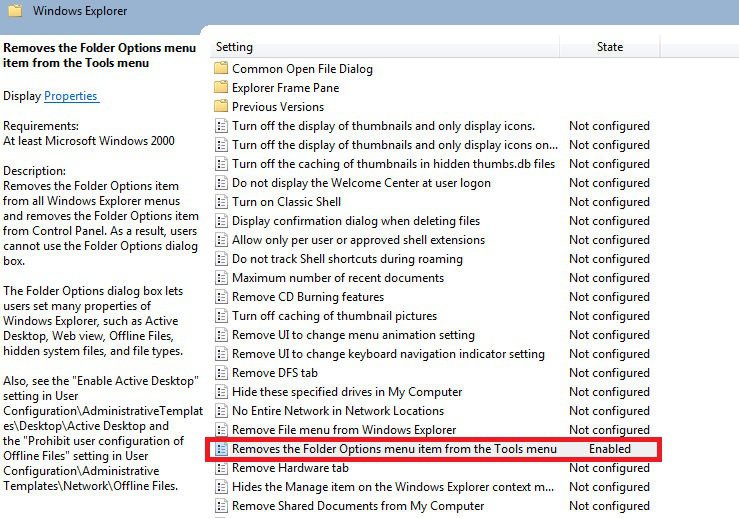
I just need to get used to some pesky details that slow me down & haven't figured them out from searching. I did make my way to the "local group policy editor" and "enable folder options" so this is now giving me my preferred view (details) whenever I open Windows Explorer.
There are 2 related issues I want to ask about. When I open Windows explorer, it opens as a small window & I like to maximize it. It also opens with the folder named after my user name expanded, and the "Computer" folder collapsed. I never store anything in the folder named after my user name, & I store everything in a mapped network drive, that is mapped to show up below the "computer" folder.
The other related issue has to do with viewing my files & folders from various File>Open windows from various programs, and having multiple columns of folders or files spread across from left to right. I am used to looking down the left side for my file of folder, & changing to the "details" view in these windows gives me the view I like, but if I have to bore down through several folder levels, the "details' view has to be requested every time, or I have to accept the multiple columns.

I just upgrades a Dell Precision 690 desktop to Vista Ultimate 64, because for some of the work I do in Photoshop CS4, I felt I would benefit from having access to over 3gigs of Ram. The Dell has 2 Intel Xeon 3 gig processors & the compatibility in place to run a 64bit OS, so I bought Vista Ultimate 64, and upgraded to 8 gigs of Ram. That all works fine & I set up several 66 meg files for large format printing the other day, so I'm pleased with the upgrade from that standpoint.
I just need to get used to some pesky details that slow me down & haven't figured them out from searching. I did make my way to the "local group policy editor" and "enable folder options" so this is now giving me my preferred view (details) whenever I open Windows Explorer.
There are 2 related issues I want to ask about. When I open Windows explorer, it opens as a small window & I like to maximize it. It also opens with the folder named after my user name expanded, and the "Computer" folder collapsed. I never store anything in the folder named after my user name, & I store everything in a mapped network drive, that is mapped to show up below the "computer" folder.
QUESTION ONE:
Can I set my default view of Windows Explorer to always open up to a full screen size, and always have the folders expanded, or collapsed according to a default preference ideally... or at least to my last view?
I'm sure I've given way more background than needed, but I may start checking in here more, as I have XP Pro on 8 computers in my sign business & I've become pretty used to things being a certain way. Now these little changes are going to take some getting used to, but this forum can probably speed up the process quite a bit.Can I set my default view of Windows Explorer to always open up to a full screen size, and always have the folders expanded, or collapsed according to a default preference ideally... or at least to my last view?
The other related issue has to do with viewing my files & folders from various File>Open windows from various programs, and having multiple columns of folders or files spread across from left to right. I am used to looking down the left side for my file of folder, & changing to the "details" view in these windows gives me the view I like, but if I have to bore down through several folder levels, the "details' view has to be requested every time, or I have to accept the multiple columns.
QUESTION TWO:
Can I set a default "folder Options" type of setting for these File>open windows, so that they retain my poreference of the "Details" view, or at least retain the last view used?
Thanks for any help out there. I've been using Vista for a week, & I've clicked that view settings icon several hurndred times more than I care to ever click it again Can I set a default "folder Options" type of setting for these File>open windows, so that they retain my poreference of the "Details" view, or at least retain the last view used?