![]() |
![]() | ![]() | ![]() | ![]() | ![]() | ![]() | ![]() |
| Welcome to Windows Vista Forums. Our forum is dedicated to helping you find solutions with any problems, errors or issues you are experiencing with Windows Vista. The Vista forum also covers news and updates and has an extensive Windows Vista tutorial section that covers a wide range of tips and tricks. |
| |||||||
![]() |
| |
| | #1 (permalink) |
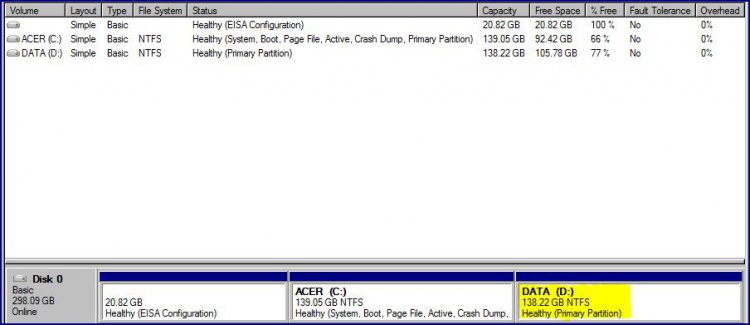
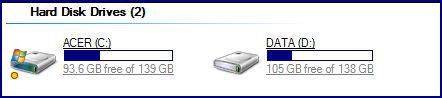
| Vista Home Premium 32bit [x86] - SP2 | Disk Management - Shrink Partition in Vista I refer specifically to this Tutorial; Disk Management - Shrink Partition A bit of background first. I have recently had installed a new 320GB Hard-drive to my Laptop [see my Specs]. The allocation of partition [volume] space has been divided evenly between the C:[Acer] - 139GB, and the D:[Data] - 138GB, Drives on the HD. This is what I have; ![]() Questions;
Last edited by Dwarf; 08-14-2009 at 03:14 PM.. |
My System Specs![]() |
| | #2 (permalink) |
| Vista Home Premium 32-bit & Vista Ultimate 64-bit both Service Pack 2 W7 Pro RTM 7600 32 & 64 | Re: Disk Management - Shrink Partition in Vista Hi Tony, On a drive with a single partition hosting the OS, the amount of space that you can carve off it can vary. Did you run Disk Cleanup and Defragmenter first? You can sometimes get a few more GB if you do that. However, 50-50 looks fairly reasonable. You can change the ratio if you want, but you can't shrink the partition any further than what Disk Management permits, so I would leave this as it is. You can then repeat the process on your other partition (the one you created from your original). Again, run Disk Cleanup and Defragmenter on this partition to maximise the potential new partition space. Remember, you can always reduce the size of a new partition to be smaller than that suggested by Disk Management but you cannot make it larger. |
My System Specs![]() |
| | #3 (permalink) |
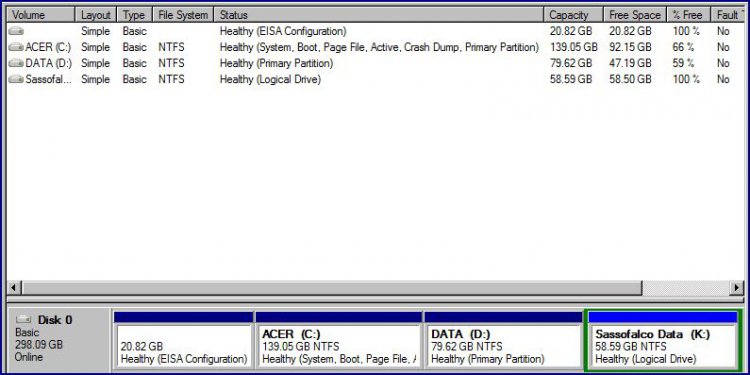
| Vista Home Premium 32bit [x86] - SP2 | Re: Disk Management - Shrink Partition in Vista G'Day Dwarf, and thanks for your response. However, you're dealing with 'as thick as two Doncaster bricks' here, as I still can't get my head around this. For starters, I don't even know which of the two Hard Disk Drives is the host of my Operating System, but I'm guessing that it is the HD (D:) Drive. My current Partition details are here for your info; ![]() First of all tho', in reply to some of your points;
This will all depend of course, on whether or not you would recommend or sanction using the (D;) Drive Partition free space in the first place. If I cannot use it, or you recommend that I leave well alone, then I will file the idea under three thick Doncaster bricks. If I am able to do it, then I will be using Brinks Tutorial to do the business [refer my first post in this thread], as his guide is much clearer and easier to follow than the procedures given in Windows Vista - Help and Support. Cheers Mate. |
My System Specs![]() |
| | #4 (permalink) |
| Vista Home Premium 32-bit & Vista Ultimate 64-bit both Service Pack 2 W7 Pro RTM 7600 32 & 64 | Re: Disk Management - Shrink Partition in Vista Hi Tony, There will be no problem in you partitioning D to give you another drive. Whether or not you can carve off a partition of the size you were thinking about, I cannot say - this depends on what Disk Management says is available. As I said previously, to maximise this space, run Disk Cleanup and Defragmenter on D prior to partitioning it. This will not affect your OS as this is on C. |
My System Specs![]() |
| | #5 (permalink) |
| Vista Home Premium 32bit [x86] - SP2 | Re: Disk Management - Shrink Partition in Vista Thanks Dwarf, I've just lifted three thick Doncaster bricks from off of my head....well that was where the idea did originate. So now it's off to Brink's Tutorial for a thorough read, after I light up a couple of joss-sticks! Thanks also for clarifying the location of my OS as well. Another system function bit learned. Will post the outcome when done. |
My System Specs![]() |
| | #6 (permalink) |
| Vista Home Premium 32-bit & Vista Ultimate 64-bit both Service Pack 2 W7 Pro RTM 7600 32 & 64 | Re: Disk Management - Shrink Partition in Vista You're welcome, Tony. |
My System Specs![]() |
| | #7 (permalink) |
| Vista Home Premium 32bit [x86] - SP2 | Re: Disk Management - Shrink Partition in Vista Dwarf Mate....You're a legend!! My sincere thanks for all your patience, understanding and valuable advice. Isn't this just so,....so,....partitioned? ![]() ![]() I am absolutely rapt. Those joss-sticks are sure powerful stuff, and a big "TICK" can now be placed to the start of this thread. ![]() Kudos to Shawn too for a very concise, clear and easily followed Tutorial on this subject. .........now for a good, strong black plunger coffee, with just a wee dash of Drambuie |
My System Specs![]() |
| | #8 (permalink) |
| Vista Home Premium 32-bit & Vista Ultimate 64-bit both Service Pack 2 W7 Pro RTM 7600 32 & 64 | Re: Disk Management - Shrink Partition in Vista Marked for you, Tony. Just a simple question: What do you call a wee dash? |
My System Specs![]() |
| | #9 (permalink) |
| Vista Home Premium 32bit [x86] - SP2 | Re: Disk Management - Shrink Partition in Vista Aaaaaaaah!....and simply put - several things, actually;
|
My System Specs![]() |
| | #10 (permalink) |
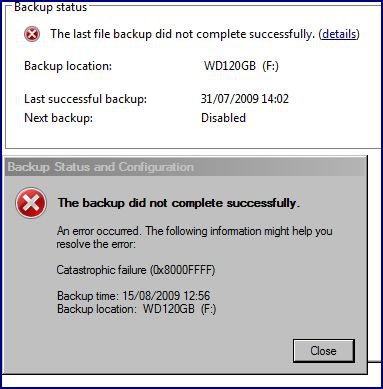
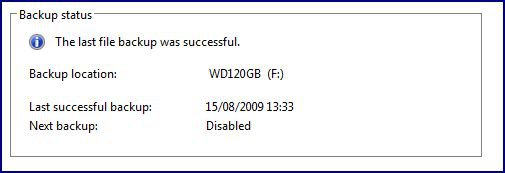
| Vista Home Premium 32bit [x86] - SP2 | Re: Disk Management - Shrink Partition in Vista; Post-modification Backup Failure Hi Tony, There will be no problem in you partitioning D to give you another drive. Whether or not you can carve off a partition of the size you were thinking about, I cannot say - this depends on what Disk Management says is available. As I said previously, to maximise this space, run Disk Cleanup and Defragmenter on D prior to partitioning it. This will not affect your OS as this is on C. ....after the success of creating the new internal Hard Disk Drive, there just had to be something to initiate that "...one gigantic topple backwards for sassofalco" ! ![]() Simmering hot with confidence first thing today, I attempted to do an incremental backup of my Files, as I usually do, to my WD 120GB external drive, via Start>Control Panel [Classic View]>Backup and Restore Center>Backup Files>Backup Files Button, etc. The Backup started normally, but a few minutes later as it progressed through scanning Shadow Files, the backup came to an abrupt halt, signified by that nasty "dang" sound. This window appeared on screen; ![]() So off I went to see Mr. Google with my Error 0x8000FFFF in hand, but after more than an hour of searching, I could find nothing that would even remotely help me. I ran the incremental Backup procedure again, and again was able to reproduce the same Error. I then focused in on the use of the word 'catastrophic', and figured that since it could refer to a major modification within my system, then it would seem logical that in creating the new internal Hard Disk Drive [Partition], I had generated the source for the Error message. I figured that since the new Partition had drastically modified the state of the Hard Disk, then it followed that an incremental Backup would not, and could not be recognised by the modified system. The incremental backup command was therefore invalid. With that in mind, I then deduced that a solution could be possibily be found by completing a Full and New Backup of my Files. And the result? Well, you can see for yourself; ![]() I suspect that the Error Message 0x8000FFFF will always present in any combined situation where a Hard Disk Drive [Partition] is modified to any degree AND a post-modification attempt is made to do an Incremental Backup of Files. If my suspicions are correct, then it may help end Users in future, if a warning about the nature of this Error message, could also be included within the appropriate Tutorial[s]. Say something along the lines of; WARNING - Post-modification Backups. If you attempt to do an incremental Backup of your Files after changing the configuration of your Hard Disk, you may receive an Error message 0x8000FFFF. In that case, complete a Full and New Backup of your Files, and when finished, delete the previous [earlier] Backup Folder from your system. That's it. Toodle-pip. |
My System Specs![]() |
![]() |
| Thread Tools | |
| |
Similar Threads | ||||
| Thread | Forum | |||
| Disk Management - Shrink Partition | Tutorials | |||
| Shrink volume & create new partition using disk management console | Vista General | |||
| Disk Management - Shrink volume | Vista file management | |||
| Disk Management - Shrink volume | Vista General | |||
| Disk Management - Shrink volume | Vista performance & maintenance | |||