How to Add Additional Time Zone Clocks in Vista
 Information
Vista can display up to three clocks: one for the local time, and two for the time in other time zones of your choice. This will show you how to add an additional Time Zone clock.
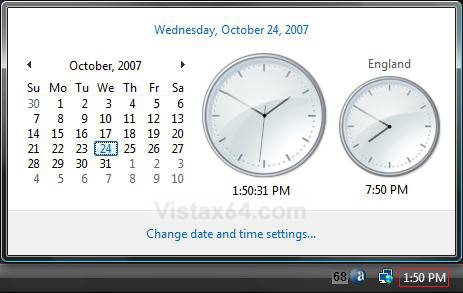
EXAMPLE 1: Left Click on Time
EXAMPLE 2: Hover Pointer Over Time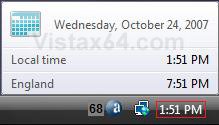
Here's How:
1. Left click on Time (clock) on the taskbar and click on Change date and time settings. (See example 1 above)
A) Go to step 4 below.
OR
2. Right click on Time on the taskbar and click Adjust Date/Time.
A) Go to step 4 below.
OR
3. Open the Control Panel (Classic View), and click on the Date and Time icon.
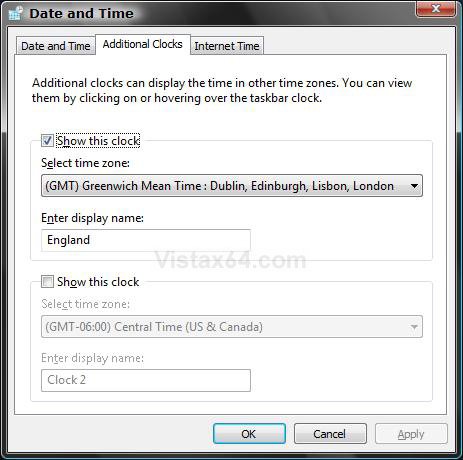
4. Click on the Additional Clocks tab. (See screenshot below step 8)
5. Check Show this clock to add a clock.
NOTE: You can add one or both clocks.
6. Click on the Select time zone drop down arrow and select one from the list you want displayed on this clock.
7. Enter a display name for this clock.
NOTE: You can type up to 15 characters.
8. Click on OK.
That's it,
Shawn
Related Tutorials
- How to Use Internet Time Synchronization in Windows
- How to Change the Internet Time Synchronization Update Interval in Windows
- How to See the Date and Time on the Taskbar in Vista
- How to Set the Clock to Military 24 Hour Time in Vista
- How to Change the Date and Time in Vista
- How to Change the Time Zone in Vista
- How to Change the Date Format in Vista
- How to Create a "Additional Clocks" Shortcut in Windows 7 and Vista
Attachments
Last edited by a moderator: