
How to Compress and Decompress a Folder or File with NTFS Compression in Vista and Windows 7
 Information
This will show you how to compress or decompress a folder or file with NTFS Compression to reduce their size. NTFS Compression allows you to save some hard drive space by compressing files and folders to reduce their size.
You will not be able to encrypt an NTFS compressed file until decrypted first.
You will not be able to encrypt an NTFS compressed file until decrypted first.
 Note
NoteYou may notice a decrease in performance when working with NTFS-compressed files. When you open a compressed file, Vista automatically decompresses it for you, and when you close the file, Vista compresses it again. This process may decrease your computers performance since it takes a little longer to open and close a compressed folder or file.
 Warning
This is not the same as the built-in Zipped Compression used for creating ZIP files in Vista and Windows 7.
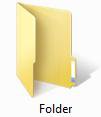
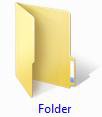
EXAMPLE: Folder not Compressed (Decompressed) and Folder Compressed
NOTE: Notice that the text is now blue to show it is compressed.
Here's How:
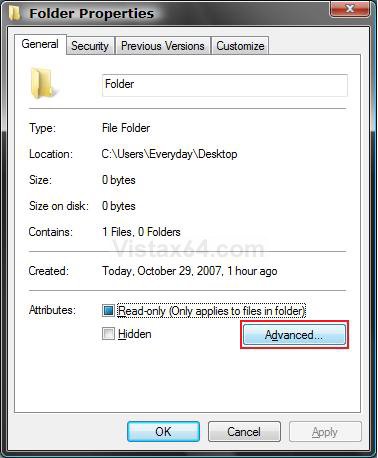
1. Right click on the folder or file that you want to compress or decompress, then click on Properties.
2. Under the General tab, click on the Advanced button. (See screenshot below)
3. To Compress a File or Folder
NOTE: You will only be able to choose to either Encrypt or Compress contents, not both at the same time.
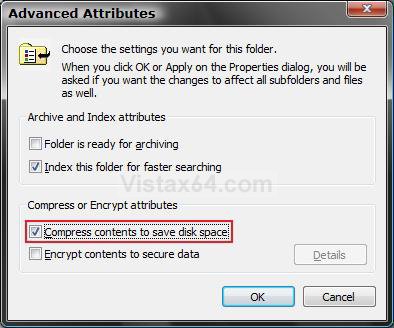
A) Check Compress contents to save disk space and click on OK. (See screenshot below step 4)
B) Go to step 5.
4. To Decompress a File or Folder
A) Uncheck Compress contents to save disk space and click on OK.
5. Click on OK in Properties. (See screenshot below step 2)
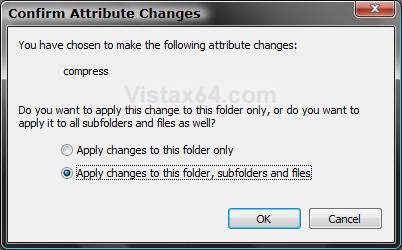
6. If the folder contains files or subfolders, you will see this. (See screenshot below step 7)
NOTE: You will not see this for just a file or empty folder.
7. Select the option you want compressed or decompressed and click on OK.
That's it,
Shawn
Related Tutorials
- How to Encrypt or Decrypt a Folder or File in Vista
- How to Disable or Enable Encryption in Vista
- How to Disable or Enable Low Disk Space Warning in Vista
- How to Disable or Enable NTFS Compression in Vista
- How to Free Up and Recover Hard Drive Space in Windows 7
- How To Zip (Compress) a File or Folder in Windows
- How to Add NTFS "Compress" and "Decompress" to File and Folder Context Menu in Windows 7
Attachments

Last edited by a moderator:
