How to Show and Change a File Name Extension in Vista
 Information
A file name extension is a set of characters added to the end of a file name that identifies the file type or format which determines what program should open it. This will show you how to Hide or Show and Change file extensions in Vista.
 Note
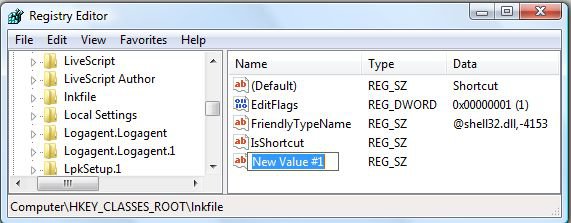
NoteThis will not work for the .lnk shortcut file extension since you cannot see it by default. For how to see this file extension, see: File Name Extension
 OPTION ONE
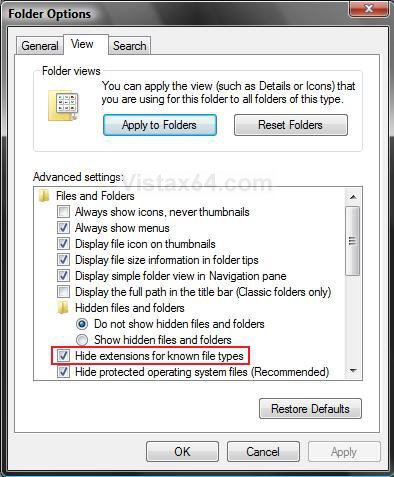
1. Open Folder Options.
2. To Show File Name Extensions
A) Uncheck Hide extensions for known file types. (See screenshot below step 4)
B) Go to step 4.
3. To Hide File Name Extensions
A) Check Hide extensions for known file types.
4. Click on OK.
OPTION TWO 1. Make sure you have Folder Options set to show file name extensions. (See step 2 in STEP ONE above)
2. Right click on the file and click on Rename. (See screenshot below)

3. Press the right arrow key once. (See screenshot below)

4. Press the Delete key until the file name extension is deleted. (See screenshow below)

5. Type in the new file name extension you want to use and press Enter. (See screenshot below)
NOTE: I used the BAT extension as example here for batch files.

6. Click on Yes to change the file name extension. (See screenshot below)

7. Notice that the icon has changed to match the file name extension. (See screenshot below)

That's it,
Shawn
Related Tutorials
- How to Open and Change Folder Options in Vista
- How to Associate a Individual File Extension Type With a Program in Vista
- How to Unassociate a File Extension Type in Vista
- How to Fix Cannot Rename and or Create a New Folder in Vista
- How to Set and Unset the Read-only File and Folder Attribute in Vista
- How to Copy the Full Path of a File or Folder in Vista
- How to Change a File Extension Type Icon in Vista
- Restore Default Vista File Extension Type Associations
- How to Add "Show/Hide Known File Extensions" to Context Menu in Vista and Windows 7
Attachments

Last edited: