Windows Vista Forums
Vista Forums Home Join Vista Forums Windows 7 Forum Vista Tutorials Tags

Welcome to Windows Vista Forums. Our forum is dedicated to helping you find solutions with any problems, errors or issues you are experiencing with Windows Vista. The Vista forum also covers news and updates and has an extensive Vista tutorial section that covers a wide range of tips and tricks.

Go Back   Vista Forums > Vista Forums > Tutorials

Vista Tutorial - Shutdown Options - Start Menu

Comment
 
LinkBack Tutorial Tools Display Modes
<!-- google_ad_section_start -->Shutdown Options - Start Menu<!-- google_ad_section_end -->
Shutdown Options - Start Menu
How to Remove or Show the Start Menu Shutdown Options in Vista
Published by Brink
11-08-2007

How to Remove or Show the Start Menu Shutdown Options in Vista
Information
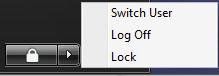
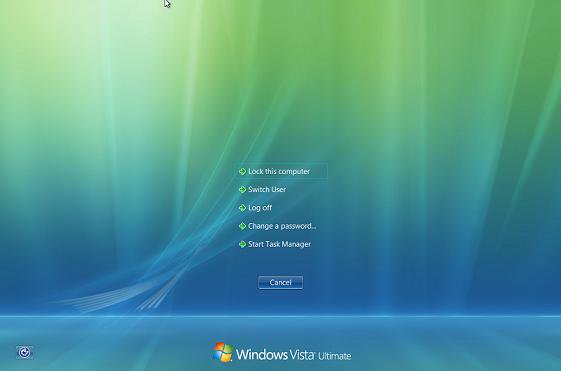
  These are the Shut Down , Restart , Sleep , and Hibernate options from the Start menu and the red power button in the Windows Security screen when you press Ctrl+Alt+Delete.
NOTE
  This will also enable or disable the Shut Down Windows screen when you press ALT+F4. For more on this, see: How to Shutdown, Restart, Switch User, Log Off, Sleep, or Lock Vista from the Keyboard
RELATED LINKS: EXAMPLE: Start Menu Shutdown Options Before and After
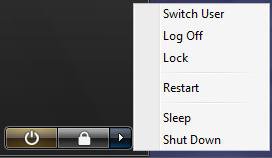
Name:  Before.jpg
Views: 14284
Size:  6.2 KBName:  After.jpg
Views: 14254
Size:  3.8 KB
EXAMPLE: Ctrl+Alt+Del Shutdown Options Before and After
NOTE: Notice the red shutdown options box is gone when this is enabled.
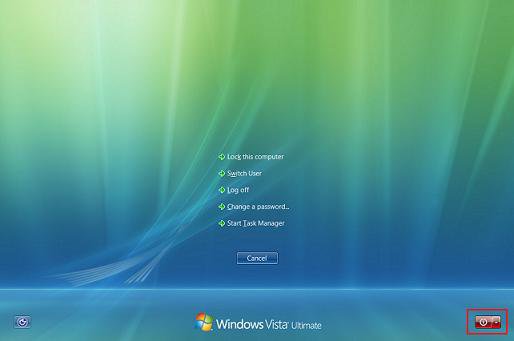
default_ctrl-alt-del.jpgafter_ctrl-alt-del.jpg


METHOD ONE:
Through the Local Group Policy Editor
NOTE
  This methos is only available for the Vista Business, Ultimate, and Enterprise editions. See Method Two below for the Vista Home Basic and Home Premium editions.
1. Open the Local Group Policy Editor.

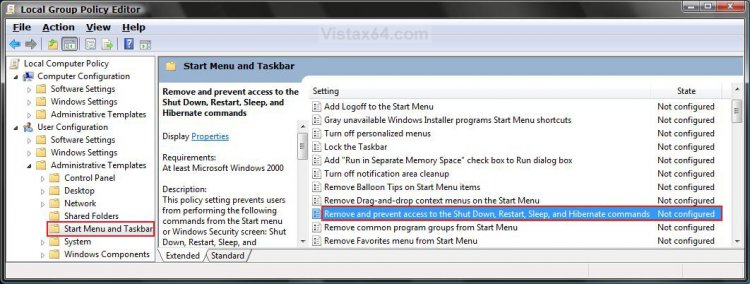
2. In the left pane, click on User Configuration, Administrative Templates, and Start Menu and Taskbar. (See screenshot below)
group_policy.jpg
3. In the right pane, right click on Remove and prevent access to the Shutdown, Restart,Sleep, and Hibernate commands and click on Properties. (See screenshot above)

4. To Show Shutdown Options -
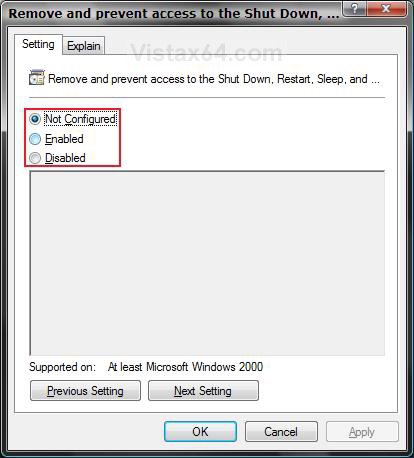
A) Select (dot) Disabled or Not Configured and click on OK. (See screenshot below step 5A)

B) Go to step 6.
5. To Remove Shutdown Options -
A) Select (dot) Enabled and click on OK.
NOTE: You can still access the Restart, Sleep, and Shutdown options when you click on Switch User or Log Off from the Start menu. They will be in the red power button options in the bottom right corner of the logon screen.
properties.jpg
6. Close the Local Group Policy Editor window. Your done.


METHOD TWO:
Through the Registry
NOTE
  This method will work for all Vista versions.
Through a Download:
1. To Remove Shutdown Options -
A) Click on the download button below to download the
Remove_Shutdown_Options.reg file.

B) Go to step 3.


2. To Show Shutdown Options -
A) Click on the download button below to download the
Show_Shutdown_Options.reg file.


3. Click on Save, and save the .reg file to the Desktop.

4. Right click on the .reg file (on Desktop) and click on Merge.

5. Click on the Run button in the Security Warning pop-up.

6. Click on Continue (UAC), Yes, and then OK when prompted.

7. Logoff and logon, or restart the computer to apply the changes.

8. When done, you can delete the .reg file (on Desktop).

The Manual Way:
1. Open the Start Menu.

2. In the white line (Start Search) area, type regedit and press Enter.

3. Click on the Continue button in the UAC prompt.

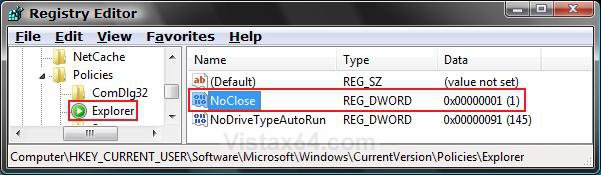
4. In regedit, go to: (See screenshot below step 5B)
HKEY_CURRENT_USER\Software\Microsoft\Windows\CurrentVersion\Policies\Explorer
NOTE: If you do not have Explorer, then right click on Polices and click on New and Key. Type Explorer and press Enter.

5. To Remove Shutdown Options -
A) In the right pane, right click on a empty area and click on New and DWORD (32-bit) Value, then type NoClose and press Enter.

B) Right click on NoClose and click on Modify.
explorer_key.jpg
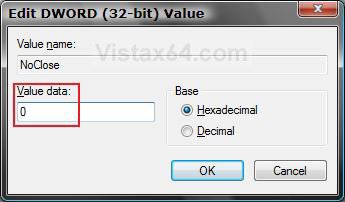
C) Type 1 and click on OK. (See screenshot below)
Name:  Modify.jpg
Views: 14065
Size:  30.2 KB
6. To Show Shutdown Options -
A) In the right pane, right click on NoClose and click on Delete. (See screenshot below step 5B)

B) Click on Yes to confirm deletion.

C) In regedit, go to: (See screenshot below)
HKEY_LOCAL_MACHINE\SOFTWARE\Microsoft\Windows\CurrentVersion\Policies\Explorer

D) In the right pane, repeat steps 6A and 6B if NoClose is there to.
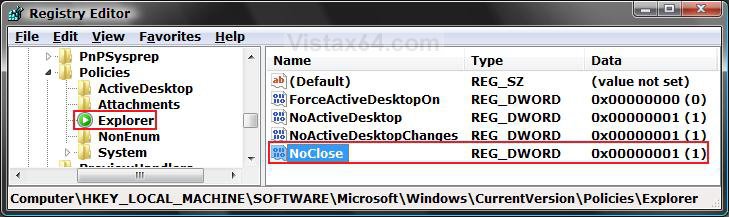
hklm_reg.jpg
7. Close regedit.


8. Logoff and logon, or restart the computer to apply the changes.
That's it,
Shawn
Published by
Brink's Avatar
Administrator

Join Date: Apr 2007
Location: Texas, USA
Posts: 23,765
Rep Power: 150
Brink has a reputation beyond reputeBrink has a reputation beyond reputeBrink has a reputation beyond reputeBrink has a reputation beyond reputeBrink has a reputation beyond reputeBrink has a reputation beyond reputeBrink has a reputation beyond reputeBrink has a reputation beyond reputeBrink has a reputation beyond reputeBrink has a reputation beyond reputeBrink has a reputation beyond repute

Tutorial Tools
Show Printable Version Show Printable Version
Email this Page Email this Page

Applies to
All Vista Versions
64 Bit & 32 Bit

Page copy protected against web site content infringement by Copyscape

Old 04-07-2008  
Fugly's Avatar
Fugly
Newbie


Join Date: Apr 2008
Vista Ultimate x64
 
Rep Power: 10
Fugly is on a distinguished road
  Fugly is offline

Re: Shutdown Options - Start Menu

Hi there,

Firstly I'd like to say thanks for all your guides... They are all so easy to follow and very well written.

Secondly - Can this policy be applied to a specific user (like my childs account) or a group of users(all standard accounts) or must it apply to all? I would also lick to remove the "lock" button on specific accounts if that's possible too?
My System SpecsSystem Spec
Old 04-07-2008  
Brink's Avatar
Brink
Administrator


Join Date: Apr 2007
Vista x64 Ultimate SP2
Texas, USA
 
Rep Power: 150
Brink has a reputation beyond reputeBrink has a reputation beyond reputeBrink has a reputation beyond reputeBrink has a reputation beyond reputeBrink has a reputation beyond reputeBrink has a reputation beyond reputeBrink has a reputation beyond reputeBrink has a reputation beyond reputeBrink has a reputation beyond reputeBrink has a reputation beyond reputeBrink has a reputation beyond repute
  Brink is online now

Re: Shutdown Options - Start Menu

You welcome Fugly, and welcome to Vista Forums.

Sorry, these policies get applied to all user accounts on the computer.

It would be nice to be able to apply them to a specific user account instead.

Shawn
My System SpecsSystem Spec
Old 06-13-2008  
wvit
Newbie


Join Date: Jun 2008
Vista Ultimate 32bit
 
Rep Power: 8
wvit is on a distinguished road
  wvit is offline

Re: Shutdown Options - Start Menu

This method won't work for me. I'm not sure why. My situation is, when I press Ctrl+Alt+Del the shutdown option from the power button (lower right corner of the screen) display everything (shutdown, restart, hibernate, etc).

However, when it come to the start menu. Those option (after click the little right icon) are gone.
My System SpecsSystem Spec
Old 06-13-2008  
Brink's Avatar
Brink
Administrator


Join Date: Apr 2007
Vista x64 Ultimate SP2
Texas, USA
 
Rep Power: 150
Brink has a reputation beyond reputeBrink has a reputation beyond reputeBrink has a reputation beyond reputeBrink has a reputation beyond reputeBrink has a reputation beyond reputeBrink has a reputation beyond reputeBrink has a reputation beyond reputeBrink has a reputation beyond reputeBrink has a reputation beyond reputeBrink has a reputation beyond reputeBrink has a reputation beyond repute
  Brink is online now

Re: Shutdown Options - Start Menu

Hi Wvit,

Did you use Method One or Two?

Method One with the Group Policy should work immediately.

Shawn
My System SpecsSystem Spec
Old 06-21-2008  
uniqst3r
Newbie


Join Date: Jun 2008
vista 32bit home premium
 
Rep Power: 8
uniqst3r is on a distinguished road
  uniqst3r is offline

Re: Shutdown Options - Start Menu

i followed the directions with vista home premium. MEthod 2. I used your reg file and tried doing it manually neither works..
My System SpecsSystem Spec
Old 06-21-2008  
Brink's Avatar
Brink
Administrator


Join Date: Apr 2007
Vista x64 Ultimate SP2
Texas, USA
 
Rep Power: 150
Brink has a reputation beyond reputeBrink has a reputation beyond reputeBrink has a reputation beyond reputeBrink has a reputation beyond reputeBrink has a reputation beyond reputeBrink has a reputation beyond reputeBrink has a reputation beyond reputeBrink has a reputation beyond reputeBrink has a reputation beyond reputeBrink has a reputation beyond reputeBrink has a reputation beyond repute
  Brink is online now

Re: Shutdown Options - Start Menu

Hello Uniqst3r,

Welcome to Vista Forums.

What exactly is the problem that you are having with the shutdown options?

Did you want them to be removed or shown?

Have you restarted the computer afterwards?

Shawn
My System SpecsSystem Spec
Old 06-23-2008  
uniqst3r
Newbie


Join Date: Jun 2008
vista 32bit home premium
 
Rep Power: 8
uniqst3r is on a distinguished road
  uniqst3r is offline

Re: Shutdown Options - Start Menu

I would like the options to show. I did everything in this thread for vista home premium and restarted but to no avail. I'm still stuck w/o shutdown restart or even hibernate option (yes I tried powercfg / hibernate on)
My System SpecsSystem Spec
Old 06-23-2008  
Brink's Avatar
Brink
Administrator


Join Date: Apr 2007
Vista x64 Ultimate SP2
Texas, USA
 
Rep Power: 150
Brink has a reputation beyond reputeBrink has a reputation beyond reputeBrink has a reputation beyond reputeBrink has a reputation beyond reputeBrink has a reputation beyond reputeBrink has a reputation beyond reputeBrink has a reputation beyond reputeBrink has a reputation beyond reputeBrink has a reputation beyond reputeBrink has a reputation beyond reputeBrink has a reputation beyond repute
  Brink is online now

Re: Shutdown Options - Start Menu

Ok Uniqstr3r,

For Hibernate, check to make sure that your Power Plan Options are set like step 8 in STEP TWO of this tutorial to see if it will come back afterwards. If you did, then do a System Restore using a restore point dated before they vanished to restore them.

Power Options and Sleep Mode Problems


For Shutdown and Restart, did you check both the HKCU and HKLM locations in the registry for NoClose?

Hope this helps,
Shawn
My System SpecsSystem Spec
Old 06-23-2008  
uniqst3r
Newbie


Join Date: Jun 2008
vista 32bit home premium
 
Rep Power: 8
uniqst3r is on a distinguished road
  uniqst3r is offline

HKEY_LOCAL_MACHINE\SOFTWARE\Microsoft\Windows\CurrentVersion\Policies\Explorer
I've been here and there isn't a no close option there..
also went to hkey current user and then all the way to explorer. there is not any no close option anywhere.

I still do not see sleep/shutdown/restart/hibernate.
I did follow powercfg /hibernate on and enable hibernate in advanced power settings. But it still refuses to show
My System SpecsSystem Spec
Comment

Tags
menu, options, power management, shutdown, start, taskbar & start menu

Tutorial Tools
Display Modes


Similar Threads
Tutorial Tutorial Starter Category Comments Last Post
Modify Shutdown Options Menu ?? TheShadow General Discussion 5 06-24-2008 10:47 PM
Restart, shutdown, etc. missing from start menu vdesai General Discussion 6 06-21-2008 06:11 PM
Vista Start Menu Options Drew Leyda Vista performance & maintenance 2 04-17-2008 09:02 AM
Shutdown option missing from start menu MDavis Vista account administration 2 09-28-2007 01:39 PM
Vista Start Menu Options Speedy Vista file management 4 01-21-2007 10:45 PM


Vista Forums is an independent web site and has not been authorized,
sponsored, or otherwise approved by Microsoft Corporation.
"Windows Vista", the Start Orb, and related materials are trademarks of Microsoft Corp.
© Designer Media Ltd
Tutorial powered by GARS 2.1.8m ©2005-2006