
How to Enable or Prevent the Desktop Background Wallpaper from being Changed in Vista
 Information
This will allow you to set a default optional Desktop Background Wallpaper of your choice for all user accounts, and prevent it from being changed.
 Note
NoteSTEP ONE below will just remove the Desktop Background option from the Personalize appearance and sounds screen. Users will still be able to change the wallpaper by right clicking on a image and click Set as Desktop Background. You must also do STEP TWO below to prevent the desktop background from being changed. You will have a choice to do this using METHOD ONE or METHOD TWO on below.
 Tip
TipIf you have a blank or solid background, then check this setting to make sure it is unchecked:
- Open the Control Panel (classic view).
- Click on the Ease of Access Center icon.
- Click on the Make the computer easier to see link.
- Uncheck Remove background images (where available) box.
- Click on Save.
 Warning
If you did not disable the ability to change the desktop background, then you may be infected with some form of malware on your computer. I would recommend that you run a very thorugh antivirus and spyware scan to help make sure that your computer is clean.
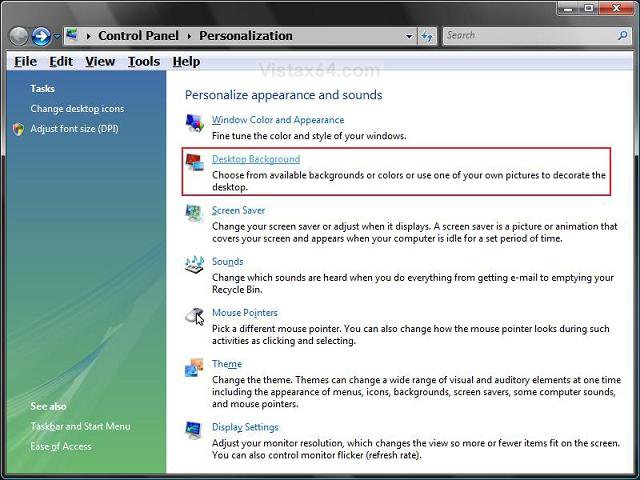
EXAMPLE:
NOTE: This will be removed in STEP ONE below.
 METHOD ONE
  Step One
NoteSTEP ONE will just remove the Desktop Background option from the Personalize appearance and sounds screen. Users will still be able to change the wallpaper by right clicking on a image and click Set as Desktop Background. You must also do STEP TWO below to prevent the desktop background from being changed.
1. Open the all users, specific users or groups, or all users except administrators Local Group Policy Editor for how you want this policy applied.
2. In the left pane, click on User Configuration, Administrative Templates, Control Panel, and Display.
(See screenshot below)
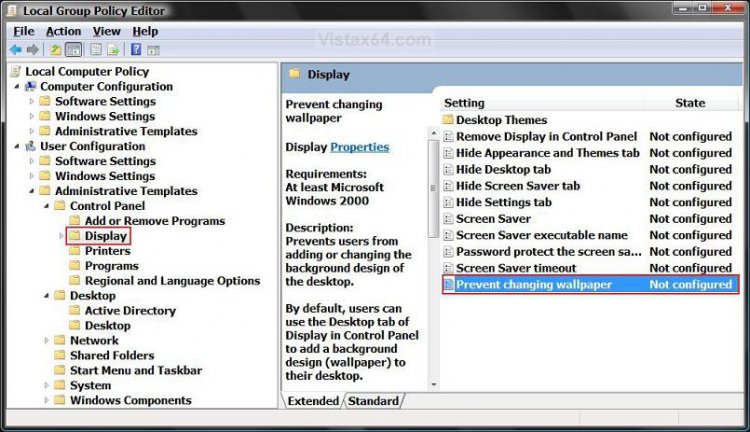
3. In the right pane, right click on Prevent changing wallpaper and click on Properties. (See screenshot above)
4. To Show the Desktop Background Option
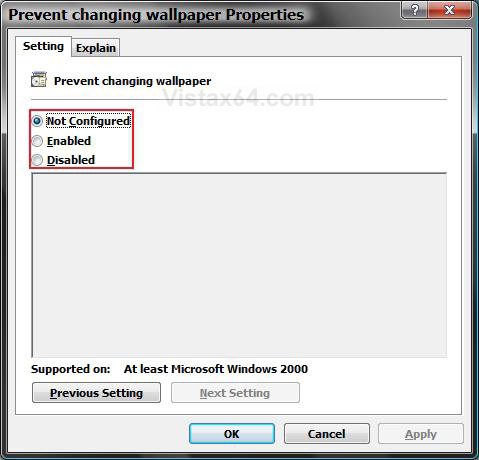
A) Select (dot) Disabled or Not Configured and click on OK. (See screenshot below step 5A)
5. To Remove the Desktop Background Option
A) Select (dot) Enabled and click on OK.
Step Two
NoteThis will also disable the Set as Desktop Background option for when a user right clicks on a image. The option will not be grayed out, but it will not work unless this is enabled.
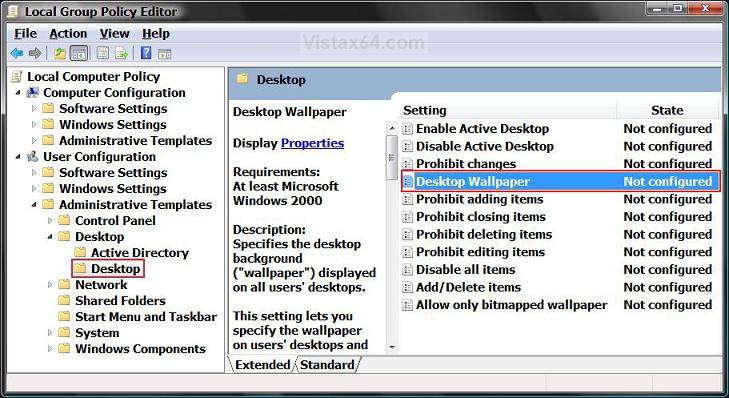
6. In the left pane, click on User Configuration, Administrative Templates, Desktop, and Desktop.
(See screenshot below)
7. In the right pane, right click on Desktop Wallpaper and click Properties.
8. To Enable Changing Desktop Background
A) Select (dot) Disabled or Not Configured and click on OK. (See screenshot below step 9D)
B) Go to step 10.
9. To Disable Changing Desktop Background
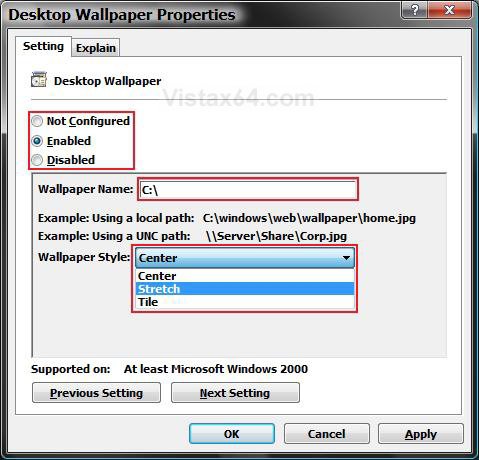
A) Select (dot) Enabled. (See screenshot below step 9D)
B) In the Wallpaper Name: box, type in the full path of a wallpaper you want displayed for all user accounts. (See screenshot below step 9D)
NOTE: You can only use a .BMP or .JPG image. If you just want a blank wallpaper, you can enter a invalid path. (EX: C:\ )
C) In the Wallpaper Style: box, select if you want the wallpaper to be in Center, Stretch, or Tile style. (See screenshot below step 9D)
D) Click on OK. (See screenshot below)
10. Close the Local Group Policy Editor window.
11. Restart the computer to apply the changes.
METHOD TWO NOTE:STEP ONE will just remove the Desktop Background option from the Personalize appearance and sounds screen. Users will still be able to change the wallpaper by right clicking on a image and click Set as Desktop Background. You must also do STEP TWO below to prevent the desktop background from being changed.
STEP ONE:
1. To Show the Desktop Background Option
A) 
2. To Remove the Desktop Background Option
NOTE: This will just remove the Desktop Background option from the Personalize appearance and sounds screen. Users will still be able to change the wallpaper by right clicking on a image and click Set as Desktop Background. You must also do STEP TWO below to prevent this.
A)
STEP TWO:
3. To Enable Changing the Wallpaper
A)
4. To Disable Changing the Wallpaper
NOTE: This download will give you a blank wallpaper. If you want to disable changing the wallpaper and have a wallpaper of your choice, then see STEP TWO in the Manual section below.
A)
5. Click on Save, and save the .reg file to the Desktop.
6. Right click the .reg file (on Desktop) and click on Merge.
7. Click on the Run button for Security Warning pop-up.
8. Click on Continue (UAC), Yes, and then OK when prompted.
9. When done, you can delete the .reg file (on Desktop).
10. Log off and log on, or restart the computer to apply the changes.
METHOD THREE 1. Open the Start Menu.
2. In the white line (Start Search) area, type regedit and press Enter.
3. If prompted, click on the Continue button in the UAC prompt.
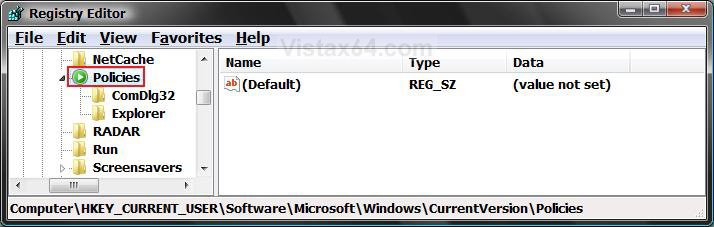
4. In regedit, go to: (See screenshot below)
HKEY_CURRENT_USER\Software\Microsoft\Windows\CurrentVersion\Policies
Step One NoteSTEP ONE will just remove the Desktop Background option from the Personalize appearance and sounds screen. Users will still be able to change the wallpaper by right clicking on a image and click Set as Desktop Background. You must also do STEP TWO below to prevent the desktop background from being changed.
5. To Remove the Desktop Background Option
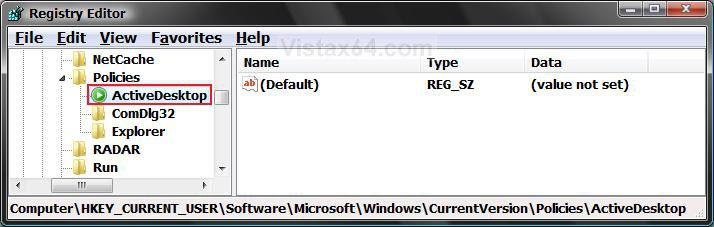
A) In the left pane, right click on Policies and click on New and Key. (See screenshot below step 4)
NOTE: If you already have the ActiveDesktop key, then go to step 5C.
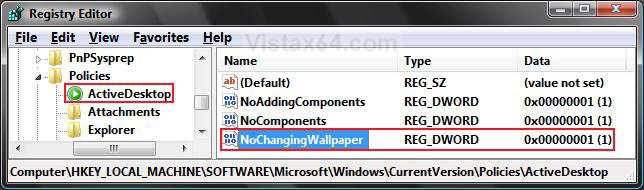
B) Type ActiveDesktop and press Enter. (See screenshot below)
C) In the right pane, right click on a empty area and click on New and DWORD (32 bit) Value.
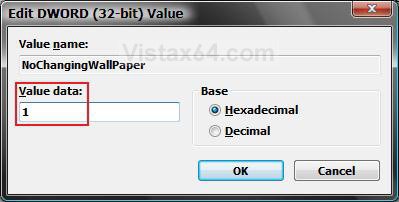
D) Type NoChangingWallpaper and press Enter. (See screenshot below)
E) In the right pane, right click on NoChangingWallpaper and click on Modify.
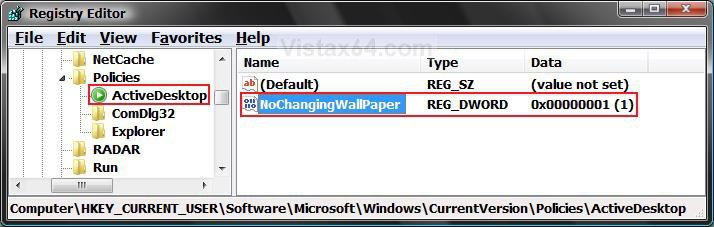
F) Type 1 and click on OK. (See screenshot below)
6. To Show the Desktop Background Option
A) Right click on NoChangingWallpaper and click on Delete. (See screenshot below step 5E)
B) Click on Yes to confirm Delete.
C) In regedit, go to: (See screenshot below)
HKEY_LOCAL_MACHINE\SOFTWARE\Microsoft\Windows\CurrentVersion\Policies\ActiveDesktop
D) In the right pane, repeat steps 6A and 6B if NoChangingWallpaper is there to.
Step Two NoteThis will also disable the Set as Desktop Background option when a user right clicks on a image. It will not be grayed out, but it will not work unless enabled.
7. To Disable Changing the Desktop Background
A) In the left pane, right click on Policies and click on New and Key. (See screenshot below)
NOTE: If you already have the System key, then go to step 7C.
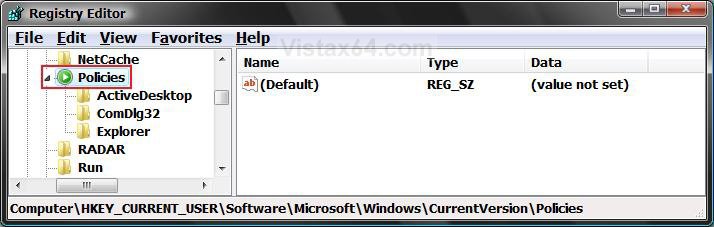
B) Type System and press Enter. (See screenshot below)
C) In the right pane, right click on a empty area and click on New and String Value.
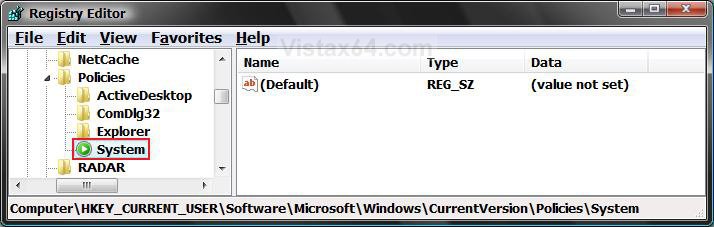
D) Type Wallpaper and press Enter. (See screenshot below)
E) In the right pane, right click on Wallpaper and click on Modify.
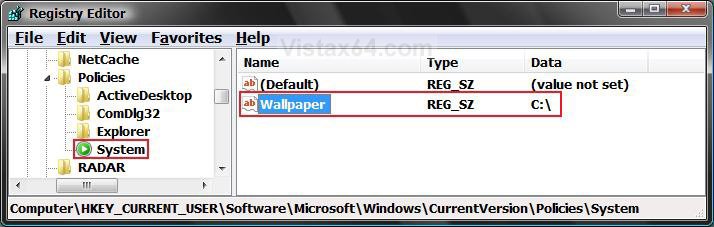
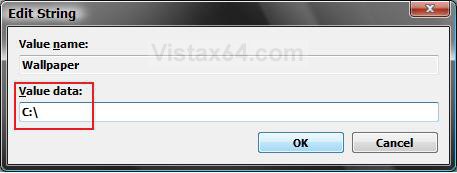
F) Type in the full path of a wallpaper you want displayed for all user accounts and click on OK. (See screenshot below)
NOTE: You can only use a .BMP or .JPG image. If you just want a blank wallpaper, you can enter a invalid path. (EX: C:\ )
G) In the right pane, right click on a empty area and click on New and String Value. (See screenshot below)
H) Type WallpaperStyle and press Enter.
I) In the right pane, right click on WallpaperStyle and click on Modify.
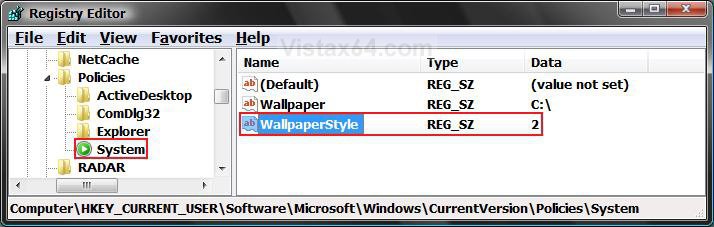
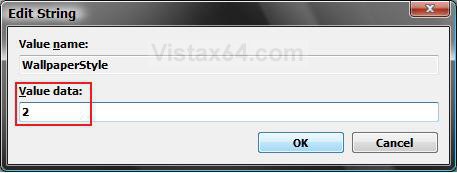
J) Type in a number below in bold for the wallpaper to be in Center, Stretch, or Tile style, and click on OK. (See screenshot below)
- Type 0 to Center the wallpaper on the desktop.
- Type 1 to Tile the wallpaper on the desktop.
- Type 2 to Stretch the wallpaper to fit the desktop.
8. To Enable Changing the Desktop Background
A) In the right pane, right click on both Wallpaper and WallpaperStyle and click Delete. (See screenshot below step 7I)
NOTE: You will have to do these one at a time.
B) Click on Yes to confirm each deletion.
9. Close regedit.
10. Log off and log on, or restart the computer to apply changes.
That's it,Shawn
Related Tutorials
- How to Change the Desktop Background Wallpaper in Vista
- How to Create a Change "Desktop Background" Shortcut in Vista and Windows 7
- How to Install and Use DreamScene in Vista
- How to Enhance Windows Vista DreamScene with Stardock DeskScapes
- How to Add or Remove the Theme Option in Vista
- How to Add or Remove the Screen Saver Option in Vista
- How to Enable or Disable Changing Display Settings in Vista
Attachments

Last edited:


 The pop-up that states that you could cause system instability, pops up any time you try to edit your registry manually. I never mind havin to click a few extra times for that extra security blanket. :P
 I followed all the steps in the tutorials. I tried all the options, still nothing worked.