
How to Create a Desktop Internet Shortcut without getting the Default IE Icon in Vista
 Information
A internet shortcut from Internet Explorer Favorites is a URL file. These URL shortcuts use a favicon that are always going back to the default Internet Explorer E icon. This will show you how to create a Desktop internet shortcut using a URL shortcut or a normal shortcut without it defaulting back to the Internet Explorer E icon.
 Note
NoteThe Internet Explorer favicon.ico files are located in the hidden protected OS folder below.
C:\Users\User-Name\AppData\Local\Microsoft\Windows\Temporary Internet Files
C:\Users\User-Name\AppData\Local\Microsoft\Windows\Temporary Internet Files
 METHOD ONE
1. Open the Favorites folder in the Start Menu under your username button.
NOTE: The Favorites folder is located at C:\Users\(your username)\Favorites.
2. Right click on the Favorites URL shortcut you want as a shortcut, then click on Send To and Desktop (create shortcut).
OR
3. Right click on a empty space on the webpage you want as the shortcut in Internet Explorer and click Create shortcut, then click on Yes to place it on the desktop.
OPTION ONE:
Just Change the Desktop Icons Size
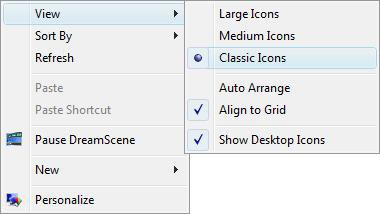
4. Right click on the Desktop and click on View and Classic Icons. (See screenshot below)
NOTE: Since URL shortcuts only use small favicons icons, this will let you see the favicon instead of the default Internet Explorer E icon. A workaround for just changing to smaller icons is to increase your DPI size to 120, if you do not mind everything else be a bit larger as well.
OPTION TWO:
Change the URL Icon
NoteThis will show you how to change the icon so you can use the same image as the original one, but be able to see the icon with larger Icon View sizes without getting the default Internet Explorer E icon.
5. Open the Start menu and click on All Programs, Accessories, and on Paint.
NOTE: Paint is located at C:\Windows\System32\mspaint.exe if you do not have the shortcut for it.
A) Take a screenshot of the image you want to use for the icon of the URL shortcut.
NOTE: You can press the PrtScrn key for a screenshot of the entire desktop, or ALT+PrtScrn keys for just the current open window.
B) Go to the Paint window and Paste this image into Paint.
NOTE: You can do this by pressing the CTRL+V keys while in Paint.
C) Make any adjustments to the image you want in Paint.
NOTE: It is best to not use a large size image to avoid distortion when Vista sizes it down automatically for the icon later.
D) Save this image in Paint as a 24-bit Bitmap (*.bmp;*.dib) file in the Save as type drop down menu to a location of your choice.
E) Now save this same .bmp image in Paint again, but change the file extension from .bmp to .ico manually in the File name field.
NOTE: You will need to save this to a location where you can keep this for the URL shortcut's usage.
F) Close Paint.
6. Right click on the URL shortcut and click on Properties.
A) Click on the Change Icon button. (See screenshot below)
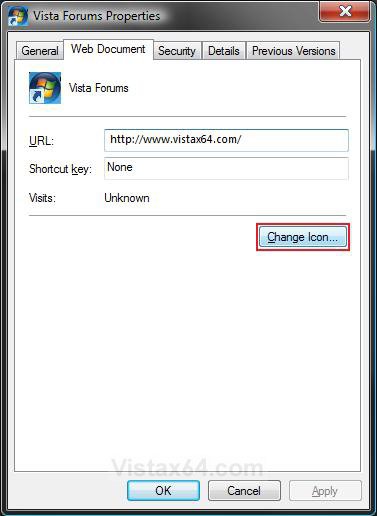
B) Click on the Browse button. (See screenshot below)
C) Navigate to the location of the saved .ico image from step 5E above and click on it to highlight it and click on Open.
NOTE: If you want to use a .ico file that you have not created in step 5E, then make sure that it is a 256x256 bit icon file designed for Vista. Otherwise, the icon may not display properly above the Medium Icon size.
D) Select the icon and click on OK.
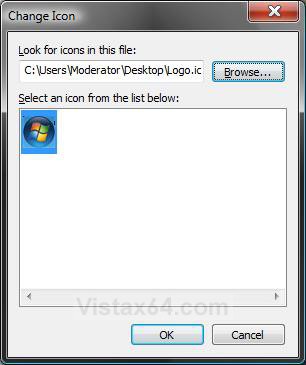
7. You will now have a URL shortcut with a icon that you will be able to see with any Icons View size you use. (See screenshot below)
NOTE: The best Icons View size will be Medium Icons to prevent the shortcut from having the outline on it for larger sizes.

METHOD TWO NOTE: You can also use this shortcut any where you like to, but you will have to provide the icon for it.
1. Right click on a empty area of the Desktop.
2. Click on New and Shortcut.
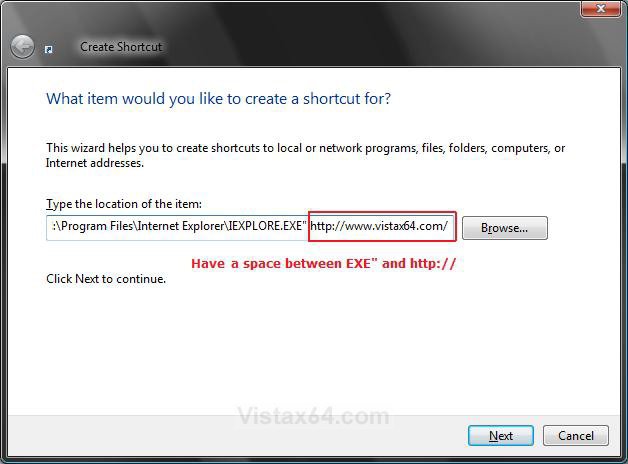
3. Copy the full path of your browser .EXE file in quotes into the location line. (See screenshot below)
NOTE: For this example, we would use "C:\Program Files\Internet Explorer\IEXPLORE.EXE" for Internet Explorer.
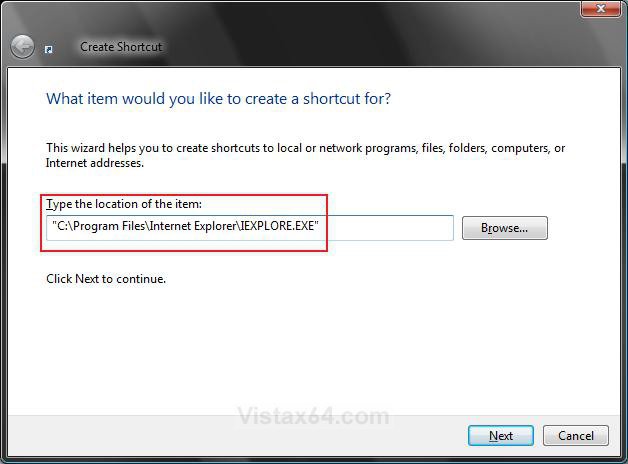
4. Now add a space after the browser .EXE, and copy the full URL web address into the location line. (See screenshot below)
NOTE: For this example, we would use http://www.vistax64.com/ for the web address.
5. It should look like this in the location line now:
Code:
[B]"C:\Program Files\Internet Explorer\IEXPLORE.EXE"[/B] [URL="http://www.vistax64.com/"][B]http://www.vistax64.com/[/B][/URL]6. Click on Next.
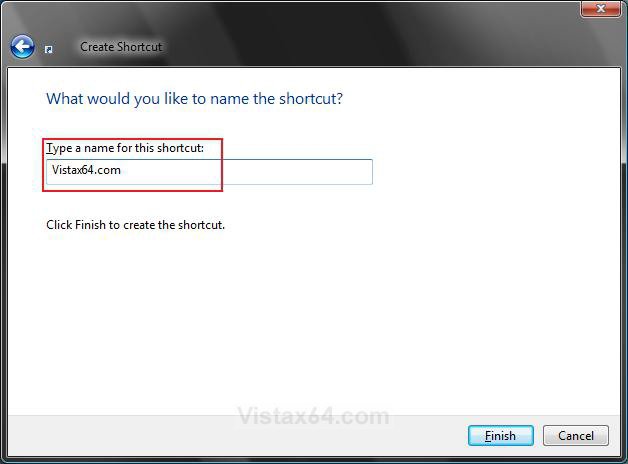
7. Type in a name for the internet shortcut and click on Finish. (See screenshot below)
NOTE: For this example, we would use Vistax64.com.
8. Now just right click on the new desktop shortcut and change the icon to whatever icon you want it to be.

METHOD THREE CREDIT TO: Our Member: alanho
1. Open the Start menu.
A) In the white line (Start Search) area, type notepad.exe and press Enter.
2. In Notepad, copy the code below.
NOTE: Substitute the url internet address http://www.vistax64.com/ with the one you want instead in the second set of quotes.
WARNING: There must be a space between the two pair of quotes.
Code:
"C:\Program Files\Internet Explorer\IExplore.exe" "http://www.vistax64.com/"3. In Notepad, click on File and Save As. (See screenshot below)
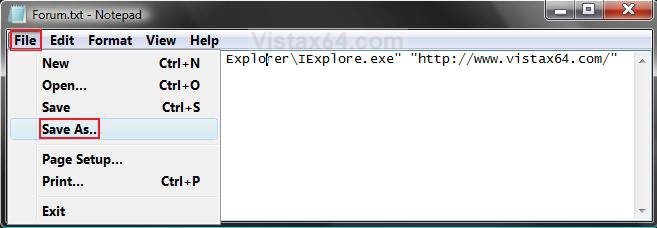
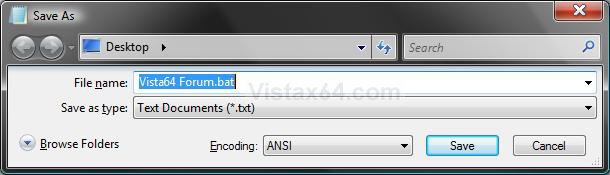
4. Type in a name folowed by .bat. (See screenshot below)
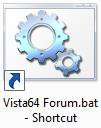
NOTE: For example, Vista64 Forum.bat
5. Save this .bat file to a location on your hard drive to be used by the shortcut.
6. Right click on the .bat file and click Send To and Desktop (create shortcut).
NOTE: This will create the internet shortcut on your desktop.
7. Now just right click on the new desktop shortcut and change the icon to whatever icon you want it to be. (See screesnhot below)
That's it,
Shawn
Related Tutorials
- How to Create a Fully Functional Internet Explorer Shortcut in Vista
- How to Change a Shortcut Folder or File Icon in Vista
- How to Restore and Change a Desktop Icon in Vista
- How to Harvest, Restore & Retain Icons on Vista
- How to Rebuild the Icon Cache in Vista
- How to Restore the Internet Explorer No Add-ons Shortcut in Vista
Attachments

Last edited by a moderator:

