
How to Change Size of Icons in Quick Launch in Vista
 Information
 This will help you have the icons display the way you want in Quick Launch by showing you how to change the size of the Quick Launch area, and shortcut icons to be either Large or Small icons.
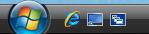
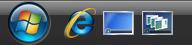
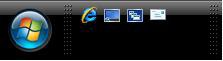
EXAMPLE: Before (Small Icons), After (Large Icons), and After (Double Height)
Here's How:
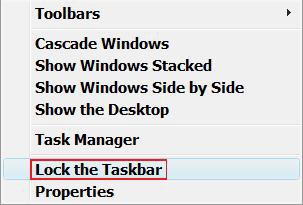
1. Right click on a empty area of the taskbar.
2. Click Lock the Taskbar to uncheck it. (See screenshot below)
NOTE: If Lock the Taskbar is grayed out, then see: How to Enable or Disable Lock the Taskbar in Vista
3. To Resize the Quick Launch Icons
A) Right click on a empty area of the Quick Launch area between the dotted bars and the icons. (See screenshot below)
B) Click on View and click on either Small Icons or Large Icons to check the icon size you want.
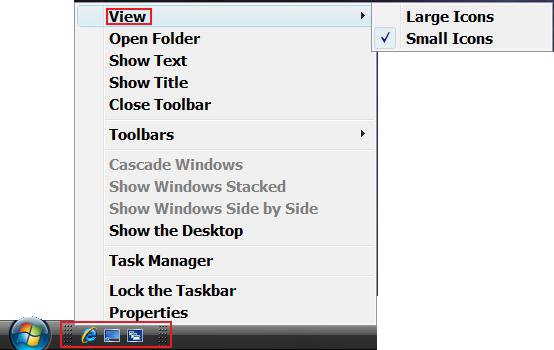
4. To Resize the Taskbar and Quick Launch Area
NOTE: To be able to see all of your icons.
A) Move the pointer over the lines until they turn into a double arrow, then left click and hold and drag it to the size you want it. (See screenshots below)
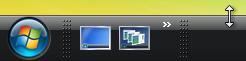
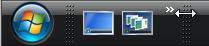
5. Click Lock the Taskbar to check it back. (See screenshot below step 2)
That's it,Shawn
Related Tutorials
- How to Add or Remove a Toolbar to the Taskbar in Vista
- How to See the Date and Time on the Taskbar in Vista
- How to Use Quick Launch in Vista
- How to Use and Create a Flip 3D Shortcut in Vista
- How to Create a Fully Functional IE7 Shortcut Icon in Vista
- How to Create a Show Desktop Shortcut in Vista
- How to Change the Size of Desktop Icons in Vista
- How to Enable or Disable Lock the Taskbar in Vista
Attachments

Last edited by a moderator: