
How to Fix a Crashing Internet Explorer in Vista
 Information
This will show you how to reset Internet Explorer (IE) back to it's default settings when IE keeps crashing or is not running properly, and how to fix the problem.
 Tip
TipThis is usually caused by a bad or corrupted add-on. Make sure that you have the latest version of the add-on installed.
 Note
Note- Sometimes the add-on will just need to be uninstalled and reinstalled to fix the problem with it.
- If the steps below in the tutorial do not help, then:
- Try having DEP turned off for IE. See: How to Enable or Disable DEP in Vista
- Try these steps. See: Microsoft Help and Support: Internet Explorer stops responding, stops working, or restarts
 Warning
This will delete all temporary browser files, disable browser add-ons, and reset all of the changed settings in Internet Explorer back to default.
 STEP ONE
1. Open the Start Menu.
2. Click on All Programs, Accessories, System Tools, and Internet Explorer (No Add-ons).
3. If this IE with no add-ons runs without any problems, then you have a bad add-on.
A) Do STEP TWO and THREE below.
4. If this IE with no add-ons still runs with problems, then you do not have a add-on problem.
A) Try STEP TWO to see if resetting the IE back to it's default settings will help. If it helps, then just enable your add-ons again in STEP THREE.
B) If STEP TWO does not help, then check to turn DEP turned off for IE.
C) If this still does not help, then you may be able to do a Repair install to fix IE.
STEP TWO 1. Open Internet Explorer.
2. Click on Tools and Internet Options.
NOTE: If you cannot open IE, then open the Control Panel (Classic View) and click on the Internet Options icon.
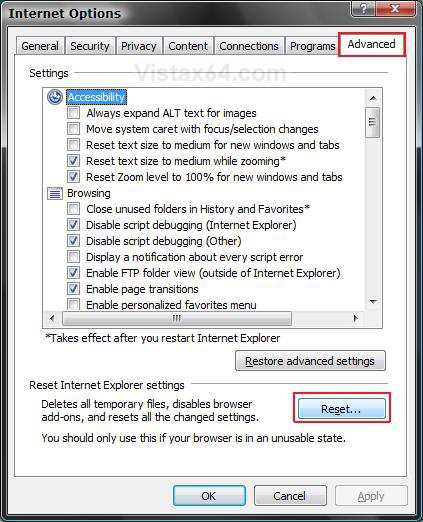
3. Click on the Advanced tab. (See screenshot below)
4. Click on the Reset button.
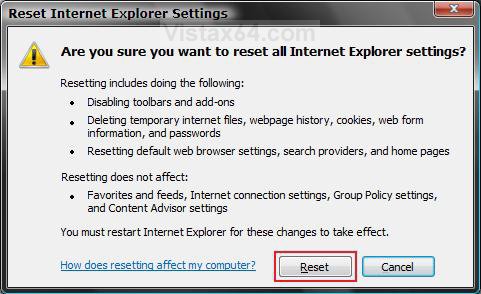
5. Click on Reset to confirm the reset. (See screenshot below)
NOTE: You will need to do the Apply Actions in Windows Defender if it's icon pops up in the notification area. Just click on the icon. See: How to Change Windows Defender Notification Options
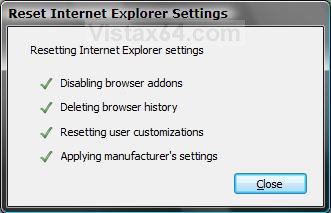
6. Click on Close. (See screenshot below)
7. Click on OK. (See screenshot below)
NOTE: You will not see this if you opened Internet Options from the Control Panel.
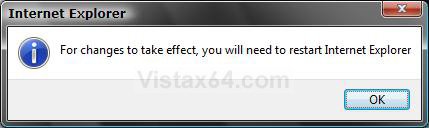
8. Close and reopen Internet Explorer to apply the reset.
STEP THREE NOTE: Sometimes the add-on will just need to be uninstalled and reinstalled to fix the problem with it.
1. Open Internet Explorer.
2. Click on Tools and Internet Options.
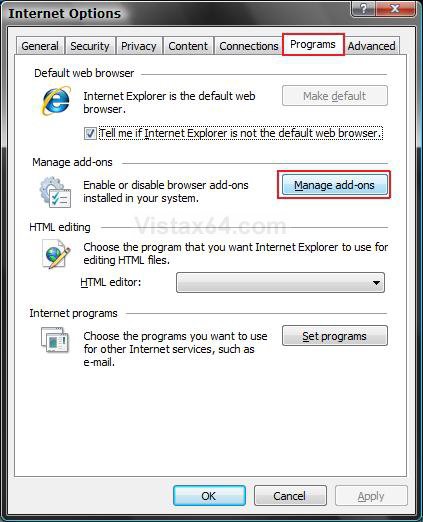
3. Click on the Programs tab. (See screenshot below)
4. Click on the Manage Add-ons button.
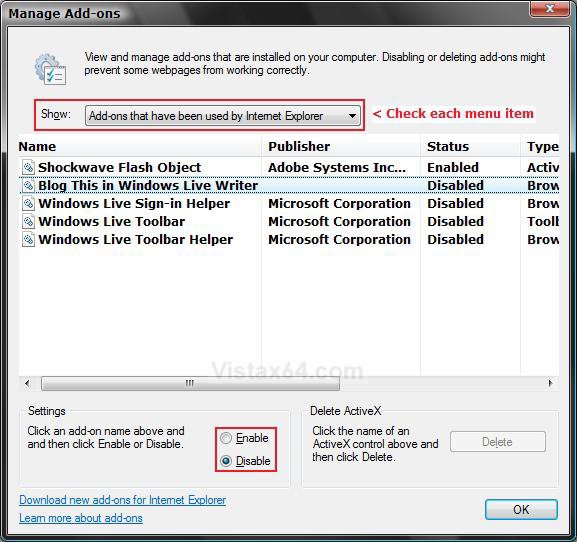
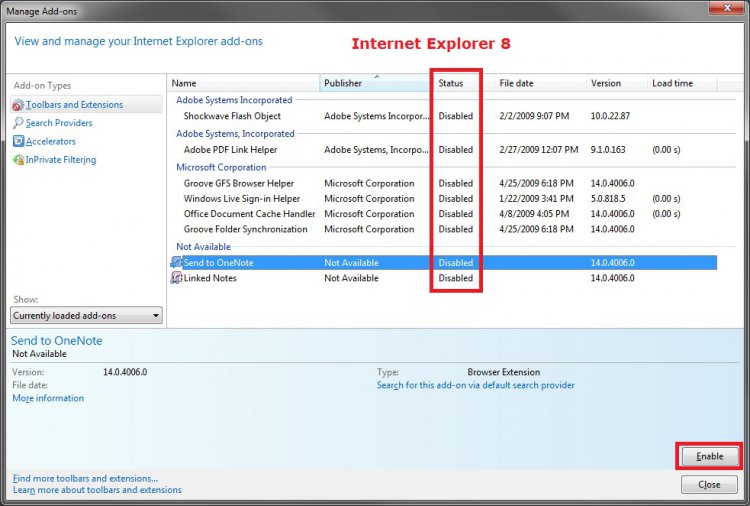
5. Click on a add-on to select it and select Enable. (See screenshot below)
NOTE: You are trying to figure out which one is bad, so just enable one or couple at a time that you think may be it. Be sure to look in the other Show drop down menu areas.
A) When the Bad Add-On is Found Select Disable, and click on Delete (IE7) if it is not grayed out to remove it.
NOTE: If is is grayed out, then see if it is listed in Programs and Features so you can uninstall it.
6. Click on OK (IE7) or Close (IE8).
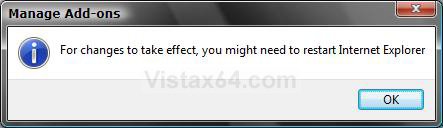
7. Click on OK to confirm changes. (See screenshot below)
8. Close and reopen IE to apply add-on changes.
9. Repeat steps 1 to 8 until you find the bad add-on.
NOTE: When you find the bad add-on, just disable it again. See if you can Delete it in step 5A. If you cannot Delete it, then see if you can uninstall it in Programs and Features.
10. When done, do not forget to set all of the IE settings back to the way you want them.
That's it,Shawn
Related Tutorials
- How to Put the Menu Bar on Top in Internet Explorer
- How to Add or Remove the Internet Explorer Search Box in Vista
- How to Change the Internet Explorer Search Box Settings in Vista
- How to Delete the Internet Explorer Browsing History in Vista
- How to Create Shortcuts to Delete Internet Explorer Browsing History in Vista
- How to View the Internet Explorer Temporary Internet Files and Settings in Vista
- How to Use Tabbed Browsing in Internet Explorer in Vista
- How to Create or Remove a Custom Title Bar in Internet Explorer
- How to Add a Fully Functional Internet Explorer Shortcut Icon to the Desktop in Vista
- How to Change or Disable the QoS Reserved Bandwidth Limit in Vista
- How to Change the Maximum Download Sessions in Internet Explorer for Vista
- How to Enable or Disable DEP in Vista
- How to Allow or Block Cookies in Internet Explorer in Vista
- How to Turn On or Off and Use Internet Explorer Pop-up Blocker in Vista
- How to Remove or Restore the Vista Internet Explorer Command Bar
- How to Restore the Internet Explorer No Add-ons Shortcut in Vista
Attachments

Last edited:


