
How to Change the Date and Time in Vista
 Information
This will show you how to set or change the date and time for the system clock in Vista.
 OPTION ONE
1. Click on the clock on the taskbar. (See screenshot below)

2. Click on Change date and time settings. (See screenshot below)
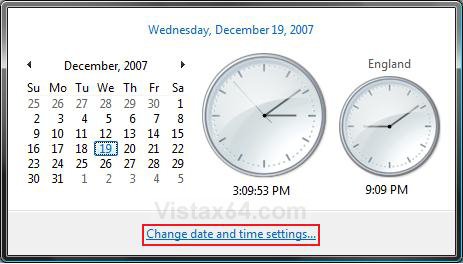
3. Go to step 3 in OPTION TWO below.
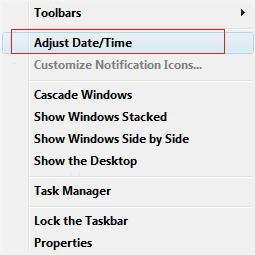
OPTION TWO 1. Right click on the clock on the taskbar. (See screenshot below)
2. Click on Adjust Date/Time. (See screenshot below)
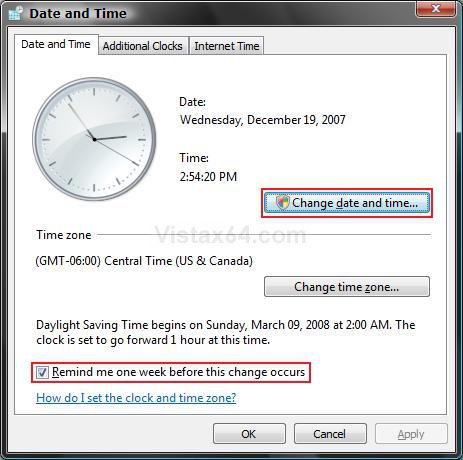
3. Click on the Change date and time button. (See screenshot below)
NOTE: Check the Remind me one week before this change occurs box to be reminded of the Daylight Savings time change with a notification pop-up when it happens.
4. Click on Continue in the UAC prompt.
5. Change the date and time to the correct settings. (See sceenshot below step 6)
NOTE: Click on the correct date, and either type in the time or click on the time and use the arrows to adjust it.
6. Click on OK to apply the changes.
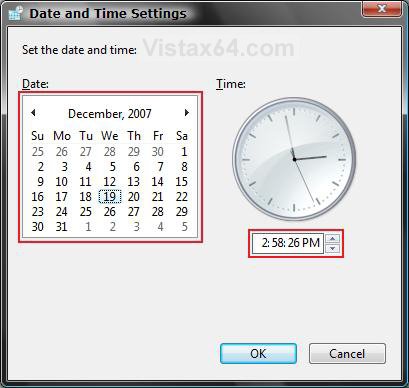
7. Click on OK. (See screenshot below step 4)
That's it,Shawn
Related Tutorials
- How to Change the Internet Time Synchronization Update Interval in Windows
- How to Use Internet Time Synchronization in Windows
- How to See the Date and Time on the Taskbar in Vista
- How to Set the Clock to Military 24 Hour Time in Vista
- How to Add Additional Time Zone Clocks in Vista
- How to Change the Time Zone in Vista
- How to Enable or Disable the Vista Taskbar Context Menus
- How to Change the Date Format in Vista
- How to Allow or Prevent Specific Users and Groups from Changing the Date and Time
Attachments
Last edited: