
How to Fix Windows Sidebar not Starting in Vista
 Information
This will show you how to get Windows Sidebar to start again if it will not start for you.
 STEP ONE
1. See if you have a sidebar.exe listed in Task Manager.
A) If you do, then End Process it.
NOTE: This will close the Windows Sidebar exe so hopefully you will be able to open another one if it was just not responding before.
B) Try doing step 3 now.
2. Make sure Windows Sidebar is Enabled.
3. Make sure Windows Sidebar is Turned On.
4. Check your Firewall or other Security programs to make sure that Windows Sidebar or sidebar.exe is not being blocked.
5. If Windows Sidebar will not start after this, then proceed to STEP TWO.
STEP TWO  Tip
TipI would recommend to use Copy and Paste to make doing this easier.
 Note
NoteSpecial thanks to meche94.
1. Open a elevated command prompt.
2. In the elevated command prompt, type: (See screenshot below)
A) For 32 bit and 64 bit Vista:
Regsvr32 -u "%ProgramFiles%\Windows Sidebar\sbdrop.dll"
B) Also Type for 64 bit Vista Only:
Regsvr32 -u "%ProgramFiles(x86)%\Windows Sidebar\sbdrop.dll"
C) Press Enter after A and/or B.

3. Click on OK. (See screenshot below)
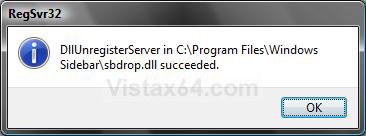
4. In the elevated command prompt, type: (See screenshot below)
A) For 32 bit and 64 bit Vista:
Regsvr32 -u "%ProgramFiles%\Windows Sidebar\wlsrvc.dll"
B) Also Type for 64 bit Vista Only:
Regsvr32 -u "%ProgramFiles(x86)%\Windows Sidebar\wlsrvc.dll"
C) Press Enter after A and/or B.
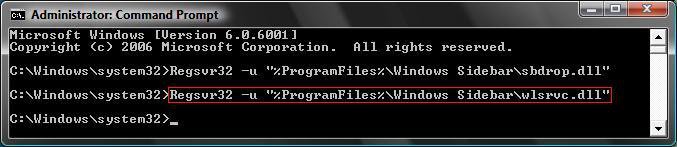
5. Click on OK. (See screenshot below)
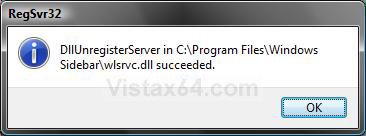
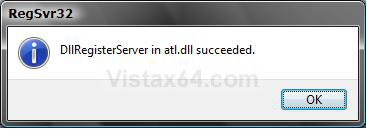
6. In the elevated command prompt, type Regsvr32 atl.dll and press Enter. (See screenshot below)
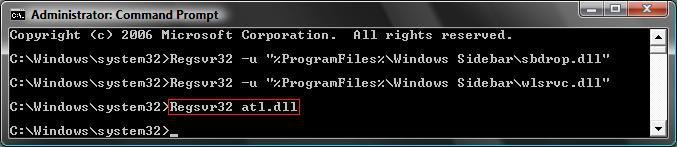
7. Click on OK. (See screeshot below)
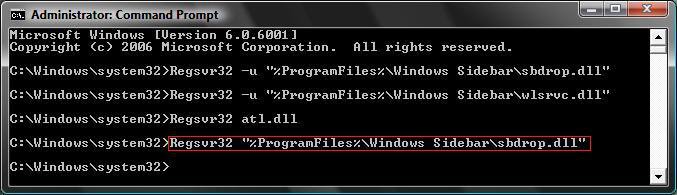
8. In the elevated command prompt, type: (See screenshot below)
A) For 32 bit and 64 bit Vista:
Regsvr32 "%ProgramFiles%\Windows Sidebar\sbdrop.dll"
B) Also Type for 64 bit Vista Only:
Regsvr32 "%ProgramFiles(x86)%\Windows Sidebar\sbdrop.dll"
C) Press Enter after A and/or B.
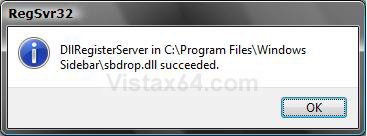
9. Click on OK. (See screenshot below)
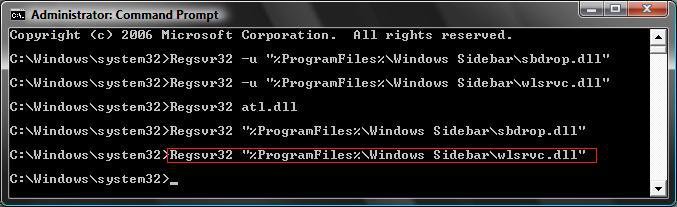
10. In the elevated command prompt, type: (See screenshot below)
A) For 32 bit and 64 bit Vista:
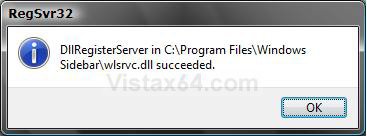
Regsvr32 "%ProgramFiles%\Windows Sidebar\wlsrvc.dll"
B) Also type for 64 bit Vista Only:
Regsvr32 "%ProgramFiles(x86)%\Windows Sidebar\wlsrvc.dll"
C) Press Enter after A and/or B.
11. Click on OK. (See screenshot below)
12. Close the elevated command prompt.
13. Restart the computer.
14. Now turn on Windows Sidebar to see if it will start up for you.
15. Your done. Windows Sidebar should start now.
NOTE: If Windows Sidebar still does not start, then run a sfc/ scannow command to see if it can find and fix any bad system files that may be the cause.
That's it,Shawn
Attachments

Last edited by a moderator:


