
How to Restore the Uninstall Confirmation Prompt in Programs and Features
 Information
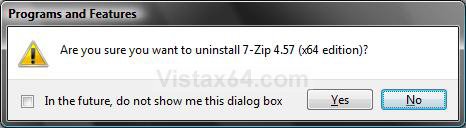
This will show you how to restore the In the future, do not show me this dialog box confirmation prompt in Programs and Features when you click Uninstall for a program in Vista and Windows 7.
 Warning
When you check the In the future, do not show me this dialog box option in the confirmation prompt, it will disable the confirmation prompt and will not be seen again until restored using OPTION ONE or OPTION TWO below.
EXAMPLE: Uninstall Confirmation Prompt
NOTE: See step 6 here: How to Uninstall or Change a Program in Vista
 OPTION ONE
1. Click on the Download button below to download the file below.
Restore_Uninstall_Confirmation_Prompt.reg

2. Click on Save, and save the .reg file to the Desktop.
3. Right click on the downloaded .reg file and click on Merge.
4. Click on Run, Continue (UAC) or Yes (Windows 7), Yes, and OK when prompted.
5. When done, you can delete the downloaded .reg file if you like.
OPTION TWO 1. Open the Start Menu, then type regedit in the search box and press Enter.
2. If prompted by UAC, click on Continue (Vista) or Yes (Windows 7).
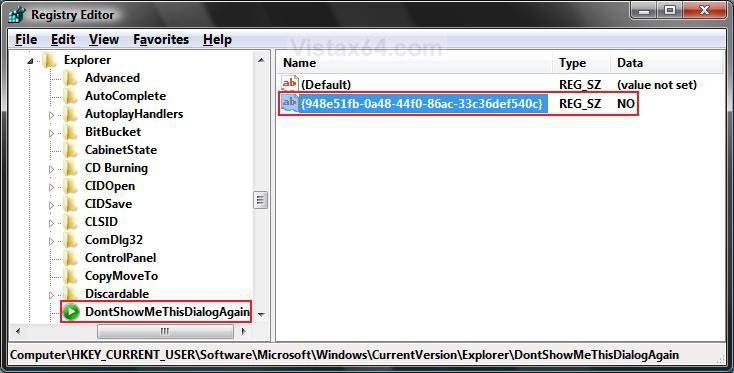
3. In regedit, navigate to the location below. (see screenshot below)
Code:
HKEY_CURRENT_USER\Software\Microsoft\Windows\CurrentVersion\Explorer\DontShowMeThisDialogAgain4. In the right pane, right click on {948e51fb-0a48-44f0-86ac-33c36def540c} and click on Delete.
5. Click on Yes to confirm the deletion.
6. Close regedit.
That's it,Shawn
Attachments

Last edited: