
How to Turn Password Protected Sharing On or Off in Vista
 Information
This will show you how to turn Password protected sharing on or off so other computers on your network can or cannot access your shared folders, including the Public folder, drive, and printer without having a user account and password on your computer. By default password protected sharing is turned on.
 Note
NoteThere are two Password Protected Sharing states:
- ON - Only people, or other computers on your network, who have a user account and password created on your computer can access shared files, printers attached to the computer, and the Public folder (provided the user account is specified as one of the accounts that can access the shared item).
- OFF - When you disable password protected sharing, the computer sharing the folder does not require a user account or password. Any computer on your network can access the files and folders you set to share on your computer (provided the shared item was set to share with the Guest account or Everyone, including the Guest account). Users or computers on the network with user accounts on your computer can still be specified or not to have access to a shared item.
 Warning
- When a computer on the network has password protected sharing turned on, you will need to create a user account with a password on that computer to be able to connect to and browse that computer for sharing.
- To prevent shared folder connection failures, use your same computer user account username and password when creating a user account on each other computer on the network you want to share with.
- If password protected sharing is turned off, computers on a network that do not have a user account with a password on your computer will need to use the Guest account. The Guest account must be turned on for them and allowed to share the file or folder.
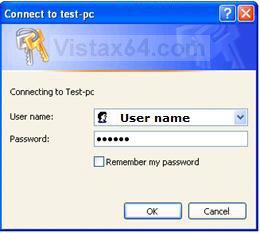
EXAMPLE: Password Protection Turned On
NOTE: This is what the user on the network will see when trying to connect to your computer with password protection turned on. They will need to logon with their username and password for a user account setup on your computer.
Here's How:
1. Open the Control Panel (Classic view).
A) Click on the Network and Sharing Center icon.
B) Go to step 3.
OR
2. Right click on the taskbar Network system tray icon.
A) Click on Network and Sharing Center.
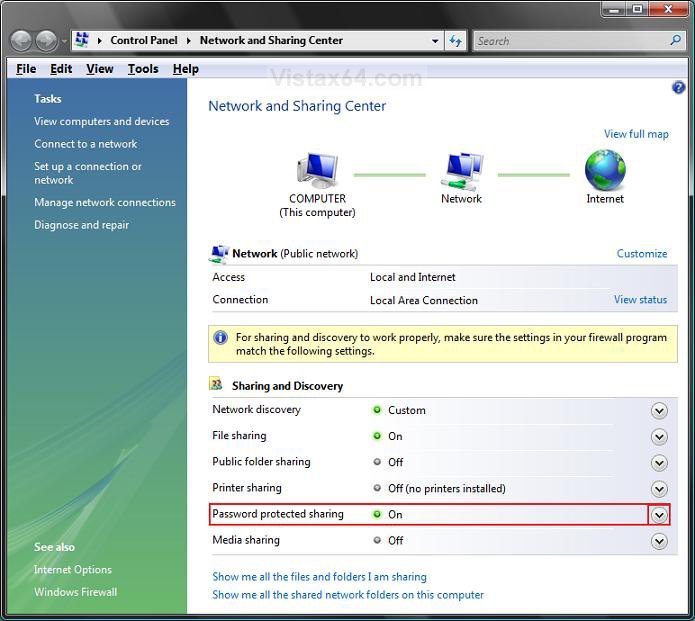
3. Click on the down arrow to the right of Password protected sharing to expand it. (See screenshot below step 6)
4. To Turn Off Password Protected Sharing
WARNING: Only have this turned off if you are using a safe secured network. (EX: Private Home Network) I would not recommend turning it off for a wireless network.
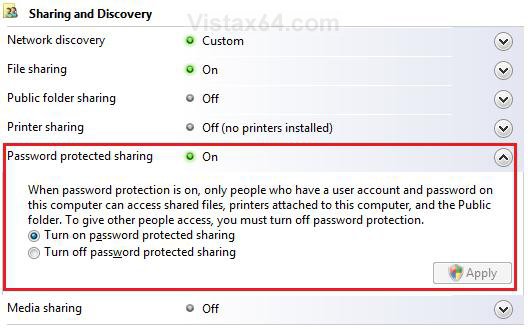
A) Dot Turn off password protected sharing. (See screenshot below step 6)
B) Go to step 6.
5. To Turn On Password Protected Sharing
NOTE: This is the safest option to use to help prevent unauthorized access.
A) Dot Turn on password protected sharing. (See screenshot below step 6)
NOTE: Do not forget to create a user account with a password on your computer for the person on the network so they can have access to what you allow them to share on your computer. See the WARNING at the top of the tutorial.
6. Click on the Apply button.
7. If prompted by UAC, then click on Continue.
That's it,Shawn
Related Tutorials
- How to Change the Network Location Type in Vista
- How to Turn Network Discovery On or Off in Vista
- How to Create a New User Account in Vista
- How to Create a Password for a User Account in Vista
- How to Make Vista Require a Username and Password at Logon
- How to Fix a Password Not Being Accepted When Connecting to a Workgroup Computer in Vista
- How to Turn Public Folder Sharing On or Off in Vista
- How to View and Browse a Computer or Device on a Network in Vista
- How to Enable Simple File Sharing in Vista
- How to Turn the Guest Account On or Off in Vista
Attachments

Last edited: