
How to Change the Sort Order for Numbers in File and Folder Names in Vista
 Information
This will show you how to change the default sort order in Windows Explorer for files and folders that contain numbers in their name so that they will be sorted by the number instead of the number's numeric value.
For more information, see: Microsoft Help and Support: KB319827
For more information, see: Microsoft Help and Support: KB319827
 Note
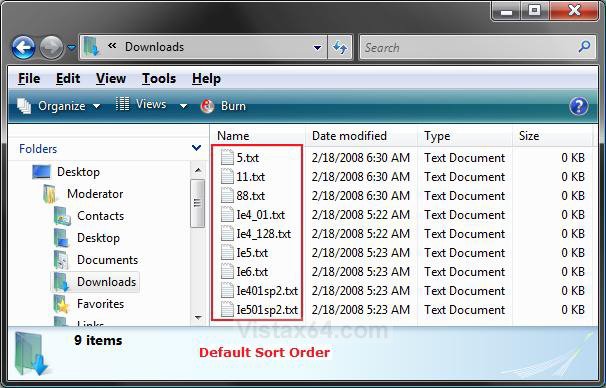
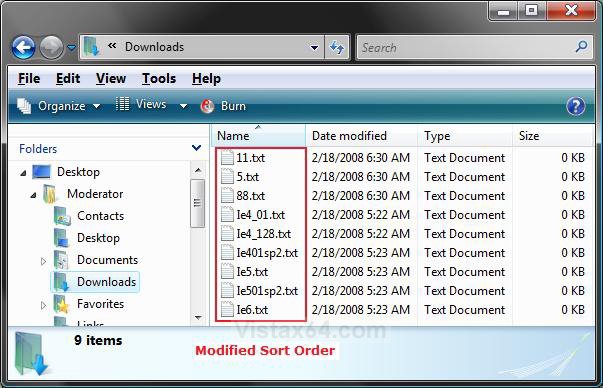
NoteBy default, the sort order in Vista considers strings in file and folder names as numeric content, not text. Numerals in folder and file names are sorted according to their numeric value. In the example below, 401 is a numerically higher value than 6. Therefore, the Ie401sp2.txt file is listed after the Ie6.txt file when you the files are sorted by name in ascending order. In the example below, note how the following files, whose names contain numerals, are sorted.
EXAMPLE: Default Sort Order for Numbers in File and Folder Names
NOTE: You will just need to see which sort oder you like better to see if you wish to modify it or not.
EXAMPLE: Modified Sort Order for Numbers in File and Folder NamesNOTE: You will just need to see which sort oder you like better to see if you wish to modify it or not.
 METHOD ONE
1. To Modifiy Sort Order for All Users
A) Click on the download button to download the file below.
Modify_All_Users_Sort_Order.reg

B) Go to step 5.
2. To Restore Default Sort Order for All Users
A) Click on the download button to download the file below.
Default_All_Users_Sort_Order.reg
B) Go to step 5.
3. To Modify Sort Order for Current User Only
A) Click on the download button to download the file below.
Modify_Current_User_Sort_Order.reg
B) Go to step 5.
4. To Restore Default Sort Order for Current User Only
A) Click on the download button to download the file below.
Default_Current_User_Sort_Order.reg
5. Click on Save, and save the .reg file to the Desktop.
6. Right click on the downloaded .reg file and click on Merge.
7. Click on Run, Continue (UAC), Yes, and then OK when prompted.
8. Log off and log on, or restart the computer to apply the changes.
9. When done, you can delete the downloaded .reg file if you like.
METHOD TWO 1. Open the Start Menu.
2. In the white line (Start Search) area, type regedit and press Enter.
3. Click on Continue in the UAC prompt.
OPTION ONE:
4. To Modify the Sort Order for All Users
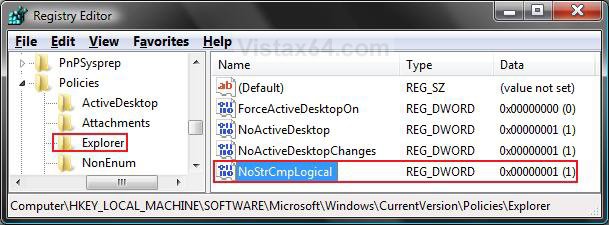
A) In regedit, go to: (See screenshot below)
NOTE: If you do not have Explorer, then right click on Polices and click on New and Key, then type Explorer and press Enter.
Code:
HKEY_LOCAL_MACHINE\SOFTWARE\Microsoft\Windows\CurrentVersion\Policies\Explorer
B) In the right pane, right click on a empty area and click New and DWORD (32-bit) Value.
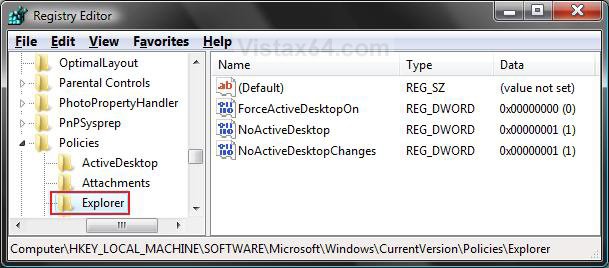
C) Type NoStrCmpLogical and press Enter. (See screenshot below)
D) Right click on NoStrCmpLogical and click on Modify.
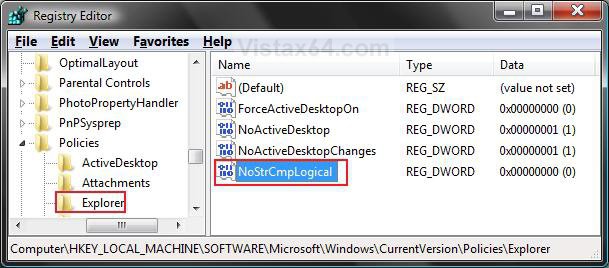
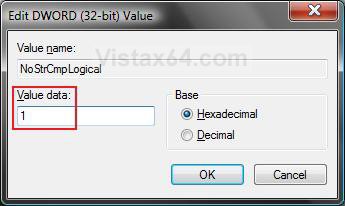
E) Type 1 and click on OK. (See screenshot below)
F) The registry will now look like this. (See screenshot below)
5. To Restore the Default Sort Order for All Users
A) In the right pane, right click on NoStrCmpLogical and click on Delete. (See screenshot above.
B) Click on Yes to confirm deletion.
6. Log off and log on, or restart the computer to apply the changes. Your Done.
OPTION TWO:
7. To Modify the Sort Order for Current User Only
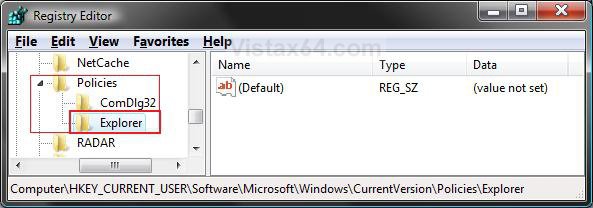
A) In regedit, go to: (See screenshot below)
NOTE: If you do not have Explorer, then right click on Polices and click on New and Key, then type Explorer and press Enter.
Code:
HKEY_CURRENT_USER\Software\Microsoft\Windows\CurrentVersion\Policies\Explorer
B) In the right pane, right click on a empty area and click New and DWORD (32-bit) Value.
C) Type NoStrCmpLogical and press Enter. (See screenshot below)
D) Right click on NoStrCmpLogical and click Modify.
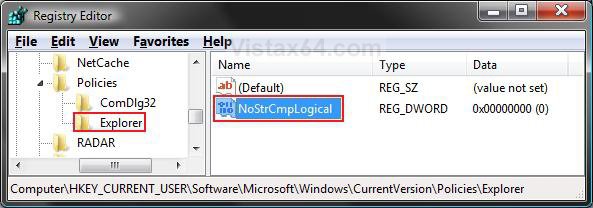
E) Type 1 and click on OK. (See screenshot below)
F) The registry will now look like this. (See screenshot below)
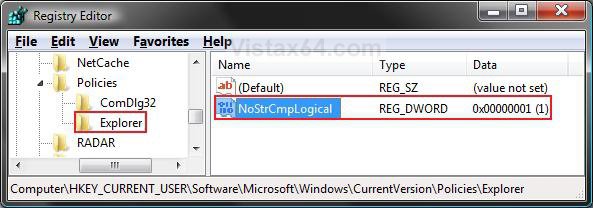
8. To Restore the Default Sort Order for Current User Only
A) In the right pane, right click on NoStrCmpLogical and click on Delete. (See screenshot above)
B) Click on Yes to confirm deletion.
9. Log off and log on, or restart the computer to apply the changes.
That's it,
Shawn
Related Tutorials
- How to Reset Windows Explorer Folder View Settings to Make Vista Remember
- How to Change a Windows Explorer Folder Type Template in Vista
- How to Change the Windows Explorer Columns and Sort Order in Vista
- How to Open and Change Folder Options in Vista
- How to Disable Auto Arrange in Vista Windows Explorer to have Free Sorting
Attachments

Last edited: