
How to Send a Message to Another User in Vista and Windows 7
 Information
This will show you how to send a message to another user that is connected to your computer locally or by network on the same workgroup. For just another user account on the same computer, the message will pop-up the next time that user account logs on.
 Warning
You can only do this from within an administrator account.
Here's How:
1. Open Task Manager.
NOTE: Press CTRL+SHIFT+ESC, or right click on the Taskbar and click on Task Manager.
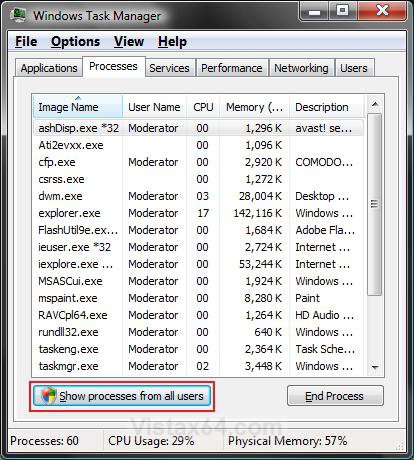
2. Click on the Process tab. (See screenshot below step 5)
3. Click on Show processes from all users. (See screenshot below step 5)
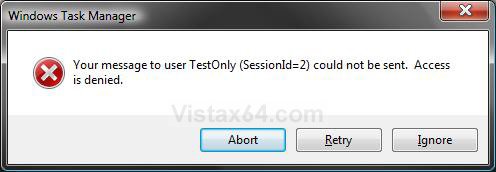
NOTE: This elevates the Task Manager. If you do step 3, then you will receive this error below when you try to send a message to the user: Your message to user username (SessionId=2) could not be sent. Access is denied. (See screenshot below)
4. Click on Continue in the UAC prompt.
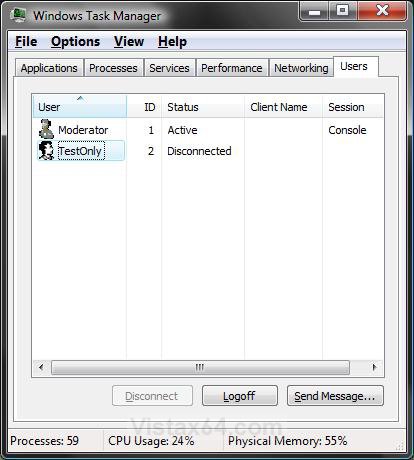
5. Click on the Users tab. (See screenshot below)
NOTE: The Users tab is unavailable on computers that are members of a network domain.
6. Click on a user that you want to send a message to. This will highlight the user. (See screenshot below)
7. Click on the Send Message button.
8. Type in a Message title, then the Message. (See screenshot below)
9. When done, click OK to send the message.

10. The user will then recieve a pop-up window with your message title and message in it. (See screenshot below)
NOTE: When done reading the message, they can click OK to close the message window.
WARNING: This message will not stay on top of other opened windows, so it may get hidden behind the other windows. Look in the taskbar to see the tab for it to make it easier to spot and open to read.

That's it,
Shawn
Related Tutorials
- How to Enable or Disable Task Manager in Vista
- How to Open and Close a Application and Process in Vista Task Manager
- How to Switch Between Regular and Small Footprint Mode in Vista Task Manager
- How to Use the Resource Monitor in Vista
- How to Disconnect a Network User Connection in Vista
- How to Log Off a Local User in Vista
- How to Turn On or Off Vista Task Manager Always On Top
- How to Create a Elevated Vista Task Manager Shortcut
- How to Send Local Messages to Computers on LAN in Windows 7 and Vista
Attachments

Last edited by a moderator: