
How to Enable or Disable the Translucent Selection Rectangle in Vista
 Information
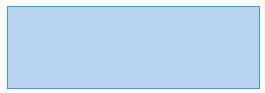
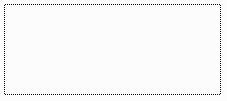
The Translucent Selection Rectangle is the blue rectangle that you drag over items to select them. This will show you how to Enable or Disable the Translucent Selection Rectangle so it will be translucent or nontranslucent. The Translucent Selection Rectangle is enabled by default.
 Warning
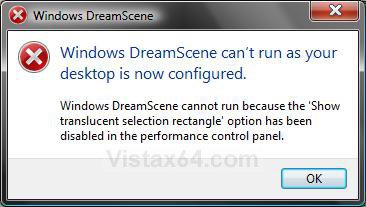
If you have the Vista Ultimate edition and have DreamScene or Stardock DeskScapes installed and running, then disabling the Show translucent selection rectangle will also disable DreamScene or DeskScapes. See the error screenshot below step 3.
EXAMPLE: Translucent and NonTranslucent Selection Rectangle
Here's How:
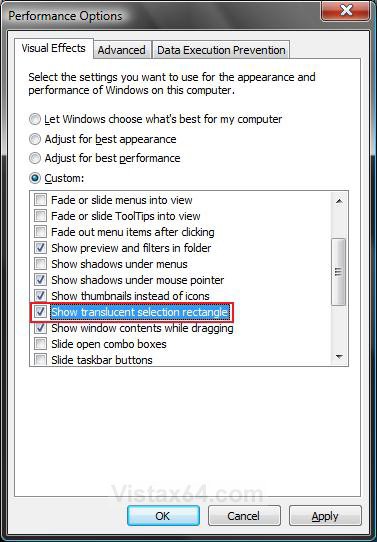
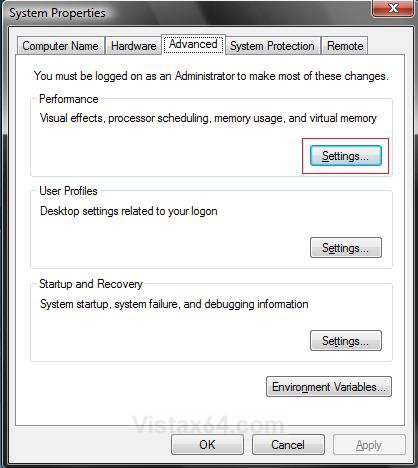
1. Open the Visual Effects Performance Options window. (See screenshot below)
2. To Enable the Translucent Selection Rectangle
A) Check Show translucent selection rectangle. (See screenshot above)
B) Click on OK.
C) Go to step 4.
3. To Disable the Translucent Selection Rectangle
A) Uncheck Show translucent selection rectangle. (See screenshot above step 2)
B) Click on OK.
WARNING: If you have the Vista Ultimate edition and have DreamScene or DeskScapes installed and running, then this will also be disabled. You will get the error messages below.

4. Click on OK. (See screenshot below)
That's it,
Shawn
Related Tutorials
- How to Open and Change Folder Options in Vista
- How to Change the Advanced Appearance Settings in Vista
- How to Change the Visual Effects Options for Appearance and Performance in Vista
- How to Select Files Using a Check Box in Vista Windows Explorer
- How to Change the Open Folder Icon in Vista
- How to Enhance Windows Vista DreamScene with Stardock DeskScapes
- How to Install and Use DreamScene in Vista
- How to Enable or Disable Full Row Select in Vista Windows Explorer
- Cannot Select Multiple Files and Folders Fix for Vista
- How to Add "Select all" to the Context Menu in Vista
Attachments
Last edited by a moderator:


