
How to Show or Hide All Notification Area System Tray Icons in Vista
 Information
This will show you how to hide or show all System Tray icons in the Notification area of the taskbar next to the clock. By default, Vista has all System Tray icons set to show.
 Tip
TipIf you just want to hide or show individual System Tray icons, then see: How to Hide or Show a Notification Icon in Vista
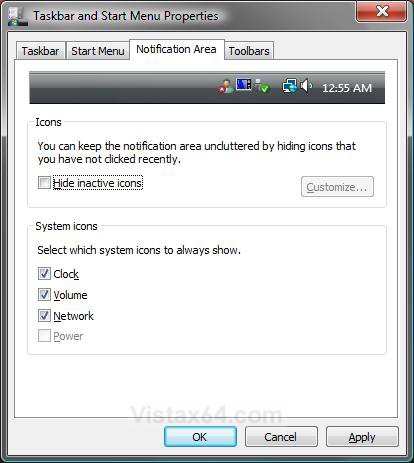
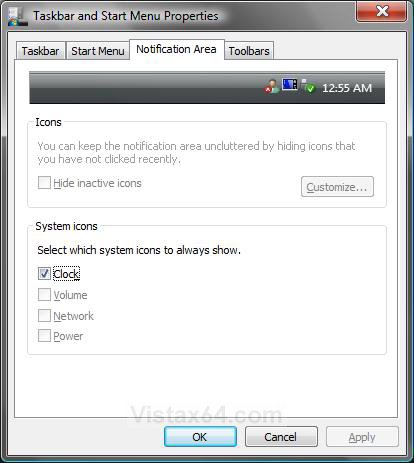
EXAMPLE: System Tray Icons Before and After


EXAMPLE: Notification Area Properties Before and AfterNOTE: If the top Icons section is not grayed out, but one or more of the System icons are, then see How to Enable or Disable the Notification Area System Icons in Vista instead of this tutorial.
 METHOD ONE
NOTE: This method is only available for the Vista Business, Ultimate, and Enterprise editions. See Method Two or Method Three below for the Vista Home Basic and Home Premium editions.
1. Open the all users, specific users or groups, or all users except administrators Local Group Policy Editor for how you want this policy applied.
2. In the left pane, click on User Configuration, Administrative Templates, and Start Menu and Taskbar. (See screenshot below)
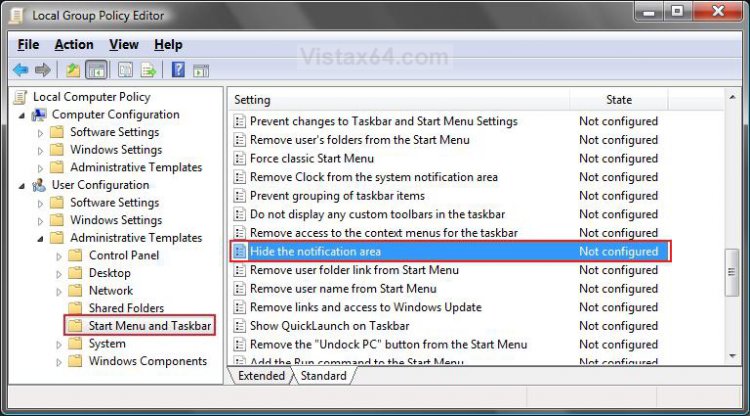
3. In the right pane, right click on Hide the notification area and click on Properties. (See screenshot above)
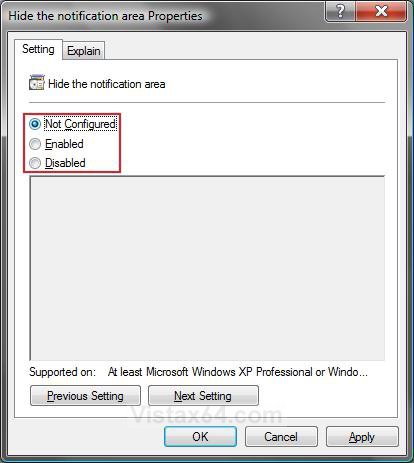
4. To Hide All System Tray Icons
A) Select (dot) Enabled and click on OK. (See screenshot below step 5A)
B) Go to step 6.
5. To Show All System Tray Icons
A) Select (dot) Disabled or Not Configured, then click on OK. (See screenshot below)
6. Close the Group Policy window.
7. Log off and log on, or restart the computer to apply the changes.
METHOD TWO NOTE: This method will work for all Vista editions.
1. To Hide All System Tray Icons
A) Click on the download button below to download the file below.
Hide_Tray_Icons.reg

B) Go to step 3.
2. To Show All System Tray Icons
A) Click on the download button below to download the file below.
Show_Tray_Icons.reg
3. Click on Save, and save the .reg file to the Desktop.
4. Right click on the downloaded .reg file and click on Merge.
5. Click on Run, Continue (UAC), Yes, and then OK when prompted.
6. When done, you can delete the downloaded .reg file if you like.
7. Log off and log on, or restart the computer to apply the changes.
METHOD THREE NOTE: This method will work for all Vista editions.
1. Open the Start Menu.
2. In the white line (Start Search) area, type regedit and press Enter.
3. Click on the Continue button in the UAC prompt.
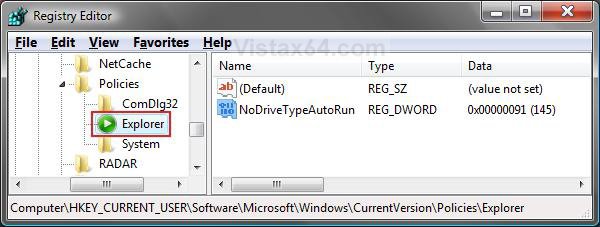
4. In regedit, go to: (See screenshot below)
NOTE: If Explorer is not there, then right click on Policies in the left pane and click New -> Key and type Explorer and press Enter.
HKEY_CURRENT_USER\Software\Microsoft\Windows\CurrentVersion\Policies\Explorer
5. To Hide All System Tray Icons
A) In the right pane of the Explorer key, right click on a empty area and click New and click DWORD (32 bit) Value. (See screenshot above)
B) Type NoTrayItemsDisplay and press Enter. (See screenshot below)
C) Right click on NoTrayItemsDisplay and click on Modify.
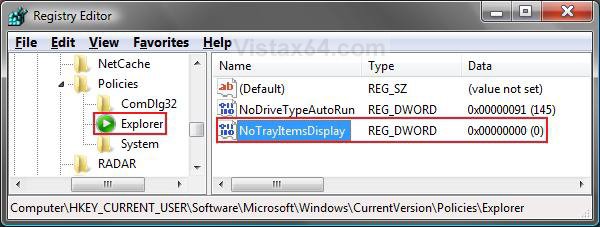
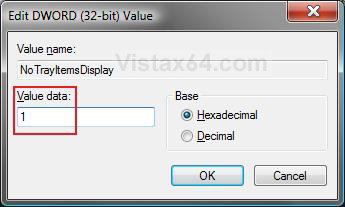
D) Type 1 and click on OK. (See screenshot below)
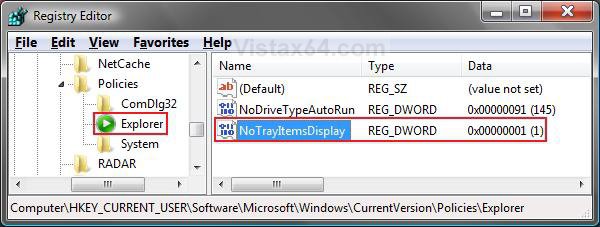
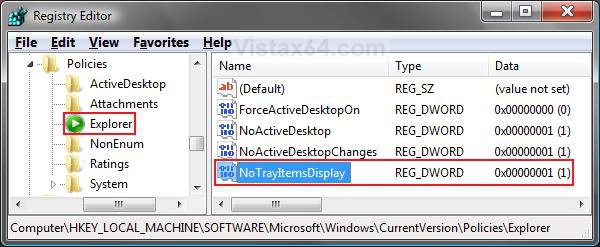
E) The registry will now look like this. (See screenshot below)
F) Go to step 7.
6. To Show All System Tray Icons
A) In the right pane, right click on NoTrayItemsDisplay and click Delete. (See screenshot above)
B) Click on Yes to confirm the deletion.
C) In regedit, go to: (See screenshot below)
HKEY_LOCAL_MACHINE\SOFTWARE\Microsoft\Windows\CurrentVersion\Policies\Explorer
D) In the right pane, if NoTrayItemsDisplay is here to, then right click on it and click on Delete. (See screenshot below)
E) Click on Yes to confirm the deletion.
7. Close regedit.
8. Log off and log on, or restart the computer to apply the changes.
That's it,Shawn
Related Tutorials
- How to Change How Long a Notification Dialog Box Will Stay Open in Vista
- How to Reset the Notification Area Icons Cache in Windows 7 and Vista
- How to Enable or Disable the Notification Area System Icons in Vista
- How to Add or Remove a Toolbar on the Taskbar in Vista
- How to Hide or Show a Notification Icon in Vista
- How to Turn Group Similar Taskbar Buttons On or Off in Vista
- How to See the Date and Time on the Taskbar in Vista
- How to Lock or Unlock the Taskbar in Vista
- How to Enable or Disable Taskbar Toolbars in Vista
- How to Show or Hide Folder Full Path in the Vista Taskbar Buttons
- How to Enable or Disable Taskbar Always on Top in Vista
- How to Turn Taskbar Auto-hide On or Off in Vista
Attachments

Last edited:


