
How to Turn Group Similar Taskbar Buttons On or Off in Vista
 Information
A taskbar button represents an open folder or program window. These buttons appear on the taskbar (the horizontal bar at the bottom of your desktop). You can click on a taskbar button to switch between these open windows. This will show you how to turn group similar taskbar buttons on or off, and how to change how many similar taskbar buttons it takes before they group to one taskbar button in Vista.
 Note
NoteWhen you have more than one similar window open, say IE7 windows, you could set the taskbar to group the same IE7 taskbar buttons to just one button instead of multiple buttons. This can help organize the taskbar and save space when you have multiple windows open.
 Tip
TipTo have open window thumbnail previews on or off for the taskbar buttons, see: How to Turn Open Window Thumbnail Previews On or Off for the Taskbar in Vista
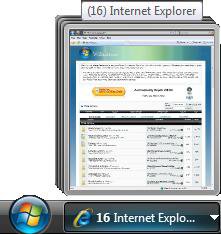
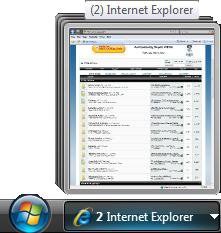
EXAMPLE: Default and Changed Similar Group Taskbar Buttons
NOTE:
A) When this is turned on, the similar taskbar buttons will not group to one button until the taskbar runs out of space for the buttons by default. See the left example.
B) You can change this to group similar taskbar buttons after a number of similar windows you specify have opened instead. See right example.
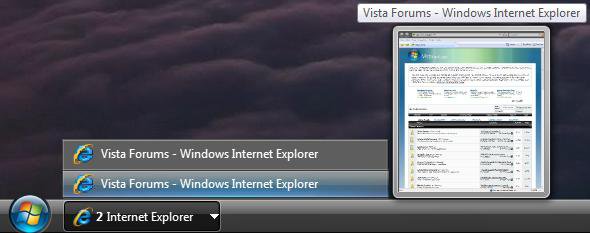
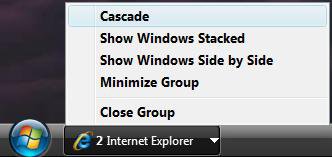
EXAMPLE: Left and Right click on a Group Taskbar buttonNOTE: This is what you will see when you left or right click on a group taskbar button.
 OPTION ONE
NOTE: This will just turn the Group similar taskbar buttons on or off with just the default settings. With the default settings, the similar taskbar buttons will not group until the taskbar runs out of space for the buttons.
1. Right click on a empty area of the taskbar.
2. Click on Properties.
3. To Turn On Group Similar Taskbar Buttons
A) In the Taskbar tab, check Group similar taskbar buttons. (See screenshot below step 5)
B) Go to step 5.
4. To Turn Off Group Similar Taskbar Buttons
A) In the Taskbar tab, uncheck Group similar taskbar buttons. (See screenshot below step 5)
5. Click on OK.
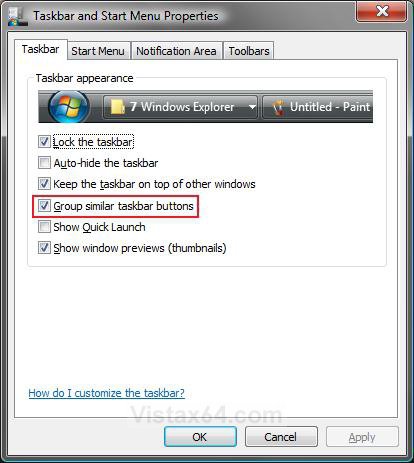
OPTION TWO NOTE: This will allow you to change how many similar taskbar buttons for open windows it takes before they will group to one taskbar button instead of using just the default settings in OPTION ONE.
Method One 1. Change to Group Two Similar Taskbar Buttons
NOTE: This will set similar taskbar buttons to group when the second similar window is open, say 2 IE7 windows. If you want to have a different amount, then do the manual way below instead.
A) Click on the Download button below to download the file below.
Group_2_Taskbar_Buttons.reg

B) Go to step 3.
2. To Restore the Default Group Similar Taskbar Buttons
NOTE: This is when the similar taskbar buttons fo not group until the taskbar runs out of space for the buttons.
A) Click on the Download button below to download the file below.
Default_Group_Taskbar.reg
3. Click on Save, and save the .reg file to the Desktop.
4. Right click on the downloaded .reg file and click on Merge.
5. Click on Run, Continue (UAC), Yes, and then OK when prompted.
6. Turn the Group Similar Taskbar Buttons off and on in OPTION ONE to apply the changes.
7. When done, you can delete the .reg file (On Desktop).
Method Two 1. Open the Start Menu.
2. In the white line (Start Search) area, type regedit and press Enter.
3. Click on Continue in the UAC prompt.
4. In regedit, go to: (See screenshot below)
Code:
HKEY_CURRRENT_USER\Software\Microsoft\Windows\CurrentVersion\Explorer\Advanced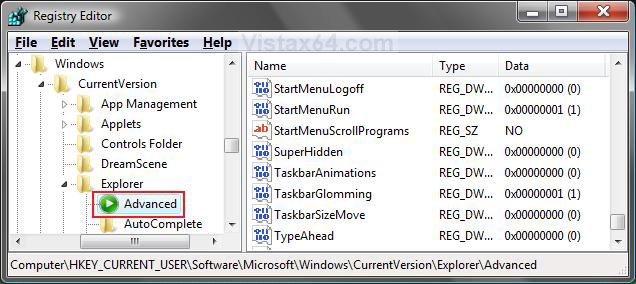
5. Change Group Similar Taskbar Buttons Amount
A) In the right pane of Advanced, right click on a empty area and click New, then DWORD (32-bit) Value. (See screenshot above)
B) Type TaskbarGroupSize and press Enter. (See screenshot below)
C) Right click on TaskbarGroupSize and click on Modify.
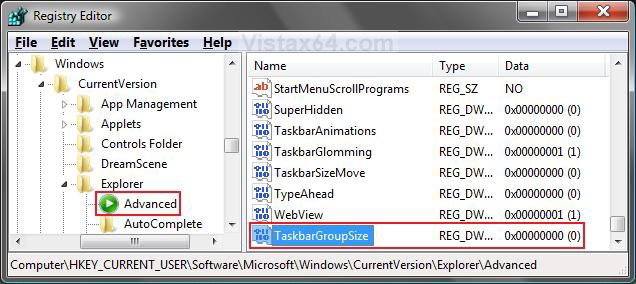
D) Type in the amount of similar taskbar buttons you want opened before they group and click on OK. (See screenshot below)
NOTE: For example, 2. You can use whatever number you want.
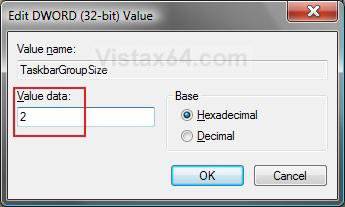
E) The registry will now look like this. (See screenshot below)
NOTE: With the example of 2.
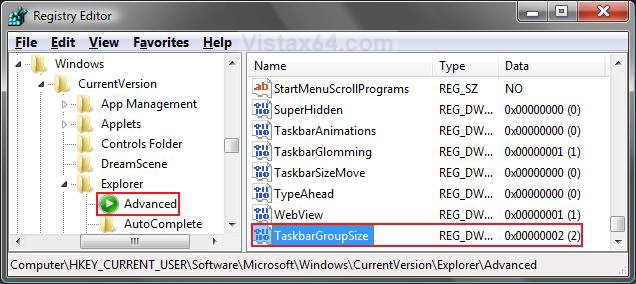
F) Go to step 7.
6. To Restore the Default Group Similar Taskbar Buttons Amount
A) In the right pane, right click on TaskbarGroupSize and click on Delete. (See screenshot above)
B) Click on Yes to confirm the deletion.
7. Close regedit.
8. Turn the Group Similar Taskbar Buttons off and on in OPTION ONE to apply the changes.
That's it,
Shawn
Related Tutorials
- How to Add or Remove a Toolbar on the Taskbar in Vista
- How to Turn Open Window Thumbnail Previews On or Off for the Taskbar in Vista
- How to Use Quick Launch in Vista
- How to Hide or Show a Notification Icon in Vista
- How to Show or Hide All Notification Area System Tray Icons in Vista
- How to See the Date and Time on the Taskbar in Vista
- How to Lock or Unlock the Taskbar in Vista
- How to Enable or Disable Taskbar Toolbars in Vista
- How to Enable or Disable the Vista Taskbar Context Menus
- How to Enable or Disable the Taskbar and Start Menu Properties Window in Vista
- How to Show or Hide Folder Full Path in the Vista Taskbar Buttons
- How to Replace the Vista Taskbar Buttons with Icons
- How to Enable or Disable Taskbar Always on Top in Vista
- How to Turn Taskbar Auto-hide On or Off in Vista
Attachments
Last edited by a moderator:

 )lolol