
How to Enable or Disable "Auto-Hide" in Vista and Windows 7 Explorer Full Screen F11 Mode
 Information
This will show you how to enable or disable Auto-Hide in Windows Explorer and Internet Explorer while in Full Screen F11 mode.
By default, Auto-Hide is enabled.
By default, Auto-Hide is enabled.
 Note
NoteAuto-Hide for Windows Explorer and Internet Exlporer works pretty much the same way it does for the taskbar. When in full screen F11 mode, Auto-Hide hides the address bar and toolbar until you move the mouse pointer to the top of the screen. When you do, the address bar and toolbar slides open.
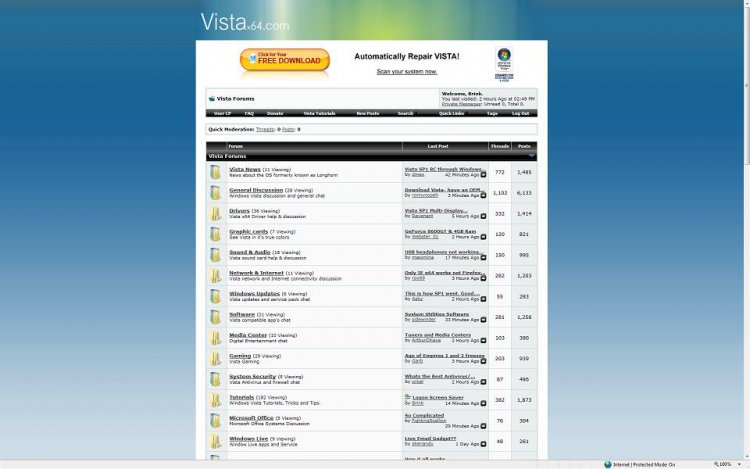
EXAMPLE: Internet Explorer Full Screen F11 with Auto-Hide Enabled
NOTE: Notice the address bar and toolbar are hidden while in full screen mode with Auto-Hide enabled.
EXAMPLE: Internet Explorer Full Screen F11 with Auto-Hide Disabled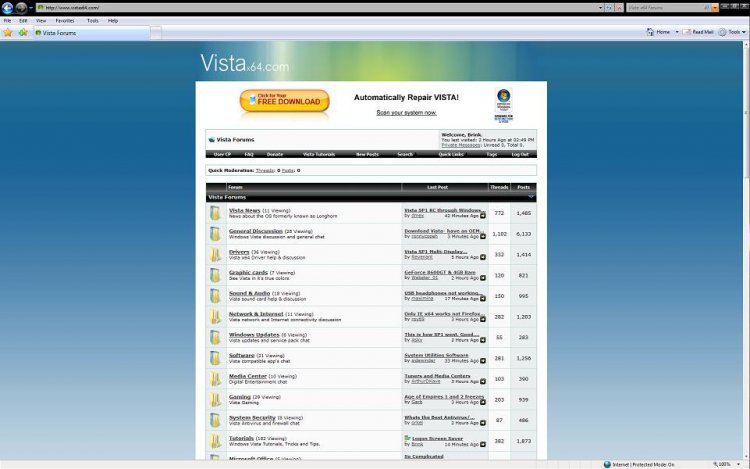
Here's How:
1. Open a Windows Explorer or Internet Explorer window.
2. Press F11 to turn full screen mode on or off.
NOTE: On laptops or some multimedia keyboards, you may need to press the F Lock (Function) key or press and hold the Fn key and the F11 together instead of just F11.
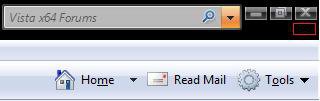
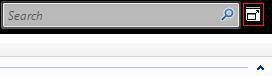
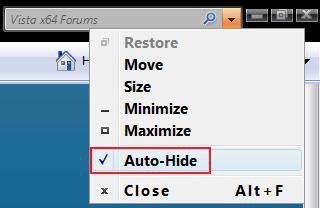
3. Right click on the area boxed in red in the upper right corner of the Windows Explorer or Internet Explorer window. (See screenshots below)
NOTE: The left screenshot is in IE8 , and the right screenshot is in Windows Explorer. In IE9, right click on a empty area on the tab bar.
4. To Enable Auto-Hide
NOTE: This will enable Auto-Hide in both Internet Explorer and Windows Explorer when changed in either one.
A) Click on Auto-Hide to check it. (See screenshot below step 5)
5. To Disable Auto-Hide
NOTE: This will disable Auto-Hide in both Internet Explorer and Windows Explorer when changed in either one.
A) Click on Auto-Hide to uncheck it. (See screenshot below)
That's it,
Shawn
Related Tutorials
- How to Put the Menu Bar on Top in Internet Explorer
- How to Add or Remove the Internet Explorer Search Box in Vista
- How to Change the Internet Explorer Search Box Settings in Vista
- How to Create or Remove a Custom Title Bar in Internet Explorer
- How to Use the Windows Explorer Address Bar in Vista
- How to Change the Windows Explorer Columns and Sort Order in Vista
- How to Reset Windows Explorer Folder View Settings to Make Vista Remember
- List of All Keyboard Shortcuts in Vista
- How to Remove or Restore the Vista Internet Explorer Command Bar
- How to Disable Auto Arrange in Vista Windows Explorer to have Free Sorting
Attachments

Last edited by a moderator:


