
How to Create a "Clear Clipboard" Shortcut in Windows
 Information
The Clipboard is a temporary storage area used by Vista and Windows 7. Information (such as text, files, graphics, sound, or video) can be copied to the Clipboard from one program or location and pasted elsewhere. The Clipboard can only hold one piece of information at a time. Whenever something is copied to the Clipboard, it replaces whatever was there before automatically.
This tutorial will show you how to create or download a Clear Clipboard shortcut that will clear the contents of the clipboard when used in Vista, Windows 7, or Windows 8.
This tutorial will show you how to create or download a Clear Clipboard shortcut that will clear the contents of the clipboard when used in Vista, Windows 7, or Windows 8.
 Tip
TipThis can be handy if you just want to clear the Clipboard without having to copy something else to do so. This way you do not have potential sensitive information just sitting in the Clipboard.
 Note
NoteWhen you click on the Clear Clipboard shortcut, a command prompt window will open and close quickly to indicate that it's working to clear it's contents.
 OPTION ONE
1. Click on the download button below to download the file below.
Clear_Clipboard_Shortcut.zip

2. Save the ZIP file to the Desktop.
3. Open the downloaded .zip file and extract (drag and drop) the Clear Clipboard shortcut to the desktop.
4. Unblock the Clear Clipboard shortcut.
5. In Vista and Windows 7, you can now Pin to Taskbar (Windows 7 only) or Pin to Start Menu, add to Quick Launch, assign a keyboard shortcut to it, or move this shortcut to where you like for easy use.
6. In Windows 8, you can Pin to Taskbar on desktop, Pin to Start screen, add to Quick Launch, assign a keyboard shortcut to it, or move this shortcut to where you like for easy use.
7. When finished, you can delete the downloaded .zip file if you would like to.
OPTION TWO 1. Right click on a empty area of the desktop, and click on New and Shortcut.
2. Copy and Paste the location below into the location field, and click on Next. (see screenshot below)
%windir%\System32\cmd.exe /c "echo off | clip"
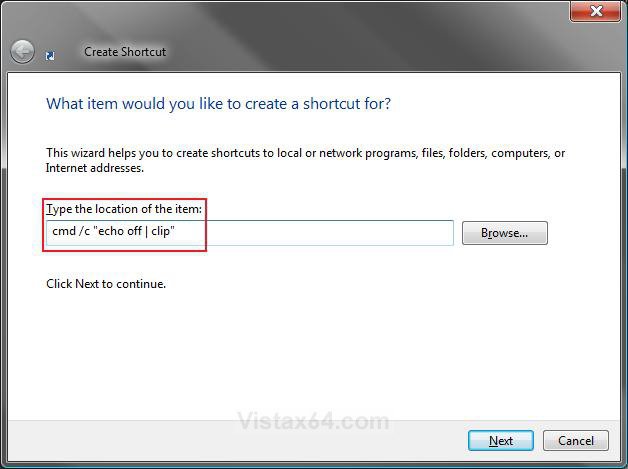
3. Type Clear Clipboard for the name, and click on Finish. (see screenshot below)
NOTE: You can name it anything you would like though.
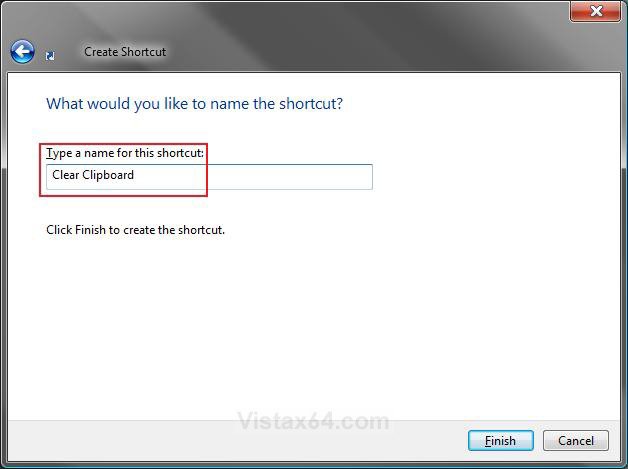
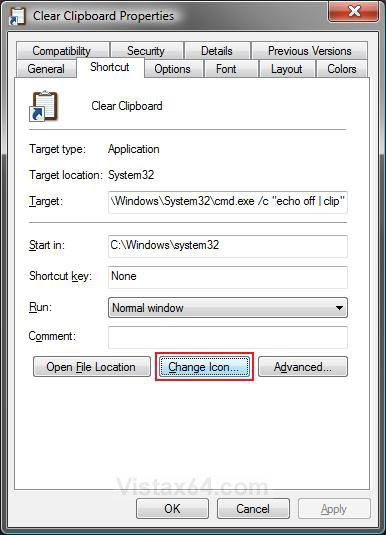
4. Right click on the new Clear Clipboard shortcut, and click on Properties.
5. Click on the Change Icon button. (see screenshot below)
NOTE: For more on how to change a shortcut folder or file icon, see: How to Change a Shortcut Folder or File Icon in Vista
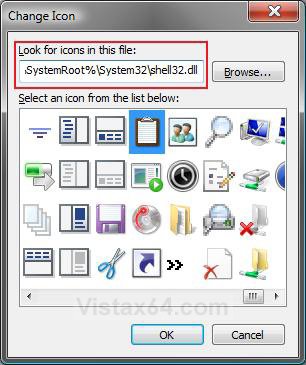
6. In the line under "Look for icons in this file", copy and paste the location below and press Enter. (see screenshot below step 10)
%windir%\System32\shell32.dll
7. Click on the icon highlighted in blue below, and click on OK. (see screenshot below)
NOTE: You can use any icon that you would like instead though.
8. Click on OK to apply. (see screenshot below step 5)
9. In Vista and Windows 7, you can now Pin to Taskbar (Windows 7 only) or Pin to Start Menu, add to Quick Launch, assign a keyboard shortcut to it, or move this shortcut to where you like for easy use.
10. In Windows 8, you can Pin to Taskbar on desktop, Pin to Start screen, add to Quick Launch, assign a keyboard shortcut to it, or move this shortcut to where you like for easy use.
That's it,Shawn
Related Tutorials
- How to Add "Clear Clipboard" to the Context Menu in Windows
- How to Add "Copy Content to Clipboard" to Context Menu in Vista, Windows 7, and Windows 8
- How to Clear Vista Temporary Files in the Temp Folder
- How to Use Disk Cleanup in Vista
- How to Enable or Disable Clear Virtual Memory Paging File at Shutdown in Vista
Attachments

Last edited: