Vista Forums
Vista Forums Home Join Vista Forums Donate Vista Tutorials Store Tags

Welcome to Vista Forums we are your forum to discuss Windows Vista x64 and x86 systems.

Go Back   Vista Forums > Vista Forums > Tutorials

Change a Password - Add or Remove from Ctrl+Alt+Delete

Poll: Did this Tutorial help and work for you?
Poll Options
Did this Tutorial help and work for you?

Comment
 
Tutorial Tools Display Modes
<!-- google_ad_section_start -->Change a Password - Add or Remove from Ctrl+Alt+Delete<!-- google_ad_section_end -->
Change a Password - Add or Remove from Ctrl+Alt+Delete
How to Add or Remove Change Password from the Vista Ctrl+Alt+Delete Screen
Published by Brink
04-18-2008

How to Add or Remove Change Password from the Vista Ctrl+Alt+Delete Screen

INFO: This will show you how to add or remove Change a Password from the list of options in the Ctrl+Alt+Delete Security Screen for all users on the computer. Change a Password is added to this screen by default.

NOTE: All users will still be able to change their passwords from within User Accounts in the Control Panel. For more on this, see: How to Remove or Change a Password for a User Account in Vista

WHY: To allow or prevent all users on the computer from being able to change their password from the Ctrl+Alt+Delete security screen.

RELATED LINKS:
1. How to Add or Remove Log Off from the Ctrl+Alt+Delete Screen in Vista

2. How to Enable or Disable Lock Computer in Vista

3. How to Disable or Enable Switch User on the Vista Start Menu

4. How to Enable or Disable Task Manager in Vista


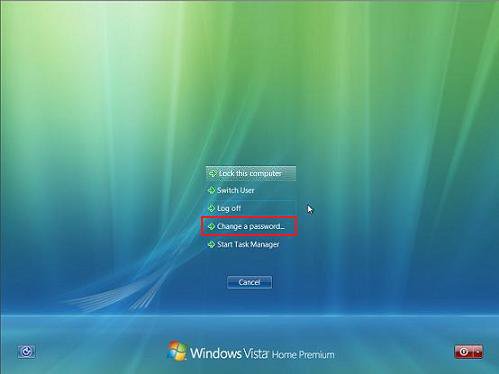
EXAMPLE: The Ctrl+Alt+Delete Security Screen with Change a Password
NOTE: You enter the Security Screen by pressing the Ctrl+Alt+Delete keys together from within Vista.
After_CtrlAltDel.jpg


METHOD ONE:
Through the Local Group Policy Editor:
NOTE: This is only available for the Vista Business, Ultimate, and Enterprise editions. See Method Two below for Vista Home Basic and Home Premium editions.
WARNING: This will abe applied to all user accounts on the computer.

1. Open the Start Menu.
2. In the white line (Start Search) area, type gpedit.msc and press Enter.
3. Click Continue for the UAC prompt.
4. In the left pane, click on User Configuration, Administrative Templates, System, Ctrl+Alt+Del Options. (See screenshot below)
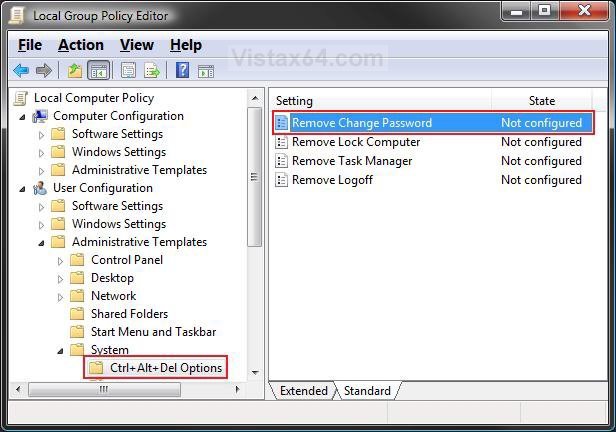
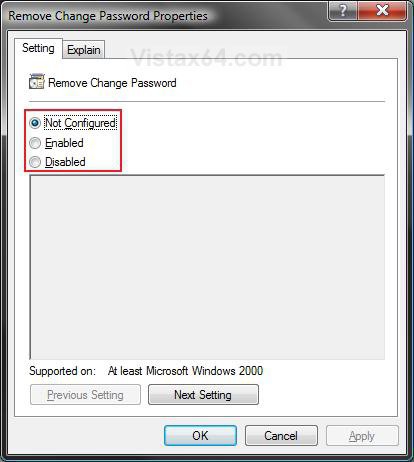
5. In the right pane, right click on Remove Change Password and click Properties.

Group_Policy.jpg

6. To Add Change a Password -
A) Dot Disabled or Not Configured and click OK. (See screenshot below step 7)
B) Go to step 8.

7. To Remove Change a Password -
A) Dot Enabled and click OK. (See screenshot below)

Properties.jpg

8. Close the Local Group Policy Editor window. Your done.


METHOD TWO:
Through the Registry:
NOTE: This will work for all Vista editions.
WARNING: You must repeat this for each user account you want this applied to from within (logged on) that account. Doing this to the HKLM key does not have any affect.

Through a Download:
1. To Add Change a Password -
A) Add_Change_Password.reg < Click To Download
B) Go to step 3.

2. To Remove Change a Password -
A) Remove_Change_Password.reg < Click To Download

3. Click on Save, and save the .reg file to the Desktop.
4. Right click the .reg (On Desktop) file and click Merge.
5. Click on the Run button for Security Warning pop-up.
6. Click on Continue (UAC), Yes, and then OK when prompted.
7. When done, you can delete the .reg file (On Desktop).


The Manual Way:
1. Open the Start Menu.
2. In the white line (Start Search) area, type regedit and press Enter.
3. Click the Continue button for the UAC prompt.
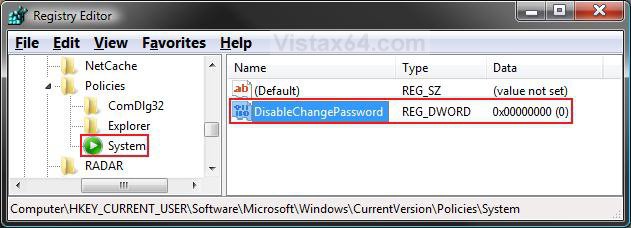
4. In regedit, go to: (See screenshot below)
HKEY_CURRENT_USER\Software\Microsoft\Windows\CurrentVersion\Policies\System
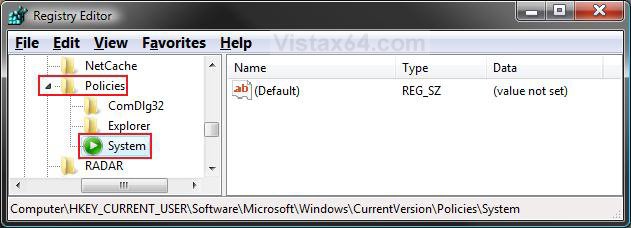
NOTE: If you do not have System, then right click on Polices and click New -> Key, then type System and press Enter.

Reg1.jpg

5. To Remove Change a Password -
A) In the right pane, right click on a empty area and click New -> DWORD (32-bit) Value. (See screenshot above)
B) Type DisableChangePassword and press Enter.
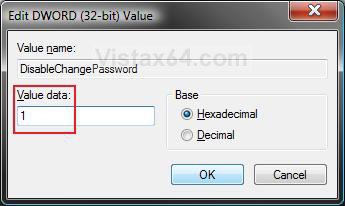
C) Right click on DisableChangePassword and click Modify.

Reg2.jpg

D) Type 1 and click OK. (See screenshot below)

Modify.jpg

E) You registry should now look like this. (See screenshot below)
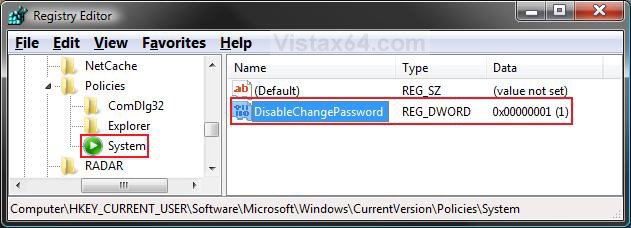
Reg3.jpg

F) Go to step 7.

6. To Add Change a Password -
A) In the right pane, right click on DisableChangePassword and click Delete. (See screenshot above)
B) Click Yes to confirm deletion.

7. Close regedit.


That's it,
Shawn
Published by
Brink's Avatar
Administrator
Join Date: Apr 2007
Location: Texas, USA
Posts: 13,545
Rep Power: 200
Brink has a reputation beyond reputeBrink has a reputation beyond reputeBrink has a reputation beyond reputeBrink has a reputation beyond reputeBrink has a reputation beyond reputeBrink has a reputation beyond reputeBrink has a reputation beyond reputeBrink has a reputation beyond reputeBrink has a reputation beyond reputeBrink has a reputation beyond reputeBrink has a reputation beyond repute

Tutorial Tools

Applies to
All Vista Versions
64 Bit & 32 Bit

Rating
Skill Level
60%60%60%
3

Page copy protected against web site content infringement by Copyscape

Old 05-24-2008  
Bare Foot Kid
Technophile Wannabe

Bare Foot Kid has much to be proud ofBare Foot Kid has much to be proud ofBare Foot Kid has much to be proud ofBare Foot Kid has much to be proud ofBare Foot Kid has much to be proud ofBare Foot Kid has much to be proud ofBare Foot Kid has much to be proud ofBare Foot Kid has much to be proud ofBare Foot Kid has much to be proud ofBare Foot Kid has much to be proud of
 
Bare Foot Kid's Avatar
 
Join Date: Feb 2008
Home Premium SP1
Posts: 609

Location: The Lowcountry
Re: Change a Password - Add or Remove from Ctrl+Alt+Delete

Hello Brink,

I have default Admin. and 'real' Admin. set up.
If I got to HKLM instead of HKCU can I disable this or do I have to do this in each acct. I have set up?

Thanks Shawn!


Later Ted

Jesus loves you just the way you are!
You're welcome to visit my site! HERE


Bare Foot Kid is offline   Reply With Quote
Old 05-27-2008  
Bare Foot Kid
Technophile Wannabe

Bare Foot Kid has much to be proud ofBare Foot Kid has much to be proud ofBare Foot Kid has much to be proud ofBare Foot Kid has much to be proud ofBare Foot Kid has much to be proud ofBare Foot Kid has much to be proud ofBare Foot Kid has much to be proud ofBare Foot Kid has much to be proud ofBare Foot Kid has much to be proud ofBare Foot Kid has much to be proud of
 
Bare Foot Kid's Avatar
 
Join Date: Feb 2008
Home Premium SP1
Posts: 609

Location: The Lowcountry
Re: Change a Password - Add or Remove from Ctrl+Alt+Delete

Hello Brink.

Well it doesn't seem to have worked, any suggestions?
I still have the "Change Password" option at the secure logon screen!

Thanks Shawn!


Later Ted

Last edited by Bare Foot Kid; 05-27-2008 at 09:47 PM.

Jesus loves you just the way you are!
You're welcome to visit my site! HERE


Bare Foot Kid is offline   Reply With Quote
Old 05-27-2008  
Brink
Administrator
Brink has a reputation beyond reputeBrink has a reputation beyond reputeBrink has a reputation beyond reputeBrink has a reputation beyond reputeBrink has a reputation beyond reputeBrink has a reputation beyond reputeBrink has a reputation beyond reputeBrink has a reputation beyond reputeBrink has a reputation beyond reputeBrink has a reputation beyond reputeBrink has a reputation beyond repute
 
Brink's Avatar
 
Join Date: Apr 2007
Vista x64 Ultimate SP1
Posts: 13,545

Location: Texas, USA
Re: Change a Password - Add or Remove from Ctrl+Alt+Delete

Ted,

It seems I was mistaken. If you run it from Group Policy, it will be applied to all users. If you run it from the registry, it will have to be done in each user account separately. Using the HKLM key insted of the HKCU key has no affect with this on any user account. This is the first one of these I ran across that did not affect all users from the HKLM key.

You will need to repeat it within each user account.

Sorry,
Shawn

There are no dumb questions, just the people that do not ask them.
Please post feedback to help others.
Brink is offline   Reply With Quote
Old 05-27-2008  
Bare Foot Kid
Technophile Wannabe

Bare Foot Kid has much to be proud ofBare Foot Kid has much to be proud ofBare Foot Kid has much to be proud ofBare Foot Kid has much to be proud ofBare Foot Kid has much to be proud ofBare Foot Kid has much to be proud ofBare Foot Kid has much to be proud ofBare Foot Kid has much to be proud ofBare Foot Kid has much to be proud ofBare Foot Kid has much to be proud of
 
Bare Foot Kid's Avatar
 
Join Date: Feb 2008
Home Premium SP1
Posts: 609

Location: The Lowcountry
Re: Change a Password - Add or Remove from Ctrl+Alt+Delete

Quote:
Brink
You will need to repeat it within each user account.
Hello Shawn,

That's the odd part, I did this one in "HKCU" and I still have the "Change Password"
option in my "Standard Admin." acc. (see shot above)
I haven't checked the "ADMINISTRATOR" acct. yet!

That's why I bothered to post a 'shot' of it, to be sure I have it right.

EDIT: I even just closed everything out here, and went to "regedit" and deleted
the key and created another, reboot and still the same!

Later Ted

Last edited by Bare Foot Kid; 05-27-2008 at 07:07 PM. Reason: Edit

Jesus loves you just the way you are!
You're welcome to visit my site! HERE


Bare Foot Kid is offline   Reply With Quote
Old 05-27-2008  
Brink
Administrator
Brink has a reputation beyond reputeBrink has a reputation beyond reputeBrink has a reputation beyond reputeBrink has a reputation beyond reputeBrink has a reputation beyond reputeBrink has a reputation beyond reputeBrink has a reputation beyond reputeBrink has a reputation beyond reputeBrink has a reputation beyond reputeBrink has a reputation beyond reputeBrink has a reputation beyond repute
 
Brink's Avatar
 
Join Date: Apr 2007
Vista x64 Ultimate SP1
Posts: 13,545

Location: Texas, USA
Re: Change a Password - Add or Remove from Ctrl+Alt+Delete

Ted,

It looks like you have it right in the registry from your screenshot, but it is a bit cut off on the DisableChangePassword name.

Are you testing this from the account that you changed this in?

Try the REG download to see how it works for you to.

Shawn

There are no dumb questions, just the people that do not ask them.
Please post feedback to help others.
Brink is offline   Reply With Quote
Old 05-27-2008  
Bare Foot Kid
Technophile Wannabe

Bare Foot Kid has much to be proud ofBare Foot Kid has much to be proud ofBare Foot Kid has much to be proud ofBare Foot Kid has much to be proud ofBare Foot Kid has much to be proud ofBare Foot Kid has much to be proud ofBare Foot Kid has much to be proud ofBare Foot Kid has much to be proud ofBare Foot Kid has much to be proud ofBare Foot Kid has much to be proud of
 
Bare Foot Kid's Avatar
 
Join Date: Feb 2008
Home Premium SP1
Posts: 609

Location: The Lowcountry
Re: Change a Password - Add or Remove from Ctrl+Alt+Delete

Quote:
Brink
View Post
Ted,

It looks like you have it right in the registry from your screenshot, but it is a bit cut off on the DisableChangePassword name.

Are you testing this from the account that you changed this in?

Try the REG download to see how it works for you to.

Shawn
Hello Shawn,

Yes I'm in the same account.

Here is this, I used copy/paste right out of the tutorial... I'll try the REG. d'l next. (later)

Attachment 4162

Thanks Shawn!


Wondering Ted

Last edited by Bare Foot Kid; 06-02-2008 at 05:42 PM.

Jesus loves you just the way you are!
You're welcome to visit my site! HERE


Bare Foot Kid is offline   Reply With Quote
Old 05-28-2008  
Bare Foot Kid
Technophile Wannabe

Bare Foot Kid has much to be proud ofBare Foot Kid has much to be proud ofBare Foot Kid has much to be proud ofBare Foot Kid has much to be proud ofBare Foot Kid has much to be proud ofBare Foot Kid has much to be proud ofBare Foot Kid has much to be proud ofBare Foot Kid has much to be proud ofBare Foot Kid has much to be proud ofBare Foot Kid has much to be proud of
 
Bare Foot Kid's Avatar
 
Join Date: Feb 2008
Home Premium SP1
Posts: 609

Location: The Lowcountry
Re: Change a Password - Add or Remove from Ctrl+Alt+Delete

Hello again Shawn.

Here's the 'shot' from the Reg. d'l, looks the same to me...

I plan to 'experiment' more later. We shall see what we shall see!

(I did delete the 'old' key first)
Attachment 4190


Later Ted

Last edited by Bare Foot Kid; 06-02-2008 at 05:42 PM.

Jesus loves you just the way you are!
You're welcome to visit my site! HERE


Bare Foot Kid is offline   Reply With Quote
Old 05-28-2008  
Brink
Administrator
Brink has a reputation beyond reputeBrink has a reputation beyond reputeBrink has a reputation beyond reputeBrink has a reputation beyond reputeBrink has a reputation beyond reputeBrink has a reputation beyond reputeBrink has a reputation beyond reputeBrink has a reputation beyond reputeBrink has a reputation beyond reputeBrink has a reputation beyond reputeBrink has a reputation beyond repute
 
Brink's Avatar
 
Join Date: Apr 2007
Vista x64 Ultimate SP1
Posts: 13,545

Location: Texas, USA
Re: Change a Password - Add or Remove from Ctrl+Alt+Delete

Ted,

I just thought that if you are doing this for the built-in Administrator account, then that may be the problem. If so, try from the normal adminstrator account instead.

Shawn

There are no dumb questions, just the people that do not ask them.
Please post feedback to help others.
Brink is offline   Reply With Quote
Old 05-28-2008  
Bare Foot Kid
Technophile Wannabe

Bare Foot Kid has much to be proud ofBare Foot Kid has much to be proud ofBare Foot Kid has much to be proud ofBare Foot Kid has much to be proud ofBare Foot Kid has much to be proud ofBare Foot Kid has much to be proud ofBare Foot Kid has much to be proud ofBare Foot Kid has much to be proud ofBare Foot Kid has much to be proud ofBare Foot Kid has much to be proud of
 
Bare Foot Kid's Avatar
 
Join Date: Feb 2008
Home Premium SP1
Posts: 609

Location: The Lowcountry
Re: Change a Password - Add or Remove from Ctrl+Alt+Delete

Hello shawn.

I'm sorry I wasn't very clear, the REG. d'l worked.
That's what I was trying to say, it worked but I don't see a difference in the two.
And yes this is the default Admin. acct., I still haven't checked the "ADMINISTRATOR" acct.

Thanks Shawn.


More Later Ted

Jesus loves you just the way you are!
You're welcome to visit my site! HERE


Bare Foot Kid is offline   Reply With Quote
 
Comment

Tutorial Tools
Display Modes


Vistax64.com is an independent web site and has not been authorized,
sponsored, or otherwise approved by Microsoft Corporation.
"Windows Vista", the Start Orb, and related materials are trademarks of Microsoft Corp.
© Designer Media 2005-2008
Tutorial powered by GARS 2.1.8m ©2005-2006

1 2 3 4 5 6 7 8 9 10 11 12 13 14 15 16 17 18 19 20 21 22 23 24 25 26 27 28 29 30 31 32 33 34 35 36 37 38 39 40 41 42 43 44 45 46 47 48