
How to Enable or Disable Full Row Select in Vista Windows Explorer
 Information
Normally when you move your mouse pointer over a file row in Details view in Windows Explorer to select or highlight a file, you can do this from any column. This will show you how to enable or disable selecting this file row from only the Name column (disabled) instead.
 Note
NoteBy default in Vista, Full Row Select is enabled. To see Details view, click on Views (on toolbar) drop down arrow in the Windows Explorer window and click on Details.
CREDIT TO: Keith Miller (MVP) at this link: Keith's Windows Stuff: Disable Full Row Select
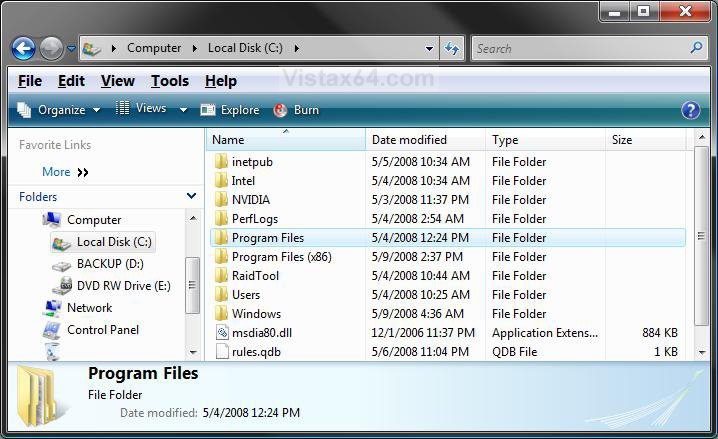
EXAMPLE: Full Row Select Enabled
NOTE: Notice how the whole row is highlighted when selected from under any column.
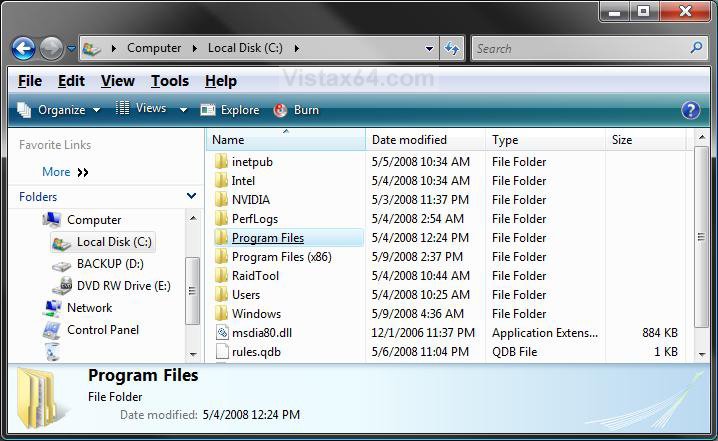
EXAMPLE: Full Row Select DisabledNOTE: Notice when you are only able to select a row from the Name column now, only part of the row is highlighted under the Name column.
Here's How:
1. To Enable Full Row Select
A) Click on the download button below to download the
EnableFullRowSelect.zip file.

B) Go to step 3.
2. To Disable Full Row Select
A) Click on the download button below to download the
DisableFullRowSelect.zip file.
3. Click on Save and save the ZIP file to the Desktop.
4. Right click on the downloaded ZIP and click Open.
5. Click on Allow in the UAC prompt.
6. Extract (drag and drop) the VBS file to the desktop.
7. When done, you can delete the ZIP file (on desktop) if you like.
8. Double click on the extracted VBS file, or right click on the VBS file and select Open.
9. Close all Windows Explorer windows and click on OK. (See screenshot below)

10. Click on OK. (See screenshot below)
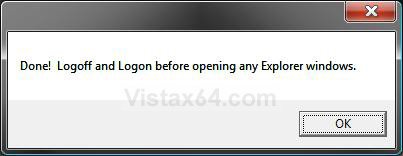
11. Log off and log on, or restart the computer to apply changes.
That's it,Shawn
Related Tutorials
- How to Change the Open Folder Icon in Vista
- How to Open and Change Folder Options in Vista
- How to Enable or Disable the Translucent Selection Rectangle in Vista
- How to Change the Windows Explorer Columns and Sort Order in Vista
- How to Change a Windows Explorer Folder Type Template in Vista
- How to Select Files Using a Check Box in Vista Windows Explorer
- Cannot Select Multiple Files and Folders Fix for Vista
- How to Add "Select all" to the Context Menu in Vista
- How to Disable Auto Arrange in Vista Windows Explorer to have Free Sorting
Attachments

Last edited:


 I'm awake now. LOL