Windows Vista Forums
Vista Forums Home Join Vista Forums Windows 7 Forum Vista Tutorials Tags
Welcome to Windows Vista Forums. Our forum is dedicated to helping you find solutions with any problems, errors or issues you are experiencing with Windows Vista. The Vista forum also covers news and updates and has an extensive Windows Vista tutorial section that covers a wide range of tips and tricks.

Go Back   Vista Forums > Vista Forums > Tutorials

Vista Tutorial - Recently Used Addresses in Windows Mail

Comment
 

Recently Used Addresses in Windows Mail

garysgold
Published by garysgold
05-11-2008

How to Remove a Single Address or Reset the Entire List of Recently Used Addresses in Windows Mail

WARNING
  Be sure to close Windows Mail before doing this.


OPTION ONE:
Reset Entire List of Recently Used Addresses
NOTE: This will delete and clear the list.
1. To Reset Recently Used Addresses -
A) Click on the download button below to download the
Reset_Recently_Used_Addresses.reg file.

2. Click on Save, and save the .reg file to the Desktop.

3. Right click the .reg file (on Desktop), and click on Merge.

4. Click on the Run button for Security Warning pop-up.

5. Click on Continue (UAC), Yes, and then OK when prompted.

6. When done, you can delete the .reg file (On Desktop).


OPTION TWO:
Manually Remove Recently Used Addresses
1. In the white search box on the start menu, type: regedit Hit Enter. Click Continue at the prompt.

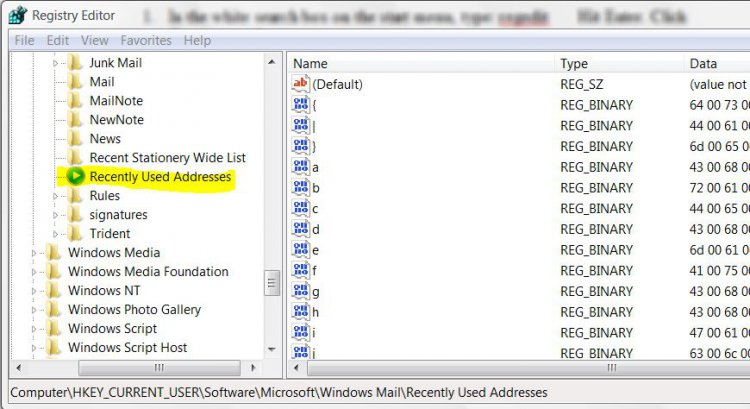
2. Go to HKEY_CURRENT_USER\Software\Microsoft\Windows Mail\Recently Used Addresses
recent.jpg
3. I highly recommend exporting this key to the desktop to save until your sure everything worked right.

4. You can delete the entire key and that will reset Auto Complete. You’ll be starting with a fresh slate.

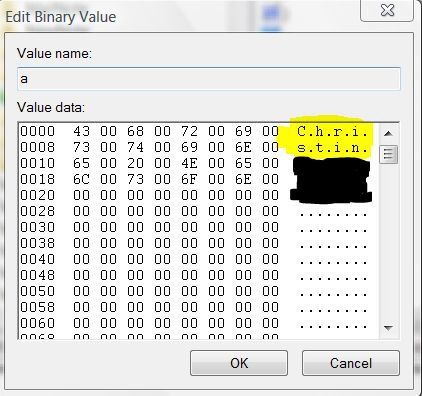
5. You can look through the list to find one that you wish to delete. To do this double click on one of the keys on the right. { | } a b c d e f g h I j k …. On the right side of this pop-up you can see the name and/or email address in that entry. You will have to look through them all to find the one you want.
NOTE: The entry may be there more than once.
singlename.jpg
6. When you find the one you want, click cancel and then right click on that entry and select delete.

7. Close Regedit.
That should do it.

Published by
garysgold's Avatar
Master


Join Date: Mar 2008
Location: Maine, USA
Posts: 850
Rep Power: 46
garysgold is a splendid one to beholdgarysgold is a splendid one to beholdgarysgold is a splendid one to beholdgarysgold is a splendid one to beholdgarysgold is a splendid one to beholdgarysgold is a splendid one to beholdgarysgold is a splendid one to behold

Tutorial Tools

Applies to
All Vista Versions
64 Bit & 32 Bit

Old 09-06-2009  
Barnabas
Member


Join Date: May 2008
Vista Home Premium x64 SP2


Easy Removal of Individual Email Addresses from AutoComplete

I wanted to share a great utility I found that might apply to the "How to remove a single address... in Windows Mail" tutorial/post. Although I don't use Windows Mail (I use Outlook 2007), I can't see why this wouldn't work for those that do. The utility is called NK2View and its basically for editing or deleting/rebuilding of the autocomplete feature in Outlook. I wanted to clean out my old email addresses but save some important ones without totally deleting the NK2 file in the Outlook folder. This utility does that very easily and safely. Works perfectly in Vista x64. Here's the link:


Barnabas ...

My System SpecsSystem Spec
Comment

Tutorial Tools


Similar Threads
Tutorial Category
Solved Remove addresses from Windows Mail Browsers & Mail
Help needed: How to import e-mail addresses from Microsoft Office Outlook 2003 to Windows Mail (Vista)? Vista mail
Windows Mail... contacts with multiple e mail addresses Vista mail
Windows Mail addresses Browsers & Mail
recovering e-mail addresses from outlook to windows mail Vista mail


Vista Forums is an independent web site and has not been authorized,
sponsored, or otherwise approved by Microsoft Corporation.
"Windows Vista", the Start Orb, and related materials are trademarks of Microsoft Corp.
© Designer Media Ltd
Tutorial powered by GARS 2.1.8m ©2005-2006

1 2 3 4 5 6 7 8 9 10 11 12 13 14 15 16 17 18 19 20 21 22 23 24 25 26 27 28 29 30 31 32 33 34 35 36 37 38 39 40 41 42 43 44 45 46