
How to Restore the System Configuration Restart Prompt in Vista
 Information
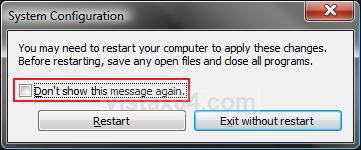
If you checked the Don't show this message again box in the Restart prompt in System Configuration (MsConfig), then this will show you how to restore the Restart prompt so it will display again when you make changes in System Configuration.
CREDIT TO: Dzomlija (Peter)
CREDIT TO: Dzomlija (Peter)
EXAMPLE: System Configuration (MsConfig) Restart Prompt
 OPTION ONE
1. To Restore MsConfig Restart Prompt
A) Click on the Download button below to download the file below.
Restore_Msconfig_Restart_Prompt.reg

2. Click on Save, and save the .reg file to the Desktop.
3. Right click on the downloaded .reg file and click on Merge.
4. Click on Run, Continue (UAC), Yes, and then OK when prompted.
5. When done, you can delete the downloaded .reg file if you like.
OPTION TWO 1. Open the Start Menu.
2. In the white line (Start Search) area, type regedit and press Enter.
3. Click ton Continue in the UAC prompt.
4. In regedit, go to: (See screenshot below)
HKEY_CURRENT_USER\Software\Microsoft\Shared Tools\MsConfig
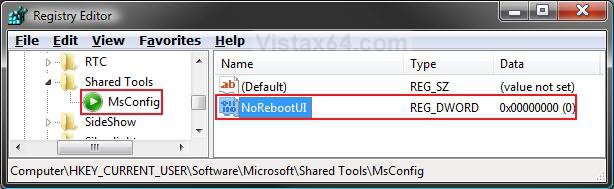
5. In the right pane of MsConfig, right click on NoRebootUI and click on Delete. (See screenshot above)
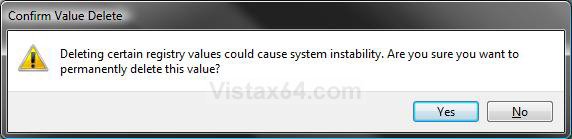
6. Click on Yes to confirm. (See screenshot below)
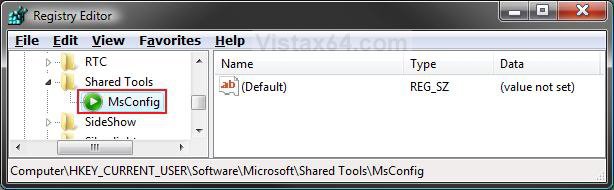
7. The registry will now look like this. (See screenshot below)
8. Close regedit.
That's it,Shawn
Attachments
Last edited:


