Vista Forums
Vista Forums Home Join Vista Forums Donate Vista Tutorials Tags

Welcome to Vista Forums we are your forum to discuss Windows Vista x64 and x86 systems. Whether you need help or just want to post an idea you have on Vista, this is the forum for you.
Register at Vista forums...the world biggest Windows Vista resource Join Vista Forums Now

Go Back   Vista Forums > Vista Forums > Tutorials

Vista Tutorial Categories Network & Internet Tutorials File & Folder Settings Tutorials Taskbar & Start Menu Tutorials Performance & Maintenance Tutorials General Tips Tutorials Programs & Features Tutorials Context Menu Tutorials Shortcut Tutorials Security & System Tools Tutorials Parental Controls Tutorials User Account Tutorials Hardware & Drivers Tutorials Appearance & Personalization Tutorials Backup & Restore Tutorials Music, Photo, Video and Media Tutorials Power Management Tutorials

Backup Complete PC - Reset Last Backup Listing

Update your Vista Drivers Update Your Drivers Now!!
Poll: Did this Tutorial help and work for you?
Poll Options
Did this Tutorial help and work for you?

Comment
 
Tutorial Tools Display Modes
<!-- google_ad_section_start -->Backup Complete PC - Reset Last Backup Listing<!-- google_ad_section_end -->
Backup Complete PC - Reset Last Backup Listing
How to Reset the Last Backup Listing for Vista Complete PC Backup
Published by Brink
06-10-2008

How to Reset the Last Backup Listing for Vista Complete PC Backup
Information
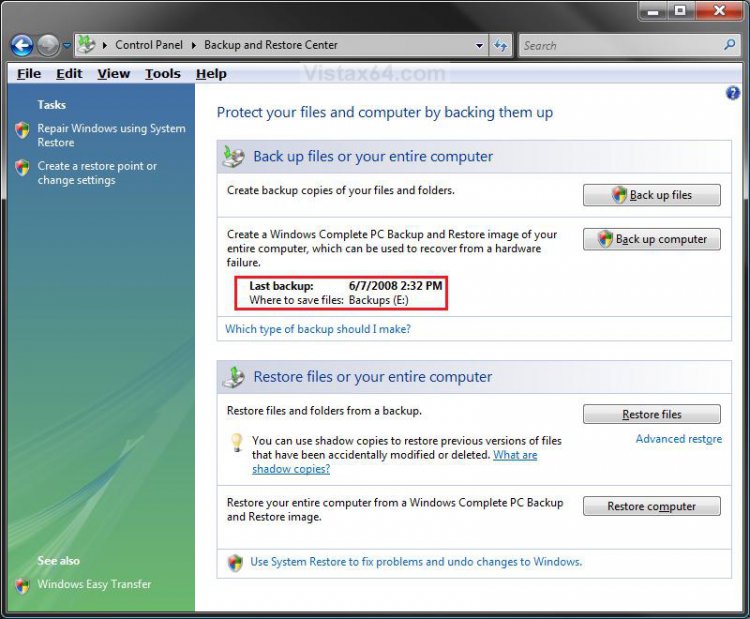
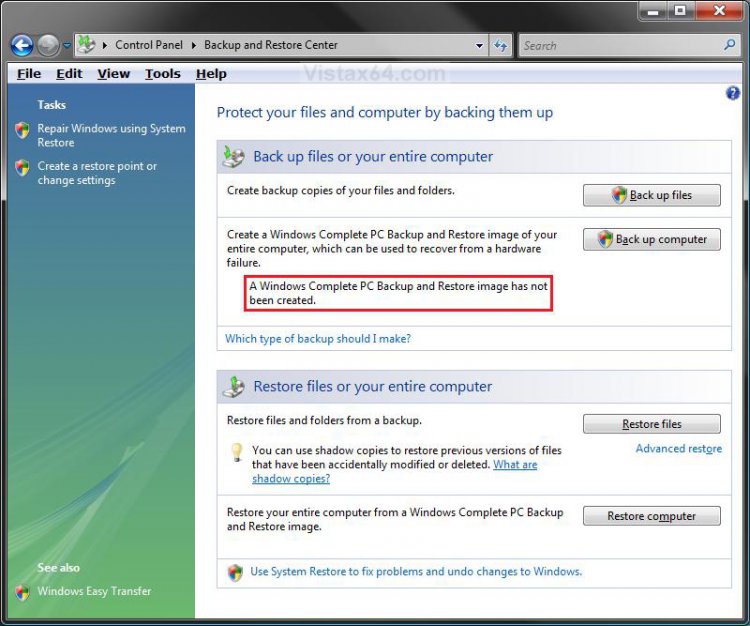
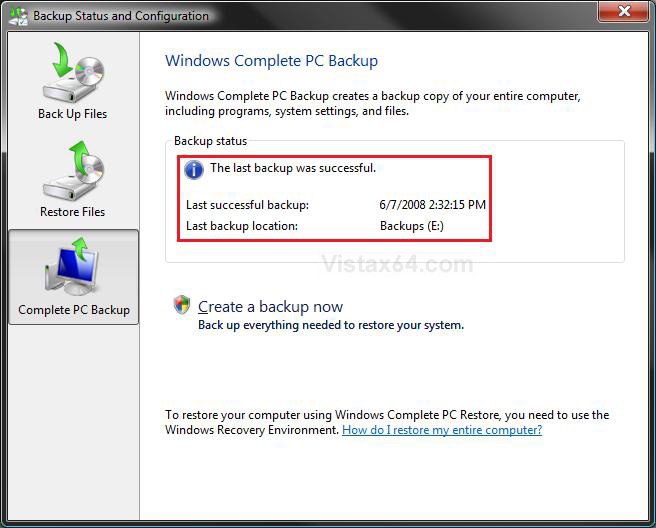
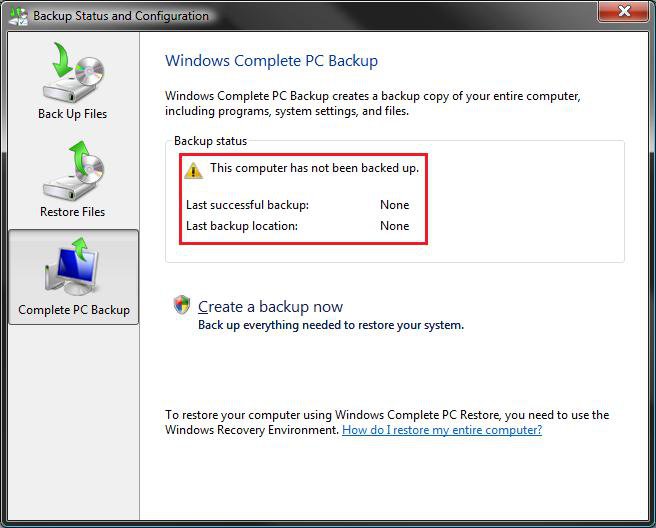
  This will show you how to reset the Last Backup listing so the old or deleted Complete PC Backup will no longer be displayed with it's time, date, and location in the Backup and Restore Center.
NOTE
  The Complete PC Backup feature is only available in the Vista Enterprise, Ultimate, and Business editions.
WARNING
  Once this is reset you will not be able to restore this unless you backed up the registry WindowsBackup key in OPTION TWO below first. Right click on the WindowsBackup key (folder) and click Export, then save this exported REG file to where you like as the backup. To restore this backup, right click on the REG file and click Merge and approve.
RELATED LINKS:
EXAMPLE: Backup and Restore Center with a Last Complete PC Backup
Click the image to open in full size.
EXAMPLE: Backup and Restore Center Reset to no Last Complete PC Backup
Click the image to open in full size.
EXAMPLE: Backup Status and Configuration with a Last Complete PC Backup
Click the image to open in full size.
EXAMPLE: Backup and Restore Center Reset with no Last Complete PC Backup
Click the image to open in full size.


OPTION ONE:
Through a Download
1. To Reset the Last Complete PC Backup Listing -
A) Click on the download button below to download the
Reset_Last_Complete_PC_Backup.reg file.


2. Click on Save, and save the .reg file to the Desktop.
3. Right click on the .reg file (on Desktop) and click on Merge.
4. Click on the Run button in the Security Warning pop-up.
5. Click on Continue (UAC), Yes, and then OK when prompted.
6. When done, you can delete the .reg file (on Desktop).


OPTION TWO:
The Manual Way
WARNING
  If you wish to backup this registry key, then right click on WindowsBackup (left pane), and click Export. This reg file is your backup. To restore the registry key and this last Complete PC Backup listing, right click on the reg file (backup) and click Merge.
1. Open the Start Menu.
2. In the white line (Start Search) area, type regedit and press Enter.
3. Click the Continue button for the UAC prompt.
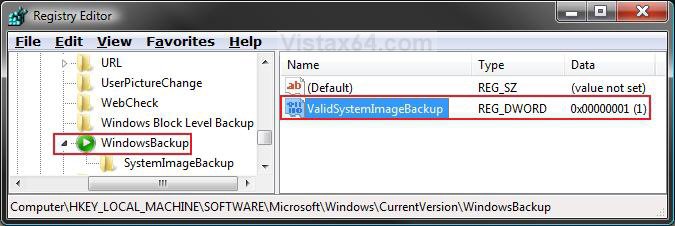
4. In regedit, go to: (See screenshot below)
HKEY_LOCAL_MACHINE\SOFTWARE\Microsoft\Windows\CurrentVersion\WindowsBackup
Name:  Reg1.jpg
Views: 114
Size:  91.9 KB

5. In the right pane, right click on ValidSystemImageBackup and click Delete. (See screenshot above)
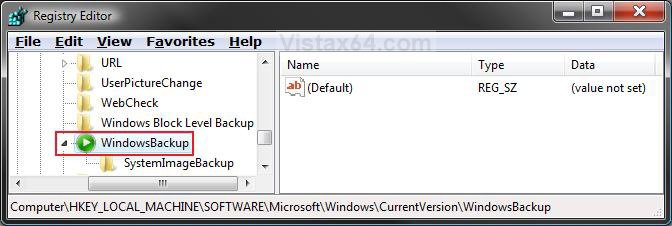
6. Click on Yes to confirm deletion.
7. The registry will now look like this. (See screenshot below)
Name:  Reg2.jpg
Views: 111
Size:  78.8 KB

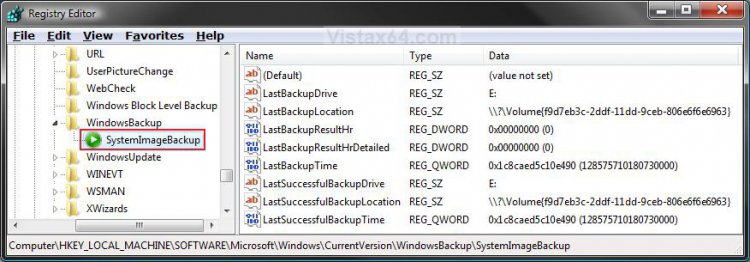
8. In the left pane, right click on SystemImageBackup and click on Delete. (See screenshot below)
Click the image to open in full size.

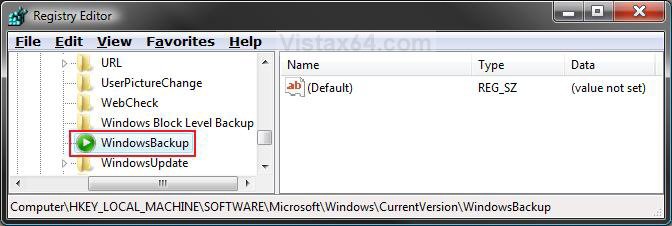
9. Click on Yes to confirm deletion.
10. The registry will now look like this. (See screenshot below)
Name:  Reg4.jpg
Views: 111
Size:  78.0 KB
That's is,
Shawn

Published by
Brink's Avatar
Administrator
Join Date: Apr 2007
Location: Texas, USA
Posts: 16,479
Rep Power: 150
Brink has a reputation beyond reputeBrink has a reputation beyond reputeBrink has a reputation beyond reputeBrink has a reputation beyond reputeBrink has a reputation beyond reputeBrink has a reputation beyond reputeBrink has a reputation beyond reputeBrink has a reputation beyond reputeBrink has a reputation beyond reputeBrink has a reputation beyond reputeBrink has a reputation beyond repute

Tutorial Tools
Show Printable Version Show Printable Version
Email this Page Email this Page

Applies to
Business,Enterprise,Ultimate
64 Bit & 32 Bit

Comment

Tags
backup & restore, complete, computer

Tutorial Tools
Display Modes


Update your Vista Drivers Update Your Drivers Now!!

Similar Threads
Tutorial Tutorial Starter Category Comments Last Post
Back Up Files - Reset Last Backup Listing Brink Tutorials 0 06-10-2008 08:45 AM
How to Reset Complete PC Backup? SteveB Vista performance & maintenance 1 03-30-2008 02:07 PM
Complete PC backup - backup two computers Hoffmeyer Vista General 3 09-12-2007 03:46 AM
Vista Complete Backup could not find backup devices fumanju Vista file management 7 05-15-2007 12:52 AM
Do regular backup and/or complete system backup include shadow copies of files? Roof Fiddler Vista General 1 12-04-2006 10:48 PM


Vistax64.com is an independent web site and has not been authorized,
sponsored, or otherwise approved by Microsoft Corporation.
"Windows Vista", the Start Orb, and related materials are trademarks of Microsoft Corp.
Designer Media 2005-2008
Tutorial powered by GARS 2.1.8m ©2005-2006