Vista Forums
Vista Forums Home Join Vista Forums Donate Vista Tutorials Tags

Welcome to Vista Forums we are your forum to discuss Windows Vista x64 and x86 systems. Whether you need help or just want to post an idea you have on Vista, this is the forum for you.
Register at Vista forums...the world biggest Windows Vista resource Join Vista Forums Now

Go Back   Vista Forums > Vista Forums > Tutorials

Vista Tutorial Categories Network & Internet Tutorials File & Folder Settings Tutorials Taskbar & Start Menu Tutorials Performance & Maintenance Tutorials General Tips Tutorials Programs & Features Tutorials Context Menu Tutorials Shortcut Tutorials Security & System Tools Tutorials Parental Controls Tutorials User Account Tutorials Hardware & Drivers Tutorials Appearance & Personalization Tutorials Backup & Restore Tutorials Music, Photo, Video and Media Tutorials Power Management Tutorials

Bypass UAC

Poll: Was this Tutorial Helpful?
Poll Options
Was this Tutorial Helpful?

Comment
 
Tutorial Tools Display Modes
<!-- google_ad_section_start -->Bypass UAC<!-- google_ad_section_end -->
Bypass UAC
Bypass UAC for Standard Users
Published by dmex
06-22-2008

Bypass UAC for Standard Users


This guide will help setup a Desktop Shortcut for Bypassing UAC for programs that require UAC Administrative Permissions and allow Standard Users to run these programs without Administrative Access using a known bypass trick in Task Manager and a Desktop Shortcut,
You can also use this trick to launch the program via command prompt or from scripts.

Step 1
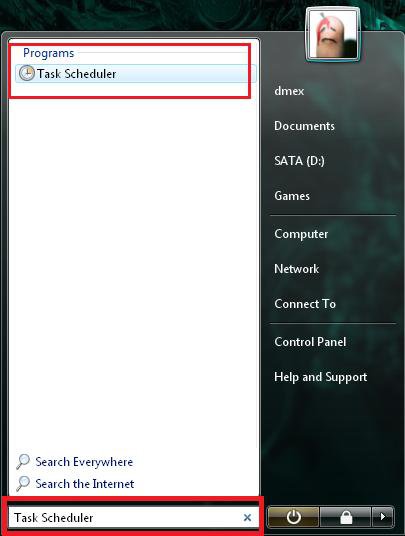
Open the Start-Menu and typeTask Scheduler then run it
Click the image to open in full size.

Step 2
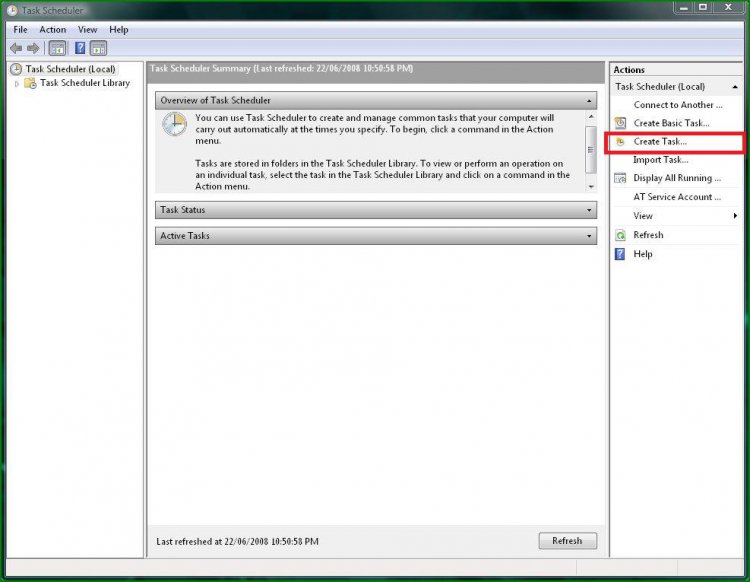
You will now see the Task Scheduler Management Console , To the right click Create Task
Click the image to open in full size.

Step 3
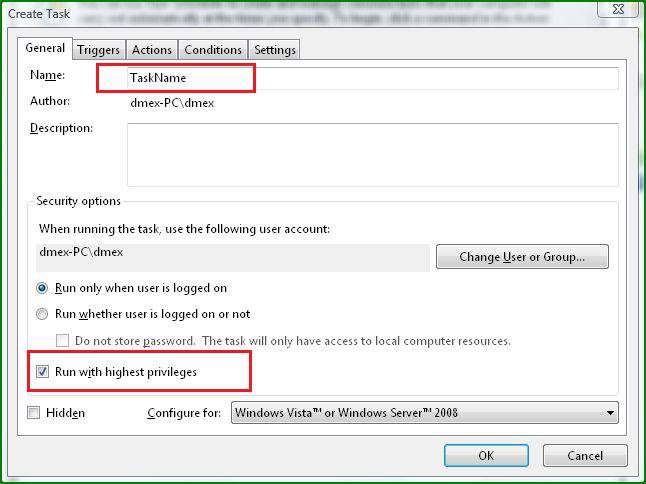
A new window to create tasks will appear, Type a Name and Description of the task and then Tick “Run With Highest Privileges” towards the bottom. (Don’t Change any other settings)
NOTE: Remember the name you called this Task as you will need it later.
Click the image to open in full size.

Step 4
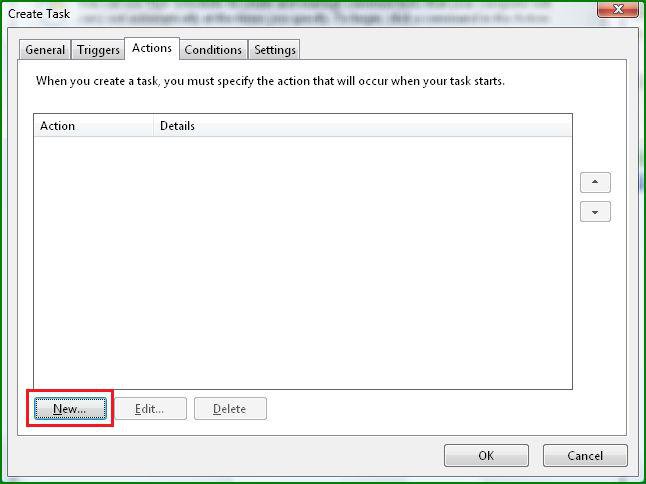
Skip the Triggers Tab because we want the program to run only when needed via a Desktop Shortcut and not automatically, so goto the Actions Tab then click New

Click the image to open in full size.

Step 5
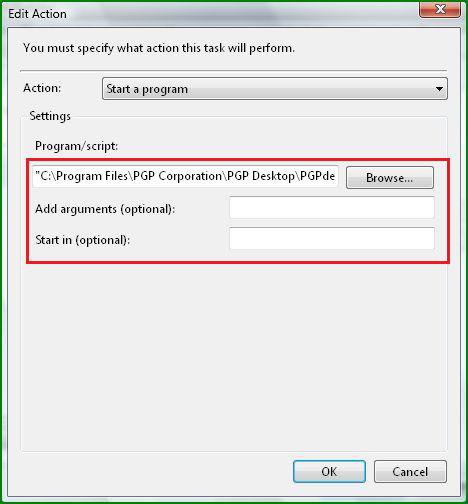
Browse for the program you want your Standard Users to Run without requiring UAC Access

Click the image to open in full size.

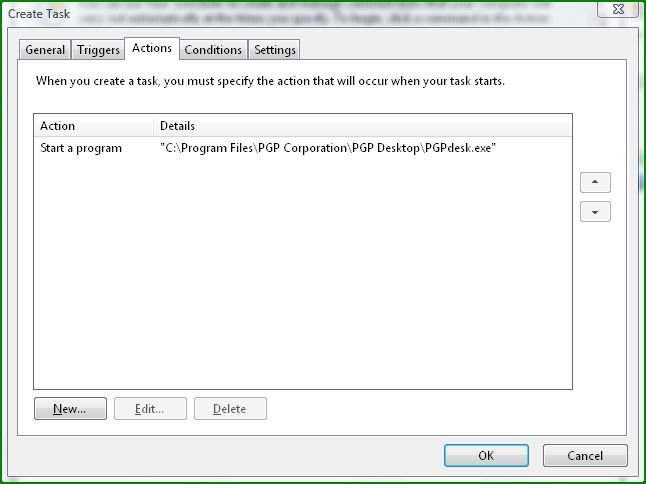
Once you have entered the required information click OK and you will see your task entered into the Actions Tab like the one below.

Click the image to open in full size.

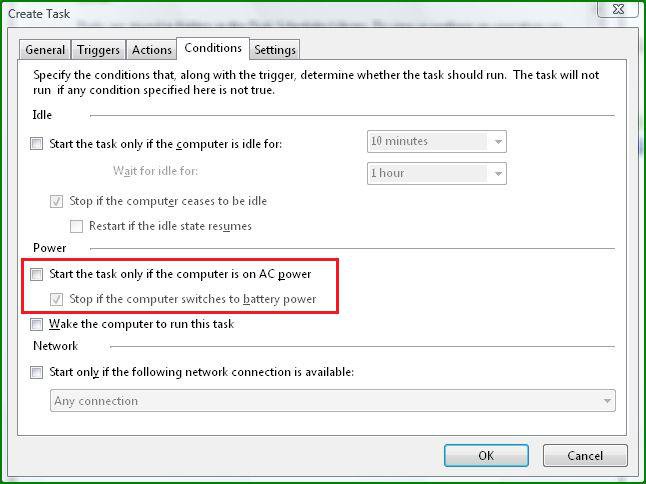
Step 6 - Skip This Step For Desktop Computers, Its only needed for Laptops.
Goto Conditions Tab and untick “ Start the Task only when computer is Running on AC Power”

Click the image to open in full size.

Step 7
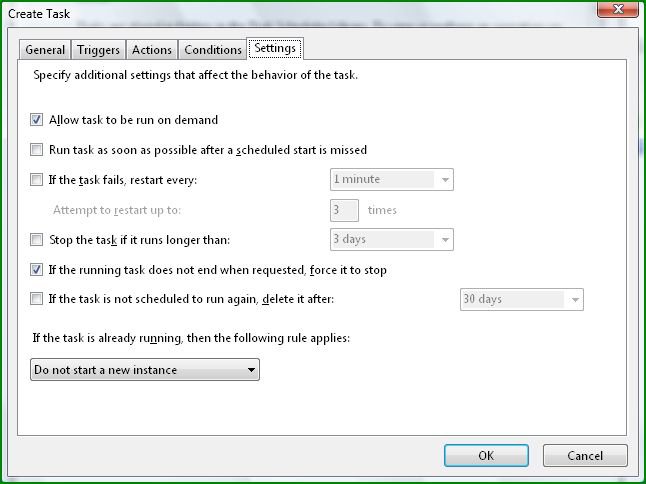
Goto The Settings Tab and make sure the following two items are ticked as shown below.

Click the image to open in full size.

Click OK when done

Step 8
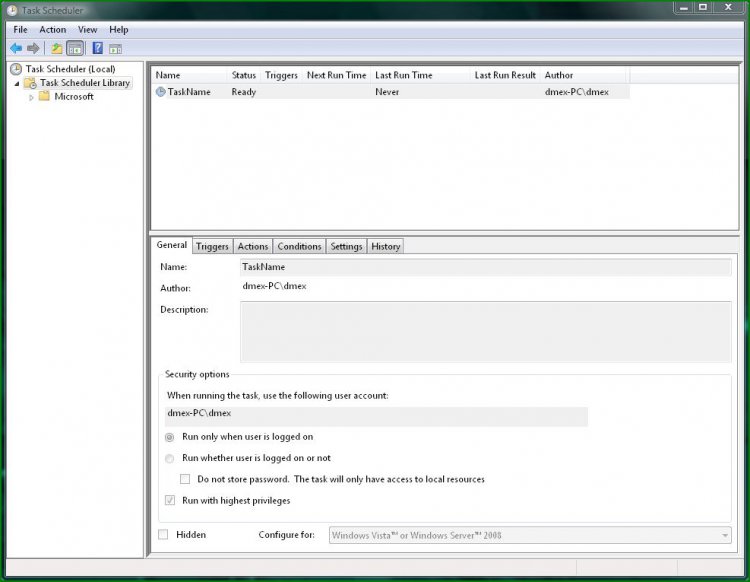
You will now see your Task listed under Scheduler Library with the Status Ready.

Click the image to open in full size.

Once you have confirmed the task was created successfully just Close Task Scheduler

Step 9
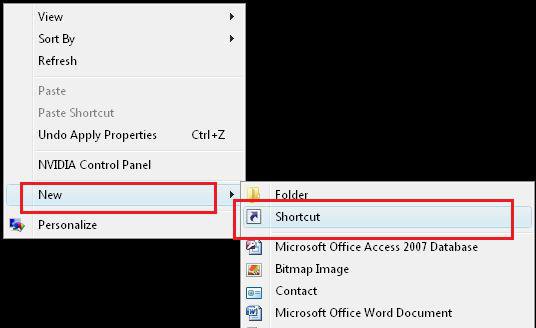
Right-Click your Desktop and go New > Shortcut

Click the image to open in full size.


Step 10
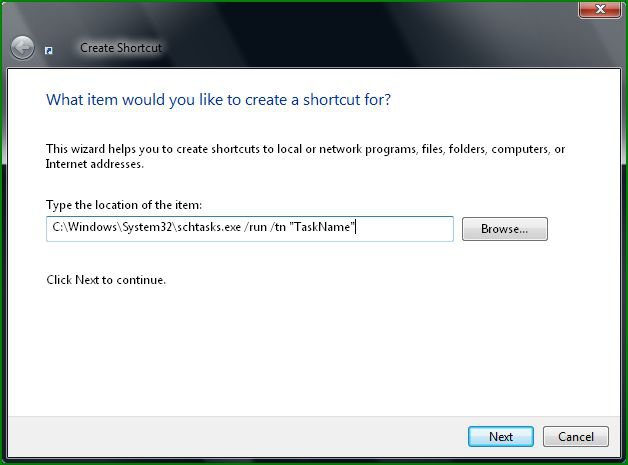
Once you see the Create Shortcut window enter the following:
Click the image to open in full size.


C:\Windows\System32\schtasks.exe /run /tn "TaskName"

WARNING
  Remember to include the quotation marks around the TaskName or it will fail to successfully run the Task.
WARNING
 

If you created the task under say the "Microsoft" folder the task name changes to C:\Windows\System32\schtasks.exe /run /tn "\Microsoft\taskname"...You can find out where it was registered by going to the history tab in Task scheduler..


Click Next when you have entered the information and then enter at name for your Desktop Shortcut before clicking OK.

THAT'S IT YOUR All DONE

A new Desktop Shortcut that runs the program you specified with Full Administrator Rights without Requiring UAC prompts or complete Administrator Access, You can customize the shortcut with an icon or other settings if you wish.
Published by
dmex's Avatar
ɠɛɐǨ

Join Date: May 2007
Location: Fremantle, Western Australia
Posts: 2,034
Rep Power: 99
dmex has a reputation beyond reputedmex has a reputation beyond reputedmex has a reputation beyond reputedmex has a reputation beyond reputedmex has a reputation beyond reputedmex has a reputation beyond reputedmex has a reputation beyond reputedmex has a reputation beyond reputedmex has a reputation beyond reputedmex has a reputation beyond reputedmex has a reputation beyond repute

Tutorial Tools
Show Printable Version Show Printable Version
Email this Page Email this Page

Applies to
All Vista Versions
64 Bit & 32 Bit

Rating
Skill Level
20%20%20%
1

Comment

Tags
scheduler, security & system tools, task, uac

Tutorial Tools
Display Modes


Similar Threads
Tutorial Tutorial Starter Category Comments Last Post
Bypass UAC for certain progs Spence Vista General 22 06-30-2008 02:36 AM
Bypass RunAs pjw lignon Vista security 7 09-23-2007 10:58 AM
password bypass? kjk Vista General 4 06-17-2007 08:17 AM
Bypass log in screen? Bfleming Vista account administration 1 04-17-2007 03:51 AM
Bypass boot screen? Bill Vista General 25 08-16-2006 07:54 PM


Vistax64.com is an independent web site and has not been authorized,
sponsored, or otherwise approved by Microsoft Corporation.
"Windows Vista", the Start Orb, and related materials are trademarks of Microsoft Corp.
© Designer Media 2005-2008
Tutorial powered by GARS 2.1.8m ©2005-2006

1 2 3 4 5 6 7 8 9 10 11 12 13 14 15 16 17 18 19 20 21 22 23 24 25 26 27 28 29 30 31 32 33 34 35 36 37 38 39 40 41 42 43 44 45 46 47 48 49 50