
How to Create a "Turn Windows Firewall On or Off" Shortcut
 Information
This will show you how to download or create two shortcuts to make it easy to turn Windows Firewall on or off as needed in Vista and Windows 7.
 Note
NoteTo manually turn Windows Firewall On or Off, and to verify that these shortcuts worked, see: How to Turn Windows Firewall On or Off in Vista
 Warning
The Windows Firewall and Base Filtering Engine services need to be set as Started and Automatic for Windows Firewall to be able to be turned on or off with these shortcuts.
Using the shortcut to turn on Windows Firewall will not also turn on the Block all incoming connections option. That will have to be manually done if wanted.
Using the shortcut to turn on Windows Firewall will not also turn on the Block all incoming connections option. That will have to be manually done if wanted.
 OPTION ONE
1. Click on the Download button below to dowload the file below.
Windows Firewall Off-On Shortcuts.zip

2. Click on Save and save the ZIP file to the Desktop.
3. Right click on the ZIP file and click on Open.
4. If prompted by UAC, then click on Allow.
5. Extract (drag and drop) both of the Turn Off Windows Firewall and Turn On Windows Firewall shortcuts to the desktop.
6. Right click on the each extracted shortcut one at a time, and click on Properties, General tab, and on the Unblock button. (See screenshot below)
NOTE: If you do not have a Unblock button under the General tab, then the shortcut is already unblocked and you can continue on to step 5.
6. You can now Pin to Taskbar (Windows 7 only) or Pin to Start Menu this shortcut, assign a keyboard shortcut to it, or move it where you like for easy use.
7. When done, you can delete the downloaded .zip file if you like.
OPTION TWO NoteYou will need to repeat this for each of the On and Off shortcut to create both of them.
1. Right click on a empty area of desktop and click on New and Shortcut.
2. For a Turn Off Windows Firewall Shortcut
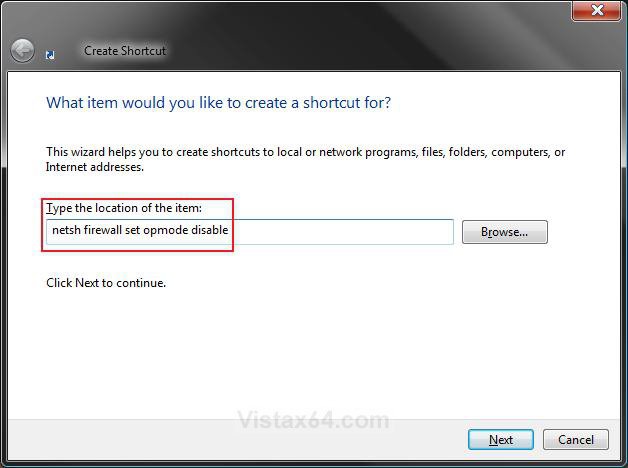
A) Type netsh firewall set opmode disable and click on Next. (See left screenshot below)
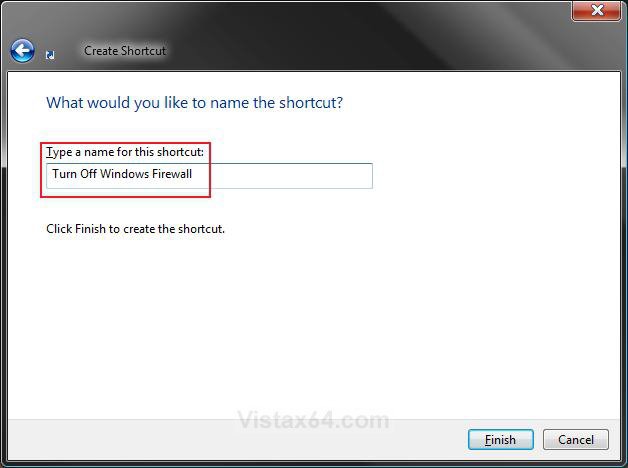
B) Type Turn Off Windows Firewall and click on Finish. (See left screenshot below)
NOTE: You can name this shortcut anything you like.
C) Go to step 4.
3. For a Turn On Windows Firewall Shortcut
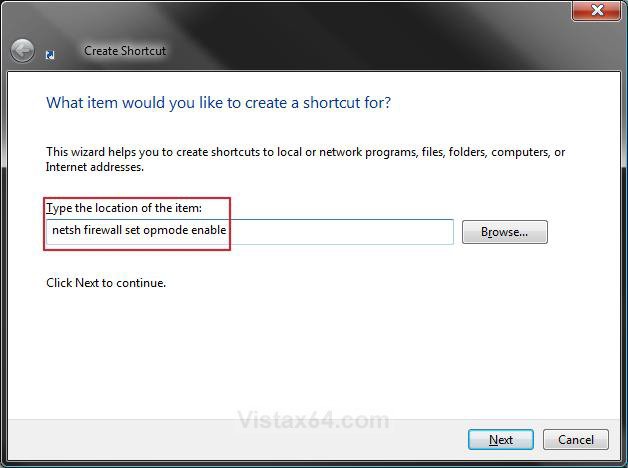
A) Type netsh firewall set opmode enable and click on Next. (See screenshot below)
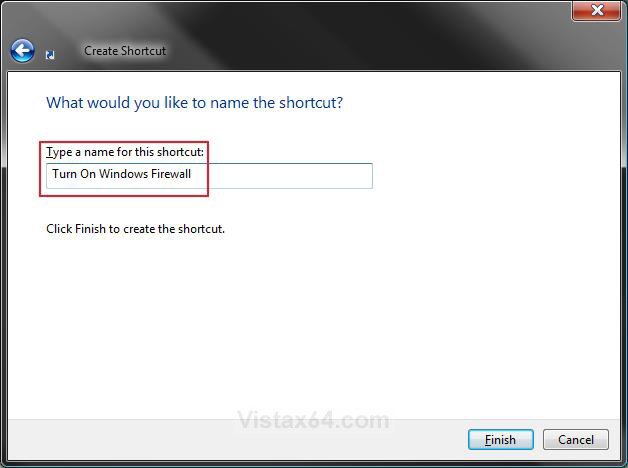
B) Type Turn On Windows Firewall and click on Finish. (See left screenshot below)
NOTE: You can name this shortcut anything you like.
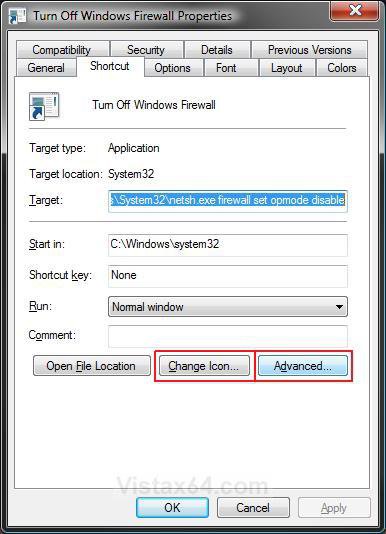
4. Click on the Change Icon button. (See screenshot below)
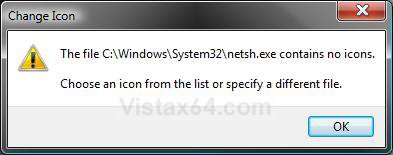
5. Click on OK. (See screenshot below)
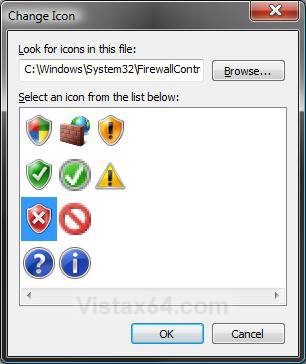
6. Copy the location below, then right click in the line next to the Browse button and click on Paste. (See screenshots below steps 7 and 8)
NOTE: You could also click the Browse button and navigate to C:\Windows\System32\FirewallControlPanel.exe instead.
%SystemRoot%\System32\FirewallControlPanel.exe
7. For Turn Off Windows Firewall Shortcut
A) Select the icon boxed in blue and click on OK. (See screenshot below)
B) Go to step 9.
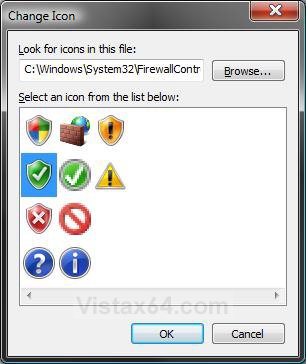
8. For Turn On Windows Firewall Shortcut
A) Select the icon boxed in blue and click on OK. (See screenshot below)
9. Click on Apply. (See screenshot below step 4)
10. Click on the Advanced button. (See screenshot below step 6)
11. Check the Run as administrator box and click on OK. (See screenshot below)
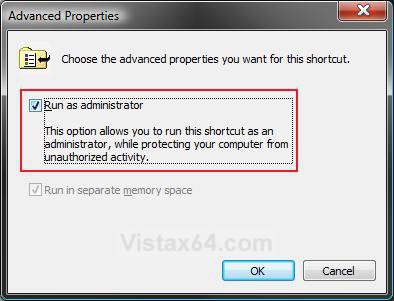
12. Click on OK. (See screenshot below step 4)
13. Repeat for the other (On or Off) shortcut if needed.
NOTE: After you click on the (On or Off) shortcut, you will need to click on Continue for the UAC prompt.
14. You can now Pin to Taskbar (Windows 7 only) or Pin to Start Menu these shortcuts, assign a keyboard shortcut to it, or move it where you like for easy use.
That's it,Shawn
Related Tutorials
- How to Turn Windows Firewall On or Off in Vista
- How to Turn Windows Firewall On or Off in Windows 7
- How to Use Windows Firewall With Advanced Security in Vista
- How to Add or Delete an Exception in Windows Firewall in Vista
- How to Disable or Enable the Security Center Alert Warning Notification in Vista
Attachments

Last edited:


