
How to Disable or Enable a Specific Security Center Alert Notification in Vista
 Information
This will show you how to enable or disable the Security Center Alert Warning Notification for only UAC turned off, Firewall programs, Antivirus programs, and/or AntiSpyware (Ex: Windows Defender) programs. These are all enabled by default in Vista.
 Tip
TipTo enable or disable all Security Center Alert Warning Notifications, see: How to Disable or Enable the Security Center Alert Warning Notification in Vista instead.
 Note
NoteThis can be helpful if you would like to keep Security Center and the Security Center Alert Notifications enabled, but one of your security programs is giving you false alerts and you want to disable just that one alert.
 Warning
If you disable the Security Center Alert Notifications for any one these type of programs, then you will not be alerted if it is out of date, turned off, or disabled. This tutorial will need to be done from within an administrator account to be able to do it.
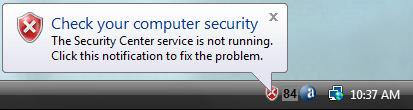
EXAMPLE: Security Center Alert Warning Notification
 OPTION ONE
NOTE: This will enable or disable the Security Center alert when you turn off the UAC or elevate the administrator accounts UAC privilege level.
Using A REG File Download:
2. To Disable Only the UAC Alert
A) Click on the Download button below to download the file below.
Disable_UAC_SecurityCenter_Alert.reg

B) Go to step 3.
2. To Enable Only the UAC Alert
NOTE: This is the default setting.
A) Click on the Download button below to download the file below.
Enable_UAC_SecurityCenter_Alert.reg
B) Go to step 3.
3. Click on Save, and save the .reg file to the Desktop.
4. Right click on the downloaded .reg file and click on Merge.
5. Click on Run, Continue (UAC), Yes, and then OK when prompted.
6. Log off and log on, or restart the computer to apply the changes.
7. When done, you can delete the downloaded .reg file if you like.
Manually in Registry Editor:
1. Open the Start Menu.
2. In the white line (Start Search) area, type regedit and press Enter.
3. Click on the Continue button in the UAC prompt.
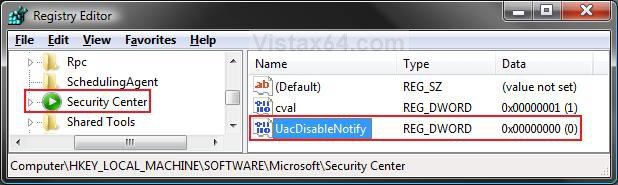
4. In regedit, go to: (See screenshot below step 5C)
HKEY_LOCAL_MACHINE\SOFTWARE\Microsoft\Security Center
5. To Disable Only the UAC Alert
A) In the right pane, right click on a empty area and click on New and DWORD (32-but) Value. (See screenshot below)
B) Type UacDisableNotify and press Enter.
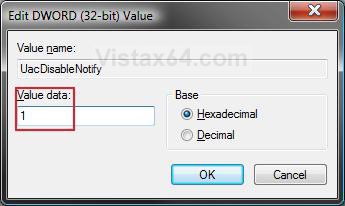
C) Right click on UacDisableNotify and click on Modify.
D) Type 1 and click on OK. (See screenshot below)
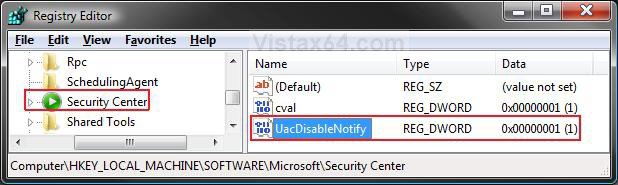
E) The registry will now look like this. (See screenshot below)
F) Go to step 7.
6. To Enable Only the UAC Alert
NOTE: This is the default setting.
A) In the right pane, right click on UacDisableNotify and click on Delete. (See screenshot above)
B) Click on Yes to confirm deletion.
7. Close Regedit.
8. Log off and log on, or restart the computer to apply changes.
OPTION TWO 1. Open the Start Menu.
2. In the white line (Start Search) area, type regedit and press Enter.
3. Click on Continue in the UAC prompt.
4. In regedit, go to: (See screenshot below)
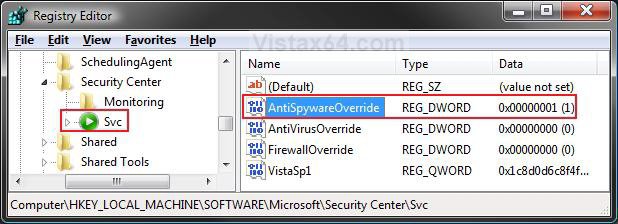
HKEY_LOCAL_MACHINE\SOFTWARE\Microsoft\Security Center\Svc
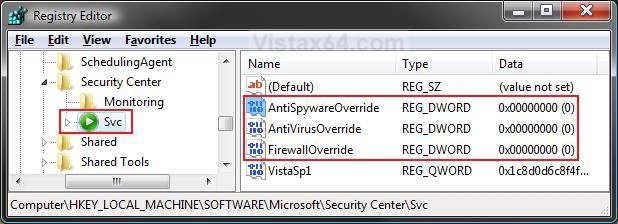
5. In the left pane, right click on Svc and click Permissions. (See screenshot above)
6. Click on the Advanced button. (See screenshot below)
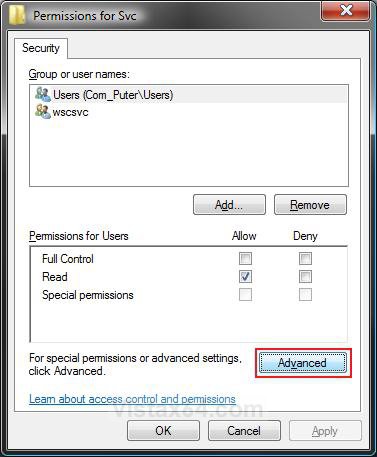
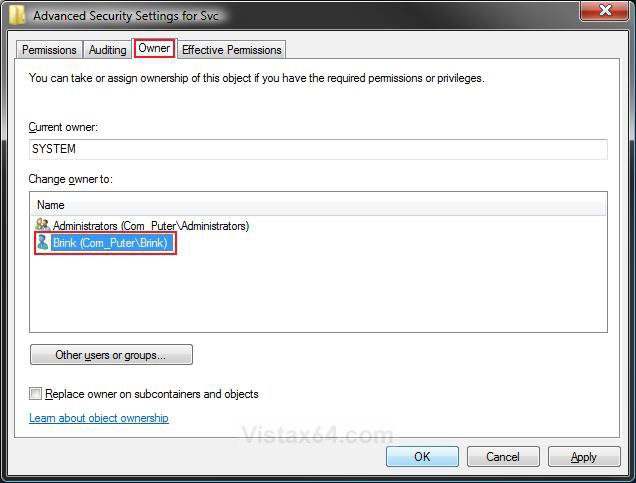
7. Click on the Owner tab and click on your user account name listed under Change owner to to highlight it. Click on OK. (See screenshot below)
NOTE: This is to take ownership of the Svc registry key by your user account to allow changes to made to the Svc key.
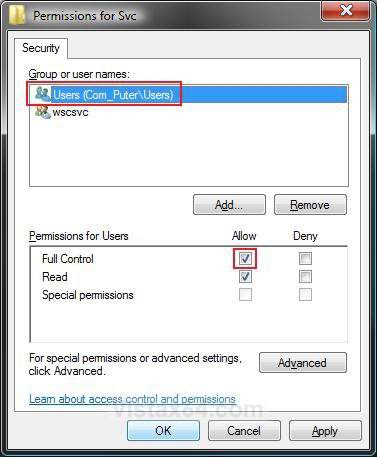
8. Click on Users (your computer name) , at the top to highlight it, and check the Allow box for Full Control. Click on OK. (See screenshot below)
NOTE: To see what your computer name is, see: How to Change the Computer Name in Vista.
9. For AntiSpyware Programs Alerts
NOTE: This is Windows Defender by default in Vista, and any other installed 3rd party antispyware program that adds itself to the Security Center.
A) In the right pane of Svc, right click on AntiSpywareOverride and click on Modify. (See screenshot below step 4)
B) Go to step 12.
10. For Antivirus Programs Alerts
NOTE: This will be any installed 3rd party antivirus program (Ex: Avast) that adds itself to the Security Center.
A) In the right pane of Svc, right click on AntiVirusOverride and click on Modify. (See screenshot below step 4)
B) Go to step 12.
11. For Firewall Programs Alerts
NOTE: This is Windows Firewall by default in Vista, or any other installed 3rd party firewall program used instead that adds itself to the Security Center.
A) In the right pane of Svc, right click on FirewallOverride and click on Modify. (See screenshot below step 4)
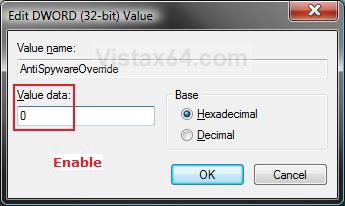
12. To Enable the Security Center Alert
NOTE: For the type of program you selected in step 9, 10, or 11 above.
A) Type 0 (number zero) and click on OK. (See screenshot below)
B) Go to step 14.
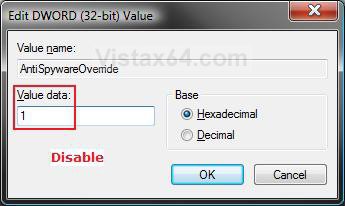
13. To Disable the Security Center Alert
NOTE: For the type of program you selected in step 9, 10, or 11 above.
A) Type 1 and click on OK. (See screenshot below)
14. The registry will now look similar to this. (See screensot below)
NOTE: I used AntiSpyware (step 9) programs for this example.
15. Go back to step 9, 10, or 11 to enable or disable another Security Center Alert Notification for a program type.
16. In the left pane, right click on Svc and click Permissions. (See screenshot below step 4)
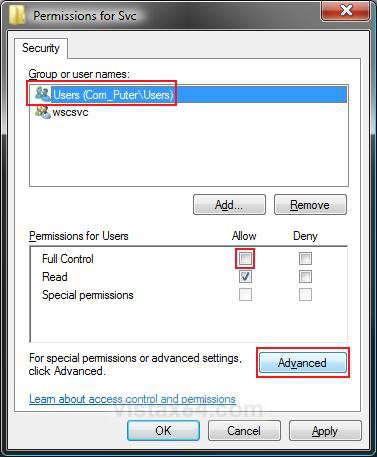
17. Click on Users (your computer name) , at the top to highlight it, and uncheck the Allow box for Full Control. Click on Apply, then on the Advanced button. (See screenshot below)
18. Click on the Owner tab and click on the Other users or groups button. (See screenshot below)
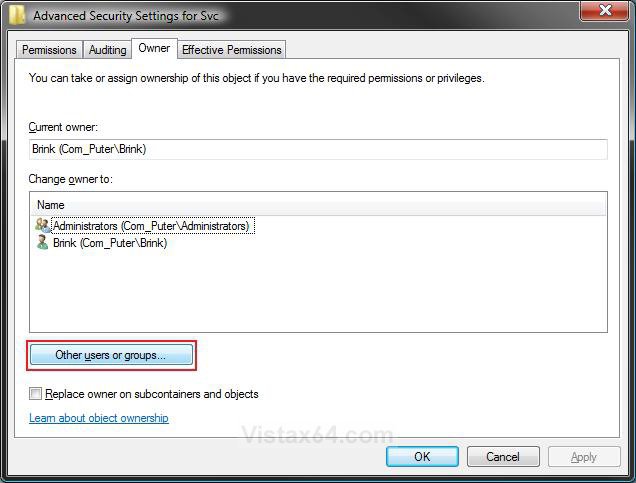
19. Type SYSTEM in the white box and click on OK. (See screenshot below)
NOTE: This is the default owner of the Svc key in the registry.
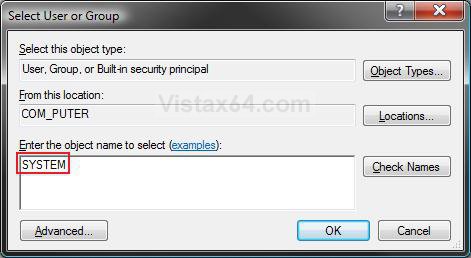
20. Under Change owner to, click on SYSTEM to highlight it and click on OK. (See screenshot below)
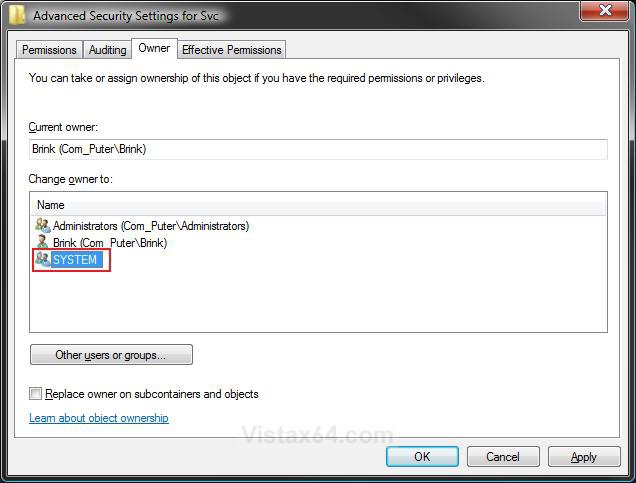
21. Click on OK. (See screenshot below step 16)
22. Close regedit.
23. Log off and log on, or restart the computer to apply the changes.
That's it,Shawn
Related Tutorials
Attachments
Last edited:


