
How to Uninstall a Device and Device Driver in Vista
 Information
This will show you how to uninstall a device, a device driver, or both in Vista.
You must be logged on as an administrator to perform these steps
You must be logged on as an administrator to perform these steps
 OPTION ONE
NOTE: This will only uninstall the device driver software and not the device itself from Device Manager. You would use this option if you wanted to install another device driver version afterwards for the device.
1. Open the Control Panel (Classic View).
2. Click on the the Programs and Features icon.
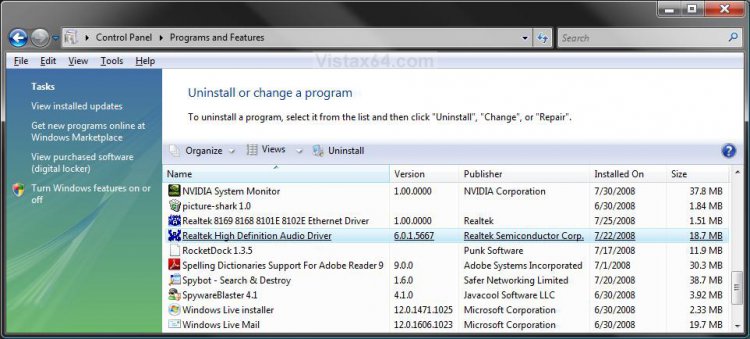
3. Look to see if the device driver is listed. (See screenshot below step 4)
A) If it is, then right click on the listed device and click Uninstall, then Yes to confirm.
NOTE: Sometimes, you will get a notice to restart the computer to finish uninstalling the driver. If you do, then click on Yes to restart the computer when prompted.
B) If not, then use OPTION TWO below.
4. Close the Programs and Features window.
5. If a generic driver for the device is included in Windows, then Windows will automatically install this generic driver for the device if the device is still connected.
OPTION TWO NOTE: This will allow you to uninstall just the device, or both the device and device driver.
1. Open the Control Panel (Classic View).
2. Click on the Device Manager icon.
3. If prompted by UAC, then click on Continue.
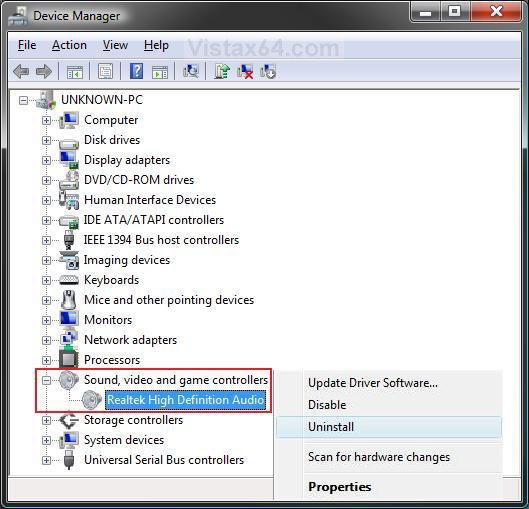
4. Click on the + sign next to the device you want to uninstall to expand it. (see screenshot below step 5)
5. Right click on the listed device and click on Properties.
NOTE: You can also click on Uninstall and go to step 8 instead.
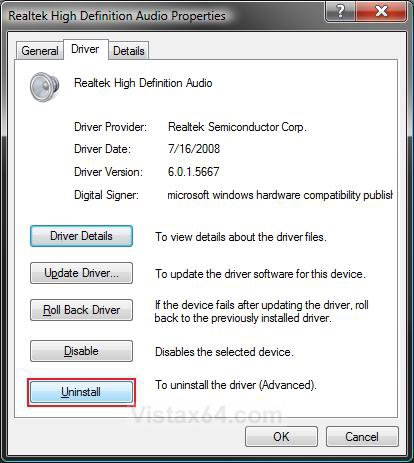
6. Click on the Driver tab. (see screenshot below step 7)
7. Click on the Uninstall button.
8. To Uninstall Only the Device
NOTE: This will only uninstall the device and leave the device driver still installed for the device.
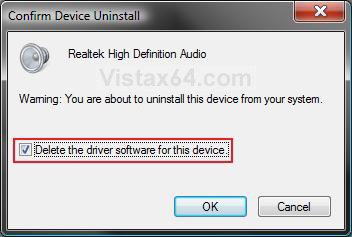
A) Uncheck the Delete the driver software for this device box. (see screenshot below step 9)
NOTE: If you do not have this option, then only the device will be uninstalled. Go to step 10.
B) Click on OK.
NOTE: Sometimes, you may be prompted to restart the computer to finish uninstalling the driver. If you do, then click on Yes to restart the computer.
C) Go to step 10.
9. To Uninstall Both the Device and Device Driver
NOTE: This will uninstall both the device and device driver software installed for the device.
A) Check the Delete the driver software for this device box.
NOTE: If you do not have this option, then only the device will be uninstalled. Go to step 10.
B) Click on OK.
NOTE: Sometimes, you may be prompted to restart the computer to finish uninstalling the driver. If you do, then click on Yes to restart the computer.
10. Device Manager will now no longer have the device listed. (see screenshot below)
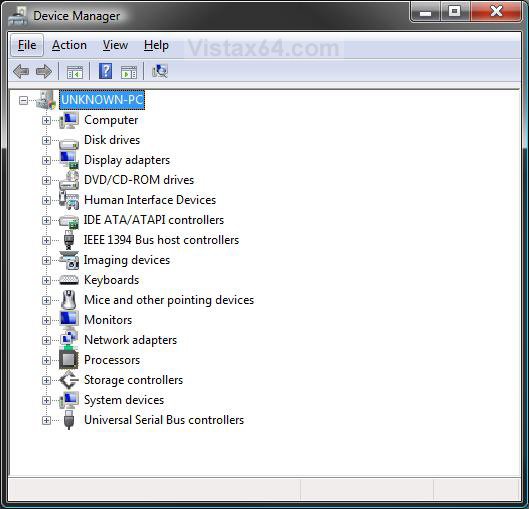
11. Close Device Manager. (see screenshot below step 5)
12. If a generic driver for the device is included in Windows, then Windows will automatically install this generic driver for the device if the device is still connected.
That's it,Shawn
Related Tutorials
- How to make Ghost Devices and Drivers Visible in Device Manager
- How to See the Hidden Devices in Device Manager in Vista
- How to Roll Back a Device Driver in Vista Device Manager
- How to Enable Hidden Audio Devices in Vista
- How to Uninstall or Change a Program in Vista
- How to Create a Safely Remove Hardware Shortcut in Vista
- How to Install a Device Driver in Vista Device Manager
- How to Clean Left Over Driver Files with Driver Sweeper
Attachments

Last edited:


