How to Fix a Public Folder Displayed as a Standard Yellow Folder Icon in Vista
 Information
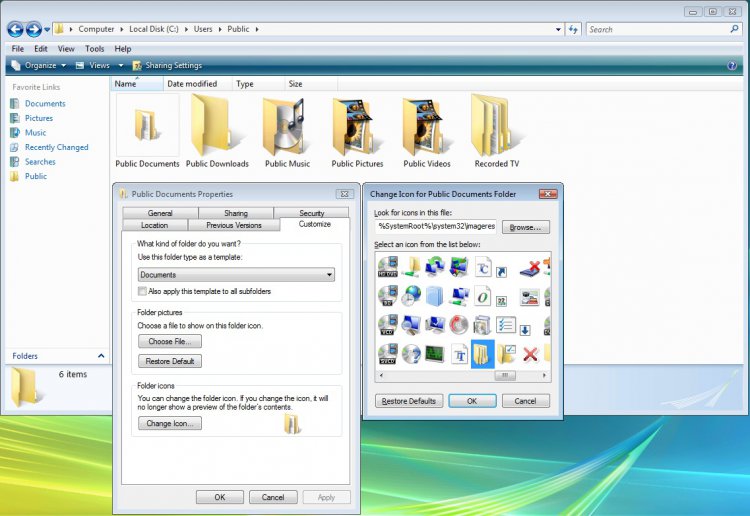
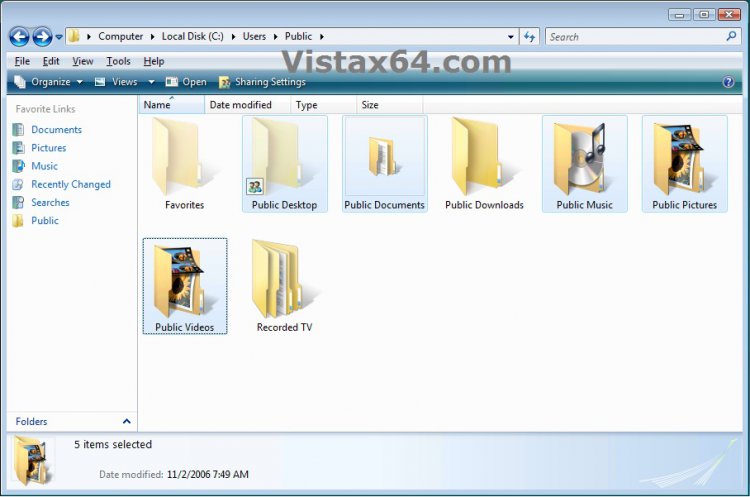
If you open the C:\Users\Public folder, and the Public Destop, Public Documents, Public Music, Public Pictures, or Public Videos folder has a standard yellow folder icon instead of the default special folder icon, then this will show you how to restore the default icon for that particular Public folder.
 Note
Note- The Favorites and Public Desktop folders are hidden by default.
- The Favorites, Public Downloads, and Recorded TV folders just use the standard yellow folder by default, so there is no need to change these.
EXAMPLE: Public Folder Icons
NOTE: Only the Public Desktop, Public Documents, Public Music, Public Pictures, and Public Videos folders have a special folder icon.
 STEP ONE
1. Open the Start Menu.
2. Type in the Shell command (see table below) for the Public folder and press Enter.
[TABLE=class:-grid,-width:-400][TR][TD]Public Folder
[/TD]
[TD]
Shell Command
[/TD][/TR]
[TR][TD]
Public Desktop
[/TD]
[TD]
shell:Common Desktop
[/TD][/TR]
[TR][TD]
Public Documents
[/TD]
[TD]
shell:Common Documents
[/TD][/TR]
[TR][TD]
Public Music
[/TD]
[TD]
shell:CommonMusic
[/TD][/TR]
[TR][TD]
Public Pictures
[/TD]
[TD]
shell:CommonPictures
[/TD][/TR]
[TR][TD]
Public Videos
[/TD]
[TD]
shell:CommonVideo
[/TD][/TR][/TABLE]
3. This will open the Public folder from it's location.
4. Close the Public folder window.
5. Check to see if the Public folder has turned back to the special defualt folder.
A) If yes, then your done.
B) If not, proceed to STEP TWO below.
STEP TWO 1. Have Show hidden files and folders dotted and Hide protected operating system files (Recommended) unchecked in Folder Options.
2. Click on the download button below to download the Public_Folders.zip file, then click on Save and save it to the Desktop.

3. Right click on the Public_Folders.zip file (on Desktop) and click on Open.
4. Extract the same folder(s) for the Public folder name with the standard yellow icon displayed to the Desktop.
5. Open the extracted folder and right click on the desktop.ini file and click on Copy. (See screenshot below)
NOTE: This file is set as a hidden file. This is why it is faded.

6. Open the Public folder (Step One) that has the standard yellow folder icon displayed.
A) Right click on a empty area in the folder's window and click Paste.
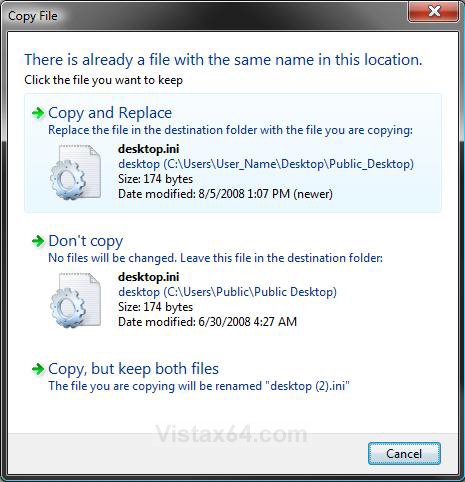
NOTE: If you are asked if you want to replace the old desktop.ini file, then click Copy and Replace. (See screenshot below)
B) Repeat step 5 for each Public folder you need to fix.
7. Close all windows.
8. Open a elevated command prompt.
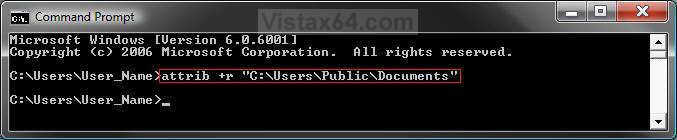
9. In the elevated command prompt, type the command below (see table below) for the Public folder name you need to fix. (See screenshot below table)
NOTE: This will set the Public folder as Read-only. You can Copy and Paste these to make it easier for you.
[TABLE=class:-grid,-width:-500][TR][TD]Public Folder
[/TD]
[TD]
Command
[/TD][/TR]
[TR][TD]
Public Desktop
[/TD]
[TD]
attrib +h +r "C:\Users\Public\Desktop"
[/TD][/TR]
[TR][TD]
Public Documents
[/TD]
[TD]
attrib +r "C:\Users\Public\Documents"
[/TD][/TR]
[TR][TD]
Public Music
[/TD]
[TD]
attrib +r "C:\Users\Public\Music"
[/TD][/TR]
[TR][TD]
Public Pictures
[/TD]
[TD]
attrib +r "C:\Users\Public\Pictures"
[/TD][/TR]
[TR][TD]
Public Videos
[/TD]
[TD]
attrib +r "C:\Users\Public\Videos"
[/TD][/TR][/TABLE]
10. Repeat step 9 for each Public folder that you replaced the desktop.ini file for in steps 5 and 6.
11. Close the elevated command prompt.
12. Restart the computer, or log off and log on again for the changes to take effect.
13. Confirm that the folder icon is back to normal.
14. You can now delete the downloaded folders on the desktop and set your hidden files and folders settings back to normal in step 1 above.
That's it,Shawn
Attachments

Last edited: