
Windows Vista Forums
Vista Forums Home Join Vista Forums Windows 7 Forum Vista Tutorials Tags
Welcome to Windows Vista Forums. Our forum is dedicated to helping you find solutions with any problems, errors or issues you are experiencing with Windows Vista. The Vista forum also covers news and updates and has an extensive Windows Vista tutorial section that covers a wide range of tips and tricks.

Go Back   Vista Forums > Vista Forums > Tutorials

Vista Tutorial - Customer Experience Improvement Program

Comment
 

Customer Experience Improvement Program

How to Join or Unjoin the Vista Customer Experience Improvement Program
Published by Brink
08-13-2008

How to Join or Unjoin the Vista Customer Experience Improvement Program

Information
  This will show you how to join or unjoin the Windows Customer Experience Improvement Program (CEIP) in Windows Vista.
NOTE
  The Windows Customer Experience Improvement Program (CEIP) in Windows Vista is a completely voluntary program designed to help Microsoft improve its operating systems over time. This program collects information about computer hardware and how people use Windows Vista, without interrupting the users in their tasks at the computer. The information that is collected helps Microsoft identify which Windows features to improve. The Windows Customer Experience Improvement Program runs only if an administrator chooses to participate. For more about CEIP, see: Windows Customer Experience Improvement Program and Resulting Internet Communication in Windows Vista and Windows Vista Privacy Notice Highlights
RELATED LINKS:

STEP ONE:
Join or Unjoin Vista Customer Experience Improvement Program
1. Open the Control Panel (Classic View).

2. Click on the Problem Reports and Solutions icon.
NOTE: If you have Problem Reports and Solutions turned off, then click on Close in the pop-up dialog box. (See screenshot below) If not, then you will not see this.
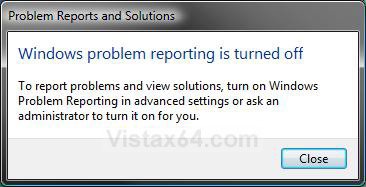
Name:  Close.jpg
Views: 3866
Size:  43.1 KB
3. Click on the Customer Experience Improvement Settings link in the lower left corner. (See screenshot below)
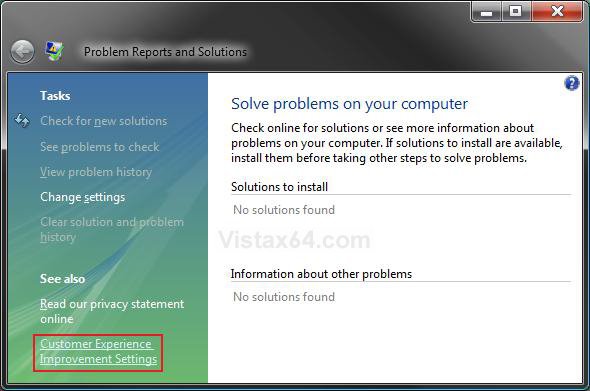
p_r-s.jpg
4. To Join the Customer Experience Improvement Program -
A) Dot Join the Windows Customer Experience Improvement Program. (See screenshot below step 6)

B) Go to step 6.
5. To Unjoin the Customer Experience Improvement Program -
NOTE: This is the default setting.
A) Dot I don't want to join the program at this time.
6. Click on OK.
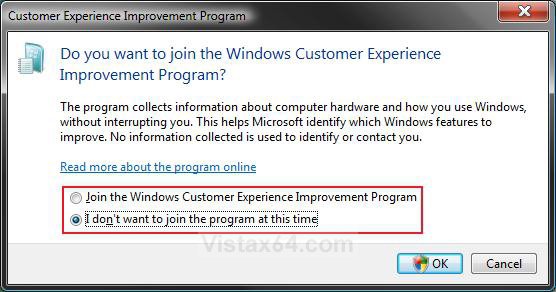
ceip_options.jpg
7. Click on Continue in the UAC prompt.

8. Close the Problem Reports and Solutions window. (See screenshot below step 3)


STEP TWO:
Enable or Disable Tasks for Customer Experience Improvement Program
1. Open the Start Menu.
A) In the white line (Start Search) area, type taskschd.msc and press Enter.

B) Go to step 3 in Step Two.
OR

2. Open the Control Panel (Classic view).
A) Click on the Administrative Tools Icon.

B) Click on Task Scheduler.
3. Click on Continue in the UAC Prompt.

4. In the left pane click on the arrow to the left of the Task Scheduler Library, Microsoft, and Windows folders to expand them. (See screenshot below step 8)

5. In the left pane click on the Customer Experience Improvement Program folder to open it in the middle pane.

6. To Enable the Tasks -
NOTE: Only do this option if you Joined the Customer Experience Improvement Program in Step One (step 4) above. By default these task are enable in Vista.
A) In the middle pane, right click on Consilidator and click on Enable. (See screenshot below step 8)

B) In the middle pane, right click on OptinNotification and click on Enable.

C) Go to step 8.
7. To Disable the Tasks -
NOTE: Only do this option if you Unjoined the Customer Experience Improvement Program in Step One (step 5) above. By default these task are enable in Vista.
A) In the middle pane, right click on Consilidator and click on Disable. (See screenshot below step 8)

B) In the middle pane, right click on OptinNotification and click on Disable.
8. Close Task Scheduler.
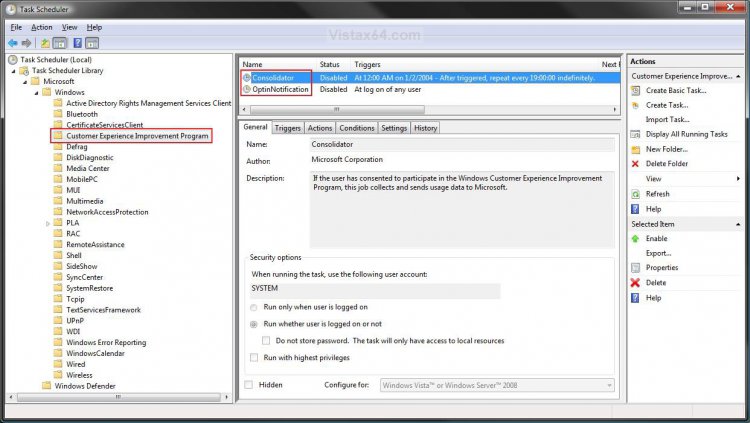
Click the image to open in full size.
That's it,
Shawn

Published by
Brink's Avatar
Administrator

Join Date: Apr 2007
Location: Texas, USA
Posts: 25,815
Rep Power: 150
Brink has a reputation beyond reputeBrink has a reputation beyond reputeBrink has a reputation beyond reputeBrink has a reputation beyond reputeBrink has a reputation beyond reputeBrink has a reputation beyond reputeBrink has a reputation beyond reputeBrink has a reputation beyond reputeBrink has a reputation beyond reputeBrink has a reputation beyond reputeBrink has a reputation beyond repute

Tutorial Tools

Applies to
All Vista Versions
64 Bit & 32 Bit

Old 08-26-2008  
MilesAhead
Aficionado


Join Date: Jan 2008
Vista Home Premium 64 bit SP1


It's nice to find the options to join or unjoin these metric gathering services, but Vista continues to run tasks to gather data anyway!! I've found the spot in Scheduled Tasks to disable the stuff for Customer Experience stat gathering. I've had this machine running Vista Home Premium 32 bit since April 2007 and I'm still turning stuff off that runs my HD!! If I look at Process Monitor there's all these File Open, File Close, File Create stuff going on for no reason. Sometimes my HD will run constantly for 15 or 20 minutes and that's with Superfetch service not running!! It's pretty annoying!

Some people say it doesn't hurt your drive to have it doing all this stuff I don't care about, but it sure trashes system buffers!!! How about optimizing for stuff I want to do? I mean, I'm the one that forked out the $$$ for this PC, you know? Seems like I'll still be hunting this stuff down when SP4 comes out!!

Since I mentioned turning those off I might as well describe how I did it:

To turn off
Consolidator and OptinNotification

Go into Task Scheduler(make sure in the View Menu click Show Hidden Tasks)
Task Scheduler Library => Microsoft => Windows => Customer Experience Improvement Program.

Right click Consolidator and click Disabled
Right click OptinNotification and click Disabled

My System SpecsSystem Spec
Old 08-26-2008  
Brink
Administrator


Join Date: Apr 2007
Vista x64 Ultimate SP2, Windows 7 (7600) x64


Re: Customer Experience Improvement Program

Thank you MilesAhead. That would make a great addition to the tutorial.

Shawn
My System SpecsSystem Spec
Old 08-26-2008  
MilesAhead
Aficionado


Join Date: Jan 2008
Vista Home Premium 64 bit SP1


Re: Customer Experience Improvement Program

You're welcome. If I find any more clues how to quiet the HD in Vista I'll post 'em.
I sure would like to know what keeps touching all my files though. Every time I think I've turned it off, after a few days the same behavior starts up again. Very frustrating!
My System SpecsSystem Spec
Comment

Tutorial Tools


Similar Threads
Tutorial Category
How can I opt out of Windows Customer Experience? Vista installation & setup
Help Experience Improvement Program Tutorials
Join the Windows Customer Experience or we force you? General Discussion
TS connection experience improvements based on RDP 6.0 client customer Vista networking & sharing
Customer Experience Improvement Program Vista General


Vista Forums is an independent web site and has not been authorized,
sponsored, or otherwise approved by Microsoft Corporation.
"Windows Vista", the Start Orb, and related materials are trademarks of Microsoft Corp.
© Designer Media Ltd
Tutorial powered by GARS 2.1.8m ©2005-2006

1 2 3 4 5 6 7 8 9 10 11 12 13 14 15 16 17 18 19 20 21 22 23 24 25 26 27 28 29 30 31 32 33 34 35 36 37 38 39 40 41 42 43 44 45 46