
How to Use "Find and Find Next" in Registry Editor in Vista, Windows 7, and Windows 8
 Information
This tutorial will show you how to use "Find and Find Next" to find a text string in a key, value, or data inside the Registry Editor in Vista, Windows 7, and Windows 8.
 Tip
TipThis can be real handy if a program improperly uninstalled and you need to remove all entries for it in the registry manually to finish removing it.
 Warning
It it recommended that you should create a restore point to backup the entire registry incase you make a mistake while editing the registry and need or have to do a system restore to undo it.
Here's How:
1. Press the Windows + R keys to open the Run dialog, type regedit, and press Enter.
2. If prompted by UAC, then click on Continue (Vista) or Yes (Windows 7/8).
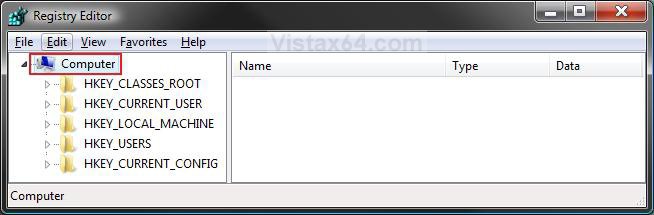
3. In the left plane of the registry, click on the Key (folder), that you wish to start the search from and highlight it. (See screenshot below)
NOTE: Highlight Computer to search the entire registry.
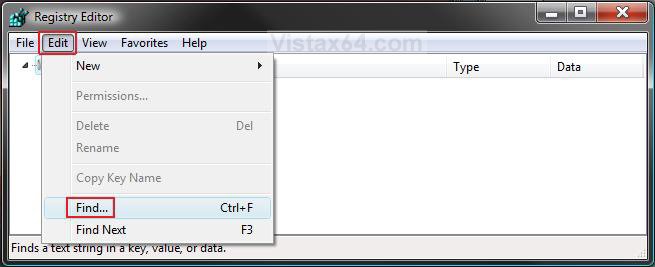
4. Click on Edit and on Find. (See screenshot below)
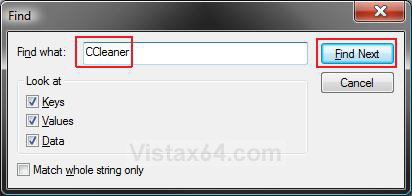
5. Type in a text string (ex: CCleaner) that you want to search for in the registry and click on the Find Next button. (See screenshot below)
6. It will then start the search from the location in step 1 and display the first entry (step 5) result when found. (See screenshot below step 7)
7. You can now do whatever you wanted to do with this entry. (ex: Modify or Delete)
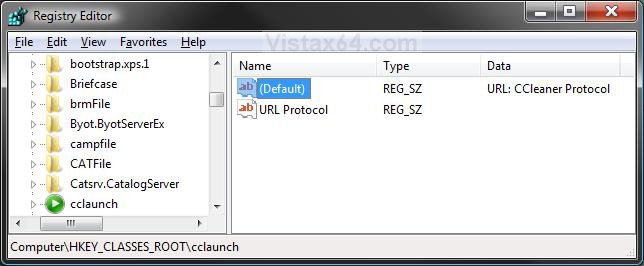
8. Press F3, or click on Edit and Find Next, to find the next entry (step 6) for this. (See screenshot below step 9)
9. You can now do whatever you wanted to do with this entry.
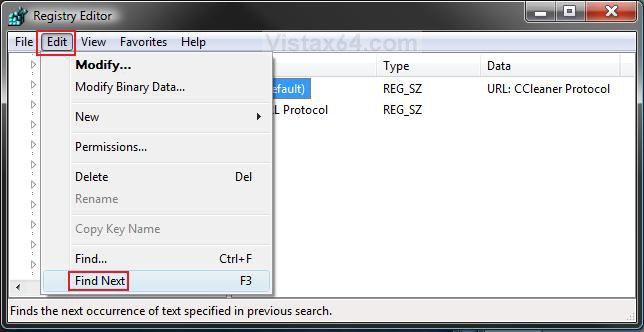
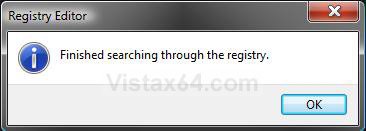
10. Repeat steps 8 and 9 until you find what you are looking for, or until you get a finished message. (See screenshot below 11)
NOTE: A Finished searching message indicates that there are no more entries chosen from step 5 found.
11. Click on OK.
12. When done, close the registry or start over for a new search.
That's it,Shawn
Related Tutorials
- How to Fix a Slow Scan in a Registry Cleaner Program in 64 bit Vista
- How to Add or Remove Registry Editor from the Vista Control Panel
- How to Use the Registry Editor in Vista and other Techniques
- How to Enable or Disable Regedit in Vista and Windows 7
- How to Use the Find Window to Find Text on a Page
- How to Use Advanced Search Options in Vista
- How to Backup and Restore the Registry in Windows 7 and Vista
Attachments

Last edited by a moderator:

