
How to Enable or Disable InPrivate Filtering Data in Internet Explorer 8
 Information
InPrivate Filtering Data is saved data used by InPrivate Filtering to detect where websites may be automatically sharing details about your visit. This will show you how to enable or disable InPrivate Filtering Data in Vista Internet Explorer 8.
 Note
NoteInPrivate Filtering helps you control whether third parties can automatically collect information about your web browsing based on the sites you visit. InPrivate Filtering does this by identifying third-party content that is used by multiple websites you visit. Some website content might not be displayed unless you choose to allow these third-party websites.
 Warning
To make sure this is not enabled by someone (ex: a child), put them on a Standard user account and enabled Parental Controls for that Standard account. Inprivate Browsing cannot be enabled in a Standard user account with Parental Controls enabled for it.
 Tip
TipFor more information about Internet Explorer 8 and how to download it, see: Windows Internet Explorer 8: Home page
Here's How:
1. Open Internet Explorer 8.
A) Click on Tools (Menu Bar or Command Bar icon button)
B) Go to step 3.
OR
2. Open the Control Panel (Classic View).
3. Click on Internet Options.
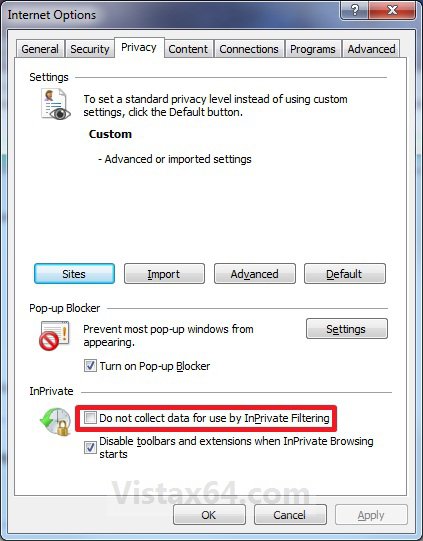
4. Click on the Privacy tab. (See screenshot below step 7)
5. To Enable InPrivate Filtering Data
A) Check the Do not collect data for use by InPrivate Filtering box.
B) Go to step 7.
6. To Disable InPrivate Filtering Data
A) Uncheck the Do not collect data for use by InPrivate Filtering box.
7. Click on OK.
That's it,
Shawn
Related Tutorials
- How to Setup Parental Controls in Vista
- How to Remove or Restore the Vista Internet Explorer Command Bar
- How to Create a Internet Explorer InPrivate Browsing Shortcut
- How to Turn Vista Internet Explorer 8 InPrivate Filtering On or Off
- How to Enable or Disable SmartScreen Filter in Vista Internet Explorer 8
- How to Delete the Internet Explorer Browsing History in Vista
- How to Turn Vista Internet Explorer 8 InPrivate Filtering On or Off
Attachments

Last edited: