
Windows Vista Forums
Vista Forums Home Join Vista Forums Windows 7 Forum Vista Tutorials Tags
Welcome to Windows Vista Forums. Our forum is dedicated to helping you find solutions with any problems, errors or issues you are experiencing with Windows Vista. The Vista forum also covers news and updates and has an extensive Windows Vista tutorial section that covers a wide range of tips and tricks.

Go Back   Vista Forums > Vista Forums > Tutorials

Vista Tutorial - Removable Drives - Allow or Deny All Access

Comment
 

Removable Drives - Allow or Deny All Access

How to Deny or Allow Access to All Removable Drives in Vista
Published by Brink
09-11-2008

How to Deny or Allow Access to All Removable Drives in Vista
Information
  This will show you how to deny or allow read and write access to all removable drives connected to your computer for all users. This will include access to all removable Hard Disk, CD/DVD, Floppy and USB Floppy Key, WPD (Windows Portable Devices), and Tape drive media.
NOTE
  By default, all access is allowed to removable drives in Vista for all users. This can be handy if you do not want people that share the computer to be able to read from or write to any type of removable drive.
WARNING
 
  • If you deny read and write access to all removable drives with this setting, it will take precedence over the settings for the individual removable drive settings mentioned in the above Information box links and related links.
  • If you allow read and write access to all removable drives with this setting, it will only undo the deny all setting. Each removable drive setting can still be individually set to deny or allow access to them from the above Information box links and related links.
RELATED LINKS:


METHOD ONE:
Through the Local Group Policy Editor
NOTE
  This method is only available for the Vista Business, Ultimate, and Enterprise editions. See Method Two below for the Vista Basic and Home Premium editions.
1. Open the Local Group Policy Editor.

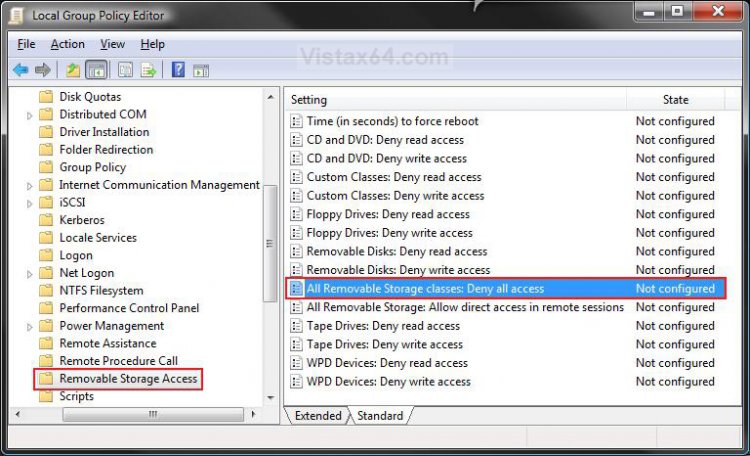
2. In the left pane, click on Computer Configuration, Administrative Templates, System, and Removable Storage Access. (See screenshot below step 5)
group_policy.jpg
3. In the right pane, right click on All Removable Storage classes: Deny all access and click on Properties. (See screenshot above)

4. To Allow All Removable Drives Read and Write Access -
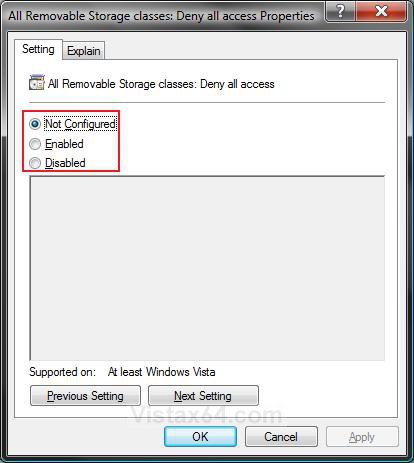
A) Select (dot) Disabled or Not Configured and click on OK. (See screenshot below step 5A)

B) Go to step 6.
5. To Deny All Removable Drives Read and Write Access -
A) Select (dot) Enabled and click on OK.
properties.jpg
6. Close Local Group Policy Editor window. Your done.


METHOD TWO:
Through the Registry
NOTE
  This will work for all Vista versions.
Through a Download:
1. To Allow All Removable Drives Read and Write Access -
A) Click on the Download button below to download the
Allow_All_Removable_Devices_Access.reg file.

B) Go to step 3.


2. To Deny All Removable Drives Read and Write Access -
A) Click on the Download button below to download the
Deny_All_Removable_Devices_Access.reg file.


3. Click on Save, and save the .reg file to the Desktop.

4. Right click on the .reg file (on Desktop) and click on Merge.

5. Click on the Run button in the Security Warning pop-up.

6. Click on Continue (UAC), Yes, and then OK when prompted.

7. When done, you can delete the .reg file (on Desktop).

8. Restart the computer to apply changes.

The Manual Way:
1. Open the Start Menu.

2. In the white line (Start Search) area, type regedit and press Enter.

3. Click on the Continue button in the UAC prompt.

4. In regedit, go to: (See screenshot below)
HKEY_LOCAL_MACHINE\SOFTWARE\Policies\Microsoft\Windows\RemovableStorageDevices
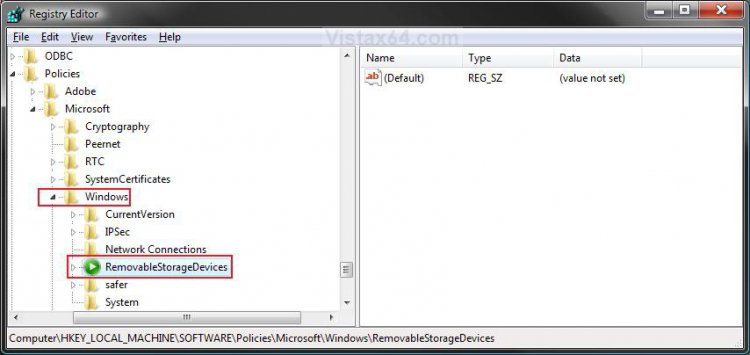
NOTE: If RemovableStorageDevices is not there in the left pane, then right click on Windows and click on New and Key. Type RemovableStorageDevices and press Enter.
reg_before.jpg
5. To Deny All Removable Drives Read and Write Access -
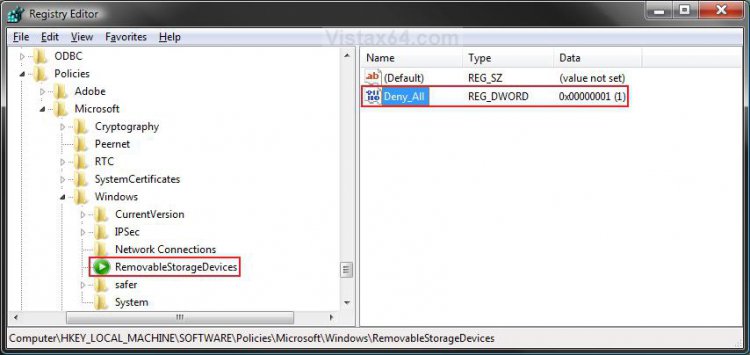
A) In the right pane of RemovableStorageDevices, right click on a empty area and click on New and DWORD (32-bit) Value and type Deny_All and press Enter. (See screenshot below)

B) Right click on Deny_All and click on Modify.
deny_all.jpg
C) Type 1 and click on OK. (See screenshot below)
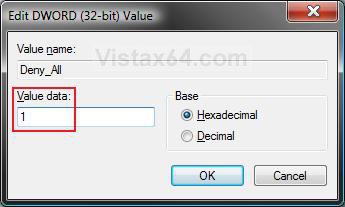
Name:  Modify.jpg
Views: 2021
Size:  31.2 KB
D) Go to step 7.
6. To Allow All Removable Drives Read and Write Access -
A) In the right pane of RemovableStorageDevices, right click on Deny_All and click on Delete. (See screenshot below step 5B)

B) Click on Yes to confirm delete.
7. Close regedit.

8. Restart the computer to apply changes.
That's it,
Shawn

Published by
Brink's Avatar
Administrator

Join Date: Apr 2007
Location: Texas, USA
Posts: 25,818
Rep Power: 150
Brink has a reputation beyond reputeBrink has a reputation beyond reputeBrink has a reputation beyond reputeBrink has a reputation beyond reputeBrink has a reputation beyond reputeBrink has a reputation beyond reputeBrink has a reputation beyond reputeBrink has a reputation beyond reputeBrink has a reputation beyond reputeBrink has a reputation beyond reputeBrink has a reputation beyond repute

Tutorial Tools

Applies to
All Vista Versions
64 Bit & 32 Bit

Old 05-04-2009  
royw
Member


Join Date: May 2009
Vista Home Premium 32bit.


Re: Removable Drives - Allow or Deny All Access

I used Method 2 in the article , downloaded the .reg file referred to in Step 1 and carried out all the further steps in Method 2. Stupidly I missed the reference to x64-my OS is Vista Home Premium 32 bit. Now when I connect my USB flash drive and try to open it from Computer I get the message "Please insert a Disk in Disk (F)", Disk F being the flash drive.

Any help you can give me to sort this problem out would be greatly appreciated.

Thanks and regards,
Roy Whitethread


Last edited by royw; 05-04-2009 at 06:18 PM.. Reason: Missed mentioning Step 1.
My System SpecsSystem Spec
Old 05-04-2009  
Brink
Administrator


Join Date: Apr 2007
Vista x64 Ultimate SP2, Windows 7 Ultimate x64


Re: Removable Drives - Allow or Deny All Access

Hell Royw, and welcome to Vista Forums.

I'm sorry, but I do not understand what you meant by what you said quoted below. There's no reference to that in this tutorial.

Quote:
Stupidly I missed the reference to x64-my OS is Vista Home Premium 32 bit.
Using the .reg download in METHOD TWO step 1, only removes the Deny_All entry that you see in the MANUAL option in METHOD TWO (step 6).
My System SpecsSystem Spec
Old 05-05-2009  
royw
Member


Join Date: May 2009
Vista Home Premium 32bit.


Re: Removable Drives - Allow or Deny All Access

Sorry, the reference to x64 only appeared in the link to the article, not in the article itself. I followed the instructions in Method 2, the Manual Way, and now when I look at HKEY_LOCAL_MACHINE\SOFTWARE\Policies\Microsoft\Windows\RemovableStorageDevices
under Data in the right pane it says "value not set". I have 2 Takems USB 2 flash devices, and now when I connect one I can open everything except one folder called CarryItEasy.exe, which says access denied. (I could open it before). When I connect the other device and try to open it from Computer it says "Please insert a Disk in Disk (F", F being the USB device.
Any help you can give me to resolve this problem would be greatly appreciated. (My OS is Vista Home Premium).
Thanks and regards,
Roy
My System SpecsSystem Spec
Old 05-05-2009  
Brink
Administrator


Join Date: Apr 2007
Vista x64 Ultimate SP2, Windows 7 Ultimate x64


Re: Removable Drives - Allow or Deny All Access

Roy,

Try merging this .reg download below. It will delete the RemovableStorageDevices key to reset this for you back to the default settings. You will need to restart the computer after merging it for it to be applied.
Attached Files
File Type: reg Reset.reg (256 Bytes, 33 views)
My System SpecsSystem Spec
Old 05-05-2009  
royw
Member


Join Date: May 2009
Vista Home Premium 32bit.


Re: Removable Drives - Allow or Deny All Access

I did as you suggested, and the registry key concerned is no longer in the registry,but still have exactly the same problem with the USB flash drives.

Is there anything else you can think of?

Please advise and thanks for your patience.

Regards,
Roy
My System SpecsSystem Spec
Old 05-05-2009  
Brink
Administrator


Join Date: Apr 2007
Vista x64 Ultimate SP2, Windows 7 Ultimate x64


Re: Removable Drives - Allow or Deny All Access

Well at least that eliminates the tutorial doing this. Check to make sure that you have the latest chipset drivers installed for your motherboard, and you might also reformat the USB key to see if that may help as well.
My System SpecsSystem Spec
Old 05-05-2009  
royw
Member


Join Date: May 2009
Vista Home Premium 32bit.


Re: Removable Drives - Allow or Deny All Access

Thanks again.

I know I'm displaying my ignorance asking this, but by reformat the USB key do you mean format each USB drive?

Please advise.
Regards,
Roy
My System SpecsSystem Spec
Old 05-05-2009  
Brink
Administrator


Join Date: Apr 2007
Vista x64 Ultimate SP2, Windows 7 Ultimate x64


Re: Removable Drives - Allow or Deny All Access

Sorry, yep. Formatting them with the NTFS file system may reset it in Vista to allow it to not ask you to insert a DVD for it.
My System SpecsSystem Spec
Old 05-05-2009  
royw
Member


Join Date: May 2009
Vista Home Premium 32bit.


Re: Removable Drives - Allow or Deny All Access

I tried to format the disk that gives me the "...insert a Disk in Drive F" message,
but when I clicked format I was told "There is no disk in Drive F. Please insert a Disk".

Help!!

Thanks and regards,
Roy
My System SpecsSystem Spec
Comment

Tutorial Tools


Similar Threads
Tutorial Category
Tape Drives - Allow or Deny Read and Write Access Tutorials
Removable Hard Disk Drives - Allow or Deny Read and Write Access Tutorials
Cannot access removable drives Vista General
removable ide drives Vista installation & setup
USB Removable drives Vista hardware & devices


Vista Forums is an independent web site and has not been authorized,
sponsored, or otherwise approved by Microsoft Corporation.
"Windows Vista", the Start Orb, and related materials are trademarks of Microsoft Corp.
© Designer Media Ltd
Tutorial powered by GARS 2.1.8m ©2005-2006

1 2 3 4 5 6 7 8 9 10 11 12 13 14 15 16 17 18 19 20 21 22 23 24 25 26 27 28 29 30 31 32 33 34 35 36 37 38 39 40 41 42 43 44 45 46