Windows Vista Forums
Vista Forums Home Join Vista Forums Windows 7 Forum Vista Tutorials Tags
Welcome to Windows Vista Forums. Our forum is dedicated to helping you find solutions with any problems, errors or issues you are experiencing with Windows Vista. The Vista forum also covers news and updates and has an extensive Windows Vista tutorial section that covers a wide range of tips and tricks.

Go Back   Vista Forums > Vista Forums > Tutorials

Vista - Game Shortcut Links in Games Explorer Do Not Work

Comment
 

Game Shortcut Links in Games Explorer Do Not Work

How to Fix Game Shortcut Links in Vista Games Explorer
Published by Brink
09-13-2008

How to Fix Game Shortcut Links in Vista Games Explorer

Information
  If you click on any game shortcut link in the Games Explorer window and it does not work or you get the error: This file does not have a program associated with it for performing this action. Create an association in the Set Associations control panel. , then this will show you how to fix this. For missing game shortcuts, you will just need to create and copy a new shortcut into the Games Explorer window.
NOTE
  This usually happens when the XP method of deleting the IsShortcut registry value for .lnk files (Shortcuts), to remove or change the shortcut arrow overlay icon, is used in Vista by mistake. For a safe Vista method, see: How to Remove or Change the Shortcut Arrow and Name in Vista
Tip
  Even though the game shortcuts will not work in Games Explorer, you usually can still open the game from a shortcut of it from another location.
RELATED LINKS:EXAMPLE: Games Explorer Window
NOTE: Other than the links below, you can type Shell:Games in the white line (Start Search) area of the Start menu, or in the Run window, and press Enter.
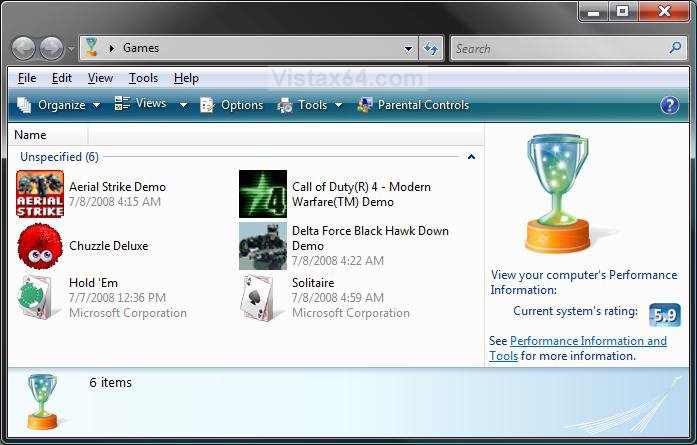
games_explorer.jpg


OPTION ONE:
Through a Download
NOTE
  This restores all of the .lnk (shortcuts) default associations in Vista.
1. Click on the download button below to download the Shortcut_lnk_Fix.reg file.


2. Click on Save, and save the .reg file to the Desktop.

3. Right click on the .reg file (on Desktop) and click on Merge.

4. Click on the Run button for Security Warning pop-up.

5. Click on Continue (UAC), Yes, and then OK when prompted.

6. Log off and log on, or restart the computer to apply the changes.

7. When done, you can delete the .reg file (on Desktop) if you like.


OPTION TWO:
Through the Registry
NOTE
  This only restores the missing default IsShortcut registry value for .lnk files (Shortcuts).
1. Open the Start Menu.

2. In the white line (Start Search) area, type regedit and press Enter.

3. Click on Continue in the UAC prompt.

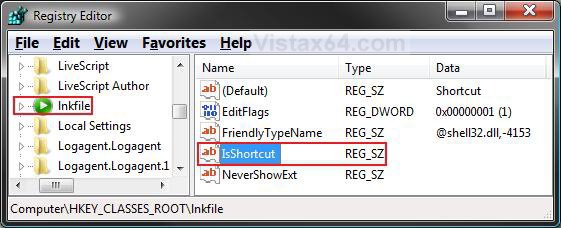
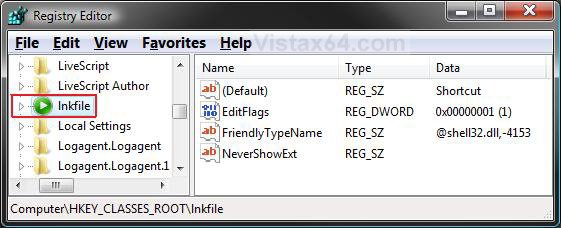
4. In regedit, go to: (See screenshot below)
HKEY_CLASSES_ROOT\lnkfile
NOTE: The first letter of lnkfile is a L.
reg1.jpg
5. In the right pane, right click on a empty area and click on New and String Value. (See screenshot above)

6. Type IsShortcut and press Enter. (See screenshot below)
reg.jpg
7. Close regedit.

8. Log off and log on, or restart the computer to apply the changes.
That's it,
Shawn

Published by
Brink's Avatar
Administrator

Join Date: Apr 2007
Location: Texas, USA
Posts: 25,919
Rep Power: 150
Brink has a reputation beyond reputeBrink has a reputation beyond reputeBrink has a reputation beyond reputeBrink has a reputation beyond reputeBrink has a reputation beyond reputeBrink has a reputation beyond reputeBrink has a reputation beyond reputeBrink has a reputation beyond reputeBrink has a reputation beyond reputeBrink has a reputation beyond reputeBrink has a reputation beyond repute

Tutorial Tools

Applies to
All Vista Versions
64 Bit & 32 Bit

Comment

Tutorial Tools


Similar Threads
Tutorial Category
Removal of deleted games links from the game menu Vista Games
Cannot run games from vista's game explorer Gaming
Moving Links From Games Explorer Vista Games
Links in game explorer stopped working Vista Games
Games Explorer game won't update Vista General


Vista Forums is an independent web site and has not been authorized,
sponsored, or otherwise approved by Microsoft Corporation.
"Windows Vista", the Start Orb, and related materials are trademarks of Microsoft Corp.
© Designer Media Ltd
Tutorial powered by GARS 2.1.8m ©2005-2006

1 2 3 4 5 6 7 8 9 10 11 12 13 14 15 16 17 18 19 20 21 22 23 24 25 26 27 28 29 30 31 32 33 34 35 36 37 38 39 40 41 42 43 44 45 46