
How to Restore or Remove Windows Media Player from Default Programs
 Information
This will show you how to either restore or remove Windows Media Player (WMP) from the Set Default Programslist in for all users in Vista and Windows 7.
 Note
NoteThe N and KN editions of Windows 7 have all the features that normally come with each individual Windows 7 edition, except for Windows Media Player 12 and related programs, such as Windows Media Center or Windows DVD Maker.
The N editions of Windows 7 allow you to choose your own media player and software required to manage and play CDs, DVDs, and other digital media files. If you choose to use Windows Media Player 12, downloading it, along with related software, is free.
The N editions of Windows 7 allow you to choose your own media player and software required to manage and play CDs, DVDs, and other digital media files. If you choose to use Windows Media Player 12, downloading it, along with related software, is free.
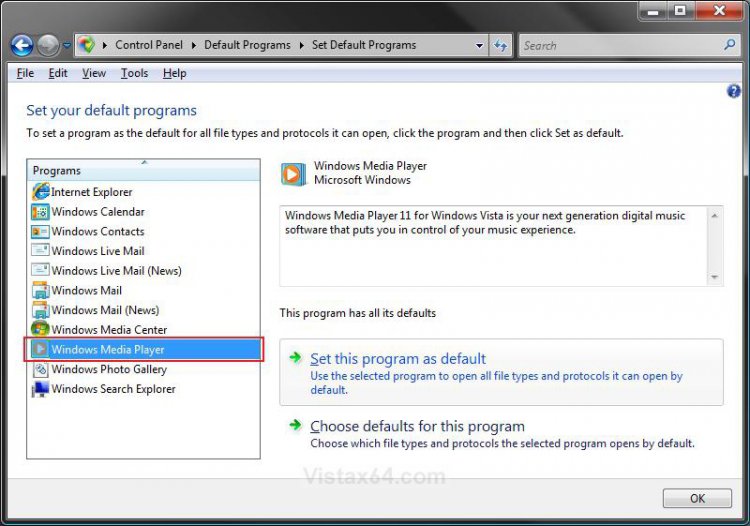
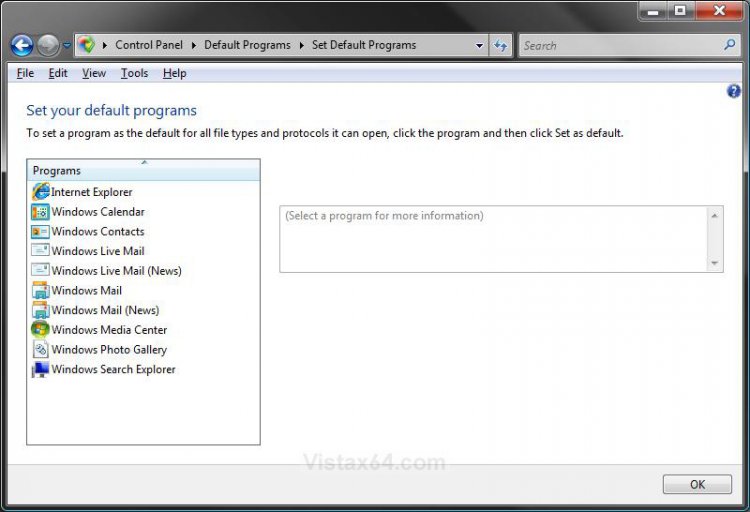
EXAMPLE: WMP Restored and Removed from Set Default Programs list
Here's How:
1. Open the Control Panel (Classic View-Vista) or (Icons view-Windows 7).
2. Click on the Default Programs icon.
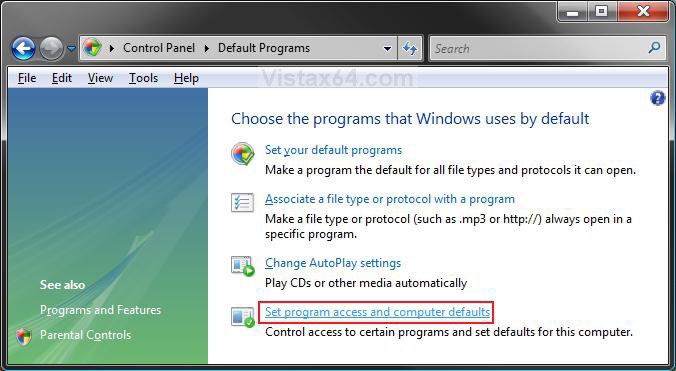
3. Click on the Set program access and computer defaults link. (See screenshot below)
4. If prompted by UAC, then click on Continue (Vista) or Yes (Windows 7).
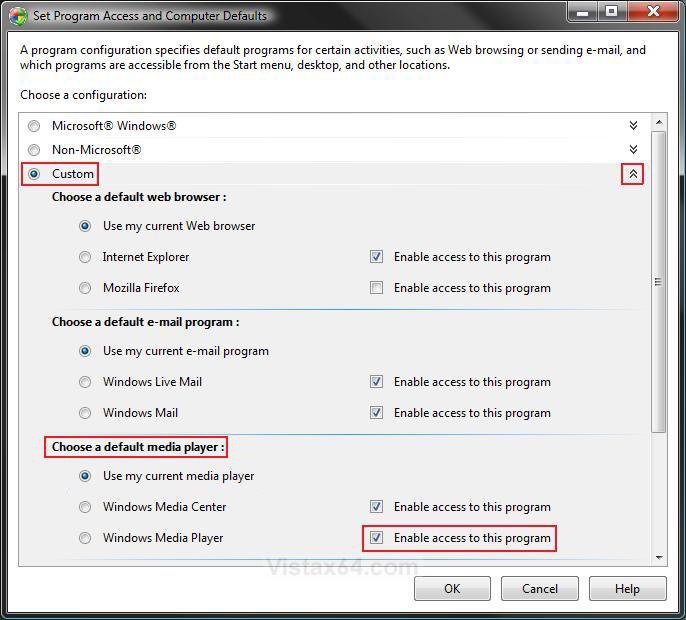
5. Dot Custom and click on the drop down arrow to the right of it to expand Custom. (See screenshot below step 6)
6. Scroll down to the Choose a default media player section.
 /INDENT]
7. To Restore WMP to the Set Default Programs List
A) To the right of Windows Media Player, check the Enable access to this program box. (See screenshot above)
B) Go to step 9.
8. To Remove WMP from the Set Default Programs List
A) To the right of Windows Media Player, uncheck the Enable access to this program box. (See screenshot below step 6)
9. Click on OK. (See screenshot below step 6)
10. Windows Media Player will now be restore or removed from the Set Default Program list. (See examples above)
That's it,
Shawn
Related Tutorials
- How to Set Default Associations For a Program in Vista
- How to Set 64 bit or 32 bit WMP in 64 bit Vista as Default
- How to Restore or Remove Windows Media Center from Default Programs
- How to Restore or Remove Internet Explorer from Default Programs
- How to Create a "Set Program Access and Computer Defaults" Shortcut
- How to Enable or Disable the "Set Program Access and Computer Defaults" Page
Attachments

Last edited: