Windows Vista Forums
Vista Forums Home Join Vista Forums Windows 7 Forum Vista Tutorials Tags
Welcome to Windows Vista Forums. Our forum is dedicated to helping you find solutions with any problems, errors or issues you are experiencing with Windows Vista. The Vista forum also covers news and updates and has an extensive Windows Vista tutorial section that covers a wide range of tips and tricks.

Go Back   Vista Forums > Vista Forums > Tutorials

Vista - Welcome Center - Enable or Disable at Startup

Comment
 

Welcome Center - Enable or Disable at Startup

How to Enable or Disable the Vista Welcome Center at Startup
Published by Brink
10-07-2008

How to Enable or Disable the Vista Welcome Center at Startup
Information
  This will show you how to enable or disable the Welcome Center from running at startup for only the currently logged in user account.
NOTE
  By default the Welcome Center is enabled to run at startup until you disable it.
Tip
  If you wish to do this with another user account than the user account that you are logged into, then you will need to log out and log on to that account instead.
RELATED LINKS:

METHOD ONE:
Through Welcome Center and Control Panel
1. To Enable the Welcome Center to Run at Startup -
A) Open the Control Panel (Classic View)

B) Click on the Welcome Center icon.

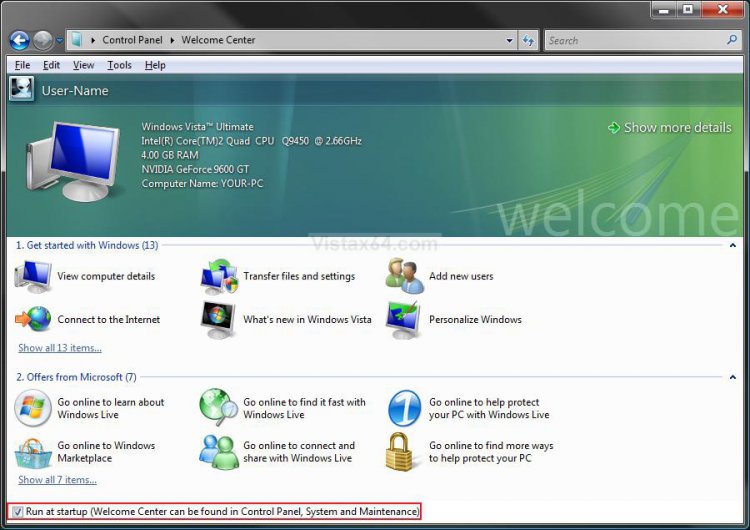
C) Check the Run at startup box at the bottom of the Welcome Center window. (See screenshot below step 3)

D) Go to step 3.
2. To Disable the Welcome Center to Not Run at Startup -
A) Uncheck the Run at startup box at the bottom of the Welcome Center window. (See screenshot below step 3)
3. Close the Welcome Center window to apply the change.


METHOD TWO:
Through the Registry
1. To Enable the Welcome Center to Run at Startup -
A) Click on the download button below to download the
Enable_Current_User_Welcome_Center.reg file.

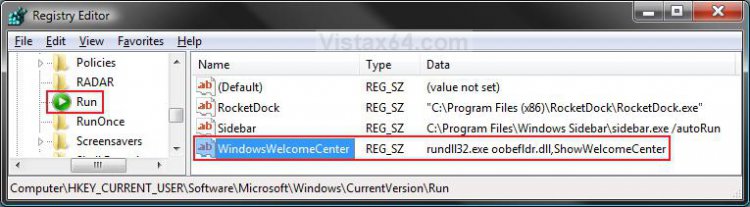
NOTE: This will add the WindowsWelcomeCenter string value in the right pane of the registry below. (See screenshot below step 7).

B) Go to step 3.


2. To Disable the Welcome Center to Not Run at Startup -
A) Click on the download button below to download the
Disable_Current_User_Welcome_Center.reg file.
NOTE: This will delete the WindowsWelcomeCenter string value in the right pane of the registry below. (See screenshot below step 7).


3. Click on Save, and save the .reg file to the Desktop.

4. Right click on the .reg file (on Desktop) and click on Merge.

5. Click on the Run button in the Security Warning pop-up.

6. Click on Continue (UAC), Yes, and then OK when prompted.

7. When done, you can delete the .reg file (on Desktop).

That's it,
Shawn

Published by
Brink's Avatar
Administrator

Join Date: Apr 2007
Location: Texas, USA
Posts: 25,929
Rep Power: 150
Brink has a reputation beyond reputeBrink has a reputation beyond reputeBrink has a reputation beyond reputeBrink has a reputation beyond reputeBrink has a reputation beyond reputeBrink has a reputation beyond reputeBrink has a reputation beyond reputeBrink has a reputation beyond reputeBrink has a reputation beyond reputeBrink has a reputation beyond reputeBrink has a reputation beyond repute

Tutorial Tools

Applies to
All Vista Versions
64 Bit & 32 Bit

Comment

Tutorial Tools


Similar Threads
Tutorial Category
Startup Programs - Enable or Disable Tutorials
DEP - Enable or Disable Tutorials
Can't enable or disable programs in Security Center Vista security
Welcome Center - Enable or Disable at All Users Startup Tutorials
Disable F8 during startup - Disable Advanced startup options scree Vista security


Vista Forums is an independent web site and has not been authorized,
sponsored, or otherwise approved by Microsoft Corporation.
"Windows Vista", the Start Orb, and related materials are trademarks of Microsoft Corp.
© Designer Media Ltd
Tutorial powered by GARS 2.1.8m ©2005-2006

1 2 3 4 5 6 7 8 9 10 11 12 13 14 15 16 17 18 19 20 21 22 23 24 25 26 27 28 29 30 31 32 33 34 35 36 37 38 39 40 41 42 43 44 45 46