
How to Enabled or Disable Last Access Updating in Vista
 Information
By default Last Access Updating is disabled in Vista. If Last Access Updating is enabled, Vista will update files with the last access update time when they are opened or accessed by you or any application.
 Note
NoteThis can be handy if you need to know when the last time a file was accessed on your computer.
 Warning
If enabled, the Last Access Updating option can cause Vista to slow down a little bit since it will always be updating the last access times for all files on your computer. It is best to leave this option disables unless you need or want it.
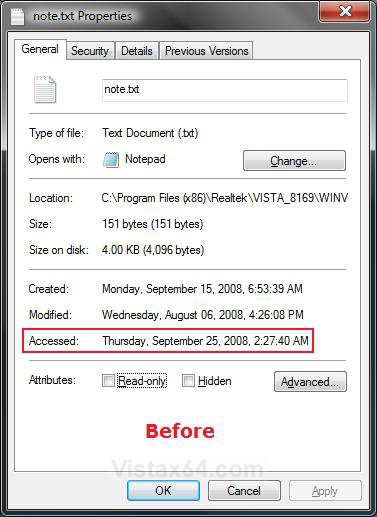
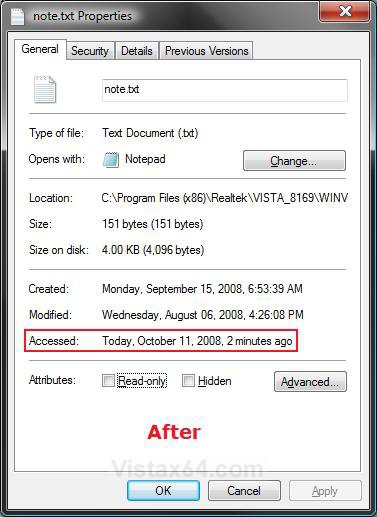
EXAMPLE: Last Access Updating Before (disabled) and After (enabled)
NOTE: To see the last accessed time for a file, right click on the file and click on Properties. It will be listed as Accessed in the General tab. You will notice the Accessed time will be more current now when this is enabled (after).
 OPTION ONE
1. To Enable Last Access Updating
A) Click on the Download button below to download the file below.
Enable_Last_Access_Updating.reg

B) Go to step 3.
2. To Disable Last Access Updating
A) Click on the Download button below to download the file below.
Disable_Last_Access_Updating.reg
3. Click on Save, and save the .reg file to the Desktop.
4. Right click on the downloaded .reg file and click on Merge.
5. Click on Run, Continue (UAC), Yes, and then OK when prompted.
6. When done, you can delete the downloaded .reg file if you like.
7. Restart the computer to apply the changes.
OPTION TWO 1. Open the Start Menu.
2. In the white line (Start Search) area, type regedit and press Enter.
3. Click on the Continue button in the UAC prompt.
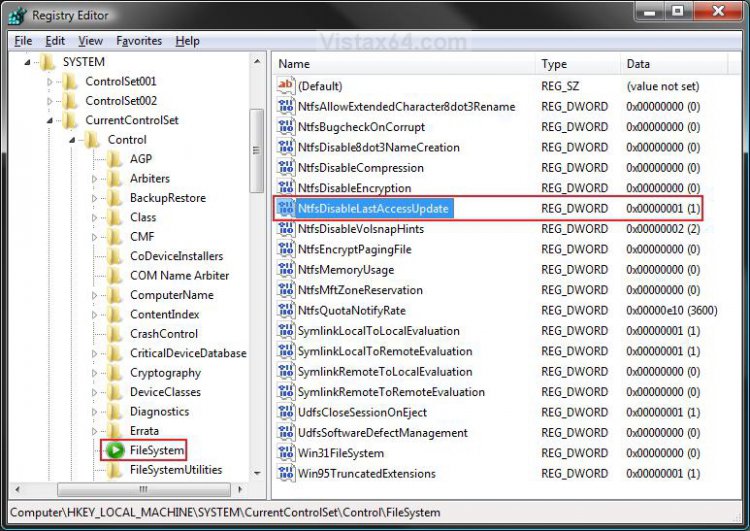
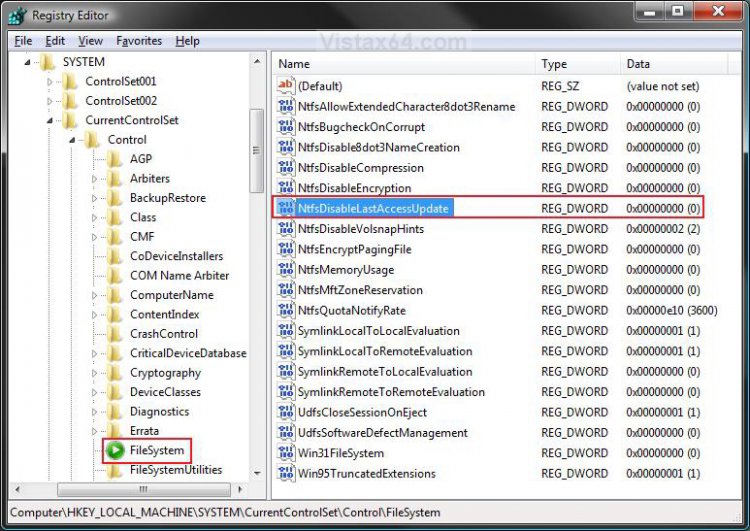
4. In regedit, go to: (See screenshot below)
HKEY_LOCAL_MACHINE\SYSTEM\CurrentControlSet\Control\FileSystem
5. To Enable Last Access Updating
A) In the right pane, right click on NtfsDisableLastAccessUpdate and click on Modify. (See screenshot above)
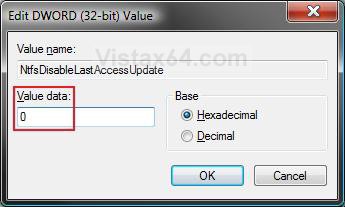
B) Type 0 (number zero) and click on OK. (See screenshot below)
C) The registry will now look like this. (See sceenshot below)
D) Go to step 7.
6. To Disable Last Access Updating
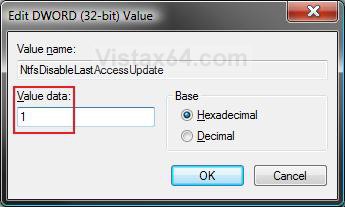
A) In the right pane, right click on NtfsDisableLastAccessUpdate and click on Modify. (See screenshot above)
B) Type 1 and click on OK. (See screenshot below)
C) The registry will now look like the screenshot under step 4.
7. Close regedit.
8. Restart the computer to apply the changes.
That's it,Shawn
Attachments

Last edited: